HDR (which stands for High Dynamic Range) makes videos and pictures look brighter and more colorful on your screen. When HDR is turned on, movies, games, and videos that support HDR look more vibrant and real.
Starting with Windows 11 build 27686.1000, there is a new setting called
“Allow HDR video streaming even when HDR is off”. This lets you watch HDR videos even if the main HDR option is turned off.
How to Turn On or Off “Allow HDR Video Streaming Even When HDR Is Off”
Follow these simple steps to enable or disable this feature using Windows Settings:
- Open Windows Settings:
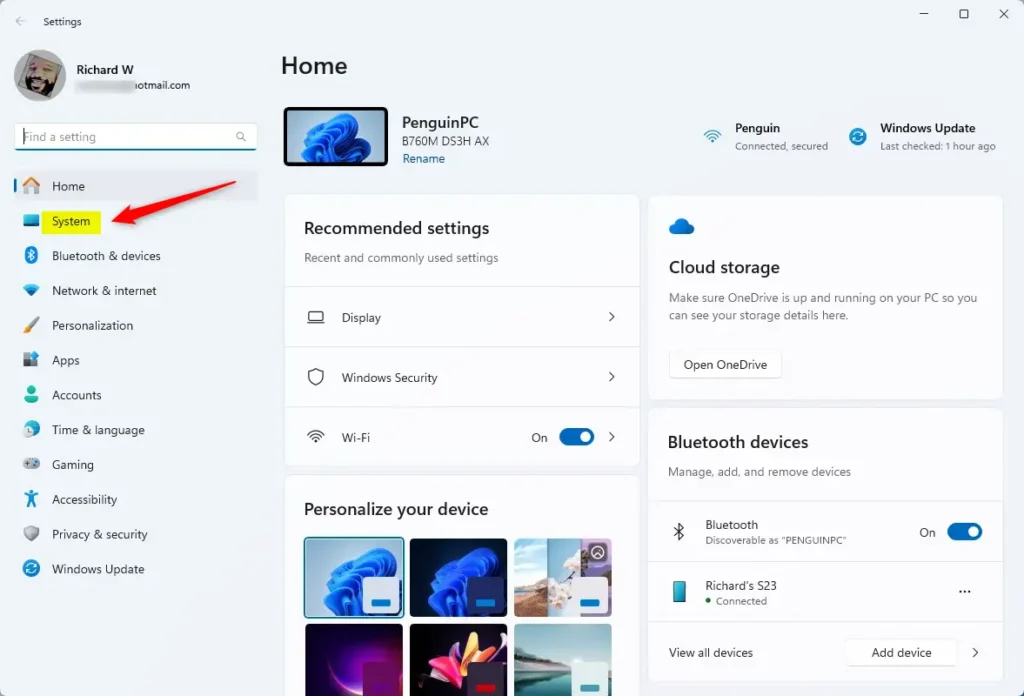
Click the Start menu button (the Windows icon) and select Settings, or simply press Windows key + I on your keyboard. - In the Settings window, click System on the left panel.
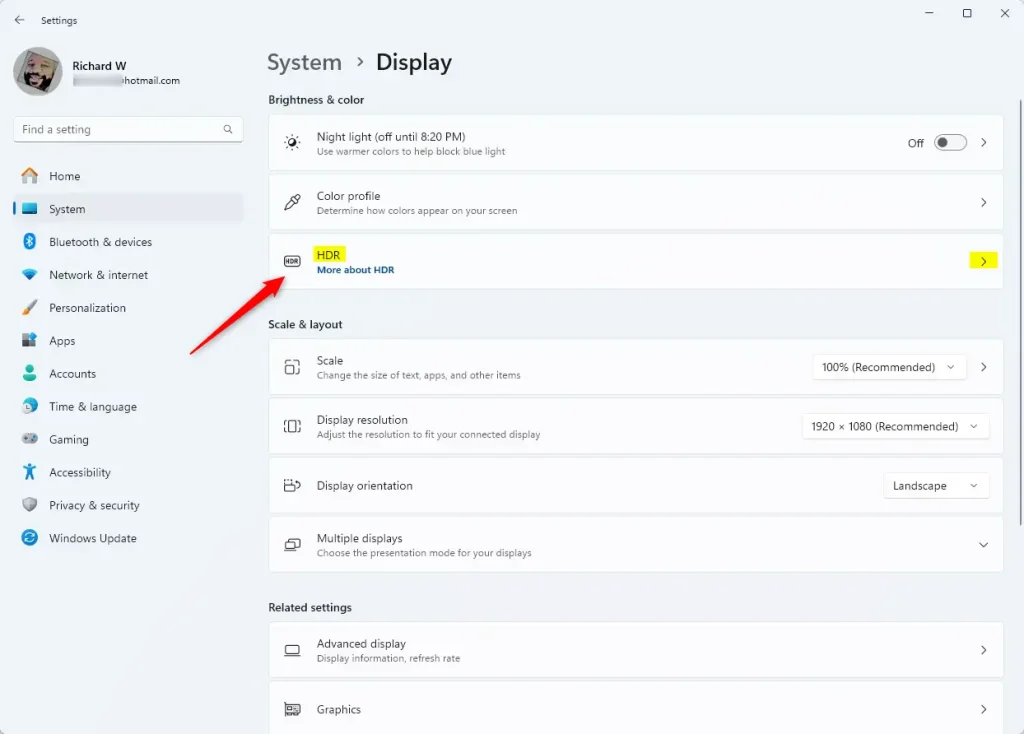
- On the right side, click Display.

- Scroll down and click the HDR section to open it.
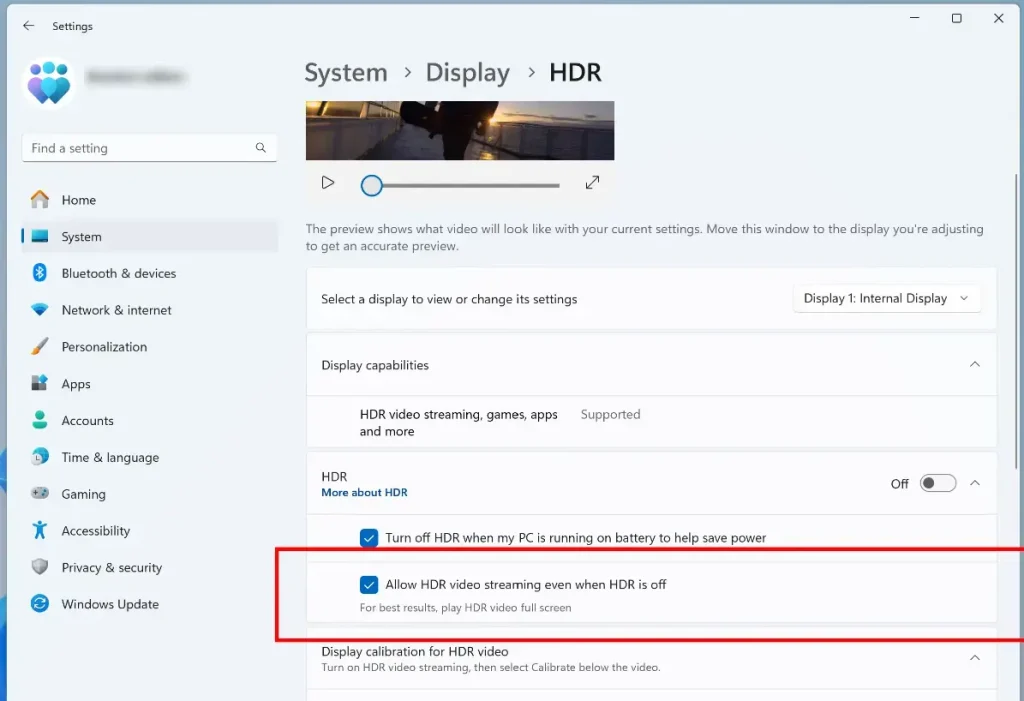
- Find the checkbox that says “Allow HDR video streaming even when HDR is off”. Check it to turn on this feature or uncheck it to turn off.
- Close the Settings app when you’re done.
How to Turn On or Off This Feature Using Windows Registry Editor (Advanced)
If you prefer, you can also turn this feature on or off by using the Windows Registry Editor. Please be careful when editing the registry.
- Open the Registry Editor by typing
regeditin the Start menu and pressing Enter.
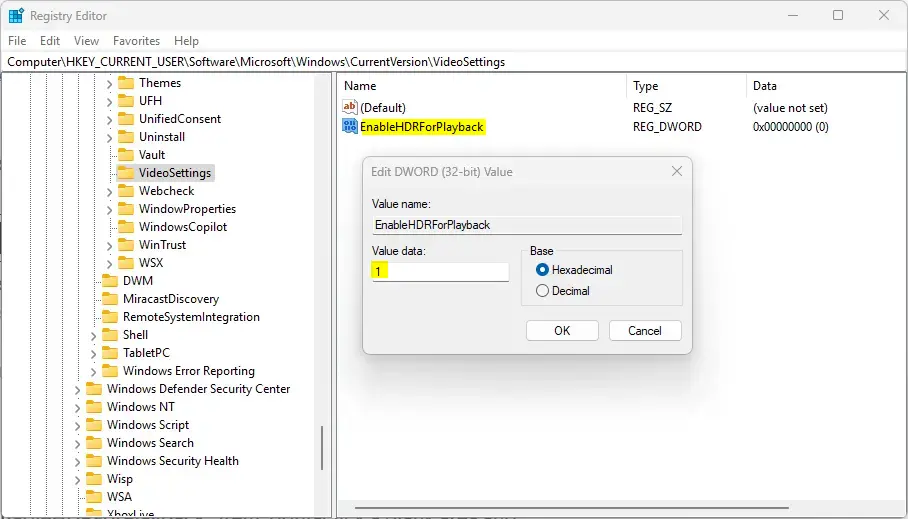
- In Registry Editor, go to this folder path:
Computer > HKEY_CURRENT_USER > Software > Microsoft > Windows > CurrentVersion > VideoSettings
- On the right side, find the item named
EnableHDRForPlayback. Double-click it.
If you don’t see it, right-click on empty space, choose New > DWORD (32-bit) Value, and name itEnableHDRForPlayback.
- To turn on HDR video streaming, set its value to
1. To turn off, set the value to0.
- Click OK, close Registry Editor, and restart your PC for the changes to take effect.
Summary
- HDR makes videos and images look brighter and more colorful on your Windows 11 PC.
- The new setting “Allow HDR video streaming even when HDR is off” lets you watch HDR videos without turning on full HDR.
- You can turn this feature on or off easily in Windows Settings or by editing the Registry.
- Use the method that feels easiest for you, and enjoy better video colors!
If you want to learn more about HDR or Windows 11 features, check out this helpful guide.


Leave a Reply Cancel reply