How to Enable or Disable Adaptive Color in Windows 11

Ever notice how your screen colors seem to shift with the light in your room? That’s Adaptive Color in Windows 11 at work. It automatically adjusts your display’s color temperature (the warmth or coolness of the colors) to match the ambient light in your room, aiming to improve viewing comfort and color accuracy.
This feature, sometimes called Content Adaptive Brightness Control (CABC) for color, is something you can manage right in your Windows 11 Settings app.
To manage Adaptive Color, you’ll navigate to the Display settings, specifically the “Brightness & color” section. You can toggle it off if you find it distracting or wish to maintain a consistent color output without automatic adjustments.
Navigate to Settings, then Display. Under the “Brightness & color” section, toggle the Adaptive color switch to On or Off. This feature adjusts screen color temperature based on ambient light for viewing comfort.
What is Adaptive Color?
Adaptive Color in Windows 11 is a smart feature that adjusts your screen’s colors based on the light in your room, making it easier on your eyes.
This helps your eyes feel more comfortable and makes your screen easier to see in various lighting situations.
Why Use Adaptive Color?
- Comfortable Viewing: Your screen colors change to match the light around you. Your eyes don’t get tired as quickly.
- Less Eye Strain: It’s like reading a book under the right light. Your screen won’t be too bright or too harsh.
- Better Focus: When your screen adjusts to your environment, you can work or read longer without feeling tired.
- Smart Screen: It works quietly in the background. You get the best picture without needing to do anything.
Using Adaptive Color in Windows 11 makes viewing your screen more comfortable by automatically matching colors to your surroundings, which helps reduce eye strain.
How to Turn On or Off Adaptive Color in 🪟 Windows 11
You can easily turn Adaptive Color on or off in Windows 11 by going to Settings, then Display, and toggling the switch.
- Open the Settings app. Click the Start menu and select Settings, or press Windows key + I on your keyboard to open Settings quickly.
- In Settings, click on Display from the left menu.
- Look for the Adaptive color option in the Display settings.
- Toggle the switch to On to enable Adaptive Color, or Off to disable it .
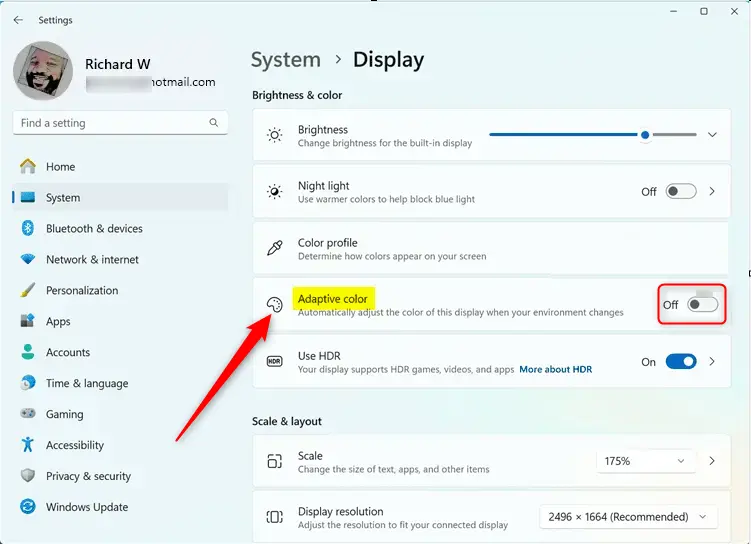
Tip: You might need to restart your computer for the change to take effect.
What Happens Behind the Scenes?
When you change Adaptive Color settings in Windows 11, the system updates a specific location in the Windows registry to remember your choice.
HKEY_LOCAL_MACHINE\SYSTEM\CurrentControlSet\Services\DisplayEnhancementService\StateUniqueDisplayIDThe UniqueDisplayID is unique to your computer’s display hardware.
Values:
- 0 = Adaptive Color is Off
- 1 = Adaptive Color is On
Summary
- Adaptive Color makes your screen colors change based on the light around you.
- This makes viewing easier and more comfortable.
- It helps reduce eye strain. You can work comfortably for longer periods.
- You can turn it on or off anytime in the Display section of the Settings app.
- Sometimes you need to restart your PC for the changes to work properly.
Adaptive Color in Windows 11 automatically adjusts your screen’s colors to match ambient light, making viewing more comfortable and reducing eye strain.
More info: Visit Microsoft’s Adaptive Color page for technical details.

What is adaptive color in Windows?
Adaptive Color automatically adjusts a device's display white point to match its environment using an ambient color sensor.
How do I turn off adaptive color in 🪟 Windows 11?
1 – Go to Settings > System > Display: Under Brightness, ensure Change brightness based on content is off. Check Night light settings. Go to Color Profile, ensure Automatically manage color for apps is off.
Was this guide helpful?

About the Author
Richard
Tech Writer, IT Professional
Richard, a writer for Geek Rewind, is a tech enthusiast who loves breaking down complex IT topics into simple, easy-to-understand ideas. With years of hands-on experience in system administration and enterprise IT operations, he’s developed a knack for offering practical tips and solutions. Richard aims to make technology more accessible and actionable. He's deeply committed to the Geek Rewind community, always ready to answer questions and engage in discussions.




No comments yet — be the first to share your thoughts!