How to Enable or Disable Animation Effects in Windows 11

You enable or disable animation effects in Windows 11 to control visual transitions like window sliding and fading.
These animations enhance user experience but can consume CPU cycles, impacting PC performance, especially on older hardware.
Disabling animations can free up system resources, potentially speeding up your Windows 11 PC for a tangible performance boost.
You can enable or disable animation effects in Windows 11 by going to Settings > Accessibility > Visual effects. Toggle the “Animation effects” switch to your desired setting to immediately change how windows and menus transition.
Why change these settings?
You might want to turn these off if you prefer a snappy, instant feel when clicking through your apps. If you enjoy a polished, fluid look, keep them on.
What happens when done?
What happens when you change these settings? The interface will react immediately to your clicks without the extra transition effects. Your computer may feel faster because it no longer spends time rendering those animations.
How to adjust Animation effects
You can turn Windows 11 animation effects on or off right from the main Settings app without needing special permissions.
- Open the Windows Settings app Settings app.
- Click on Accessibility in the menu on the left.
- Select the Visual effects tile on the right side of the window.
On this screen, look for the Animation effects option. Click the toggle switch to turn it On or Off based on your preference.
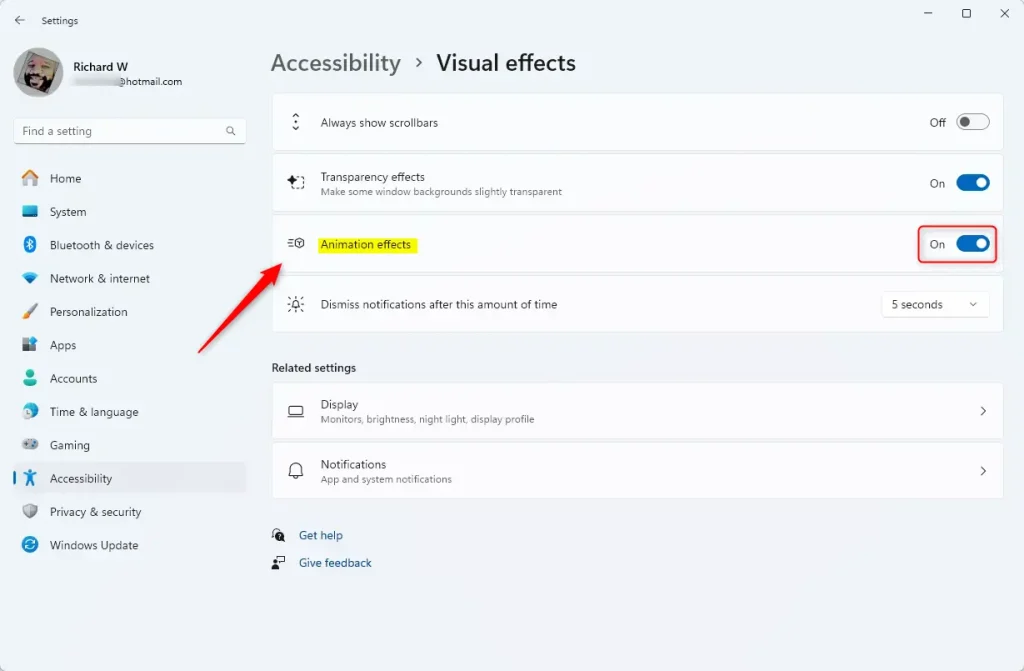
Close the Settings app when you are finished.
Summary
Animation effects are the visual transitions that occur when you interact with Windows 11. You can use the Accessibility menu to toggle these effects. Turning them off can make your computer feel more responsive, while keeping them on provides a more fluid and visually appealing experience.
Was this guide helpful?

About the Author
Richard
Tech Writer, IT Professional
Richard, a writer for Geek Rewind, is a tech enthusiast who loves breaking down complex IT topics into simple, easy-to-understand ideas. With years of hands-on experience in system administration and enterprise IT operations, he’s developed a knack for offering practical tips and solutions. Richard aims to make technology more accessible and actionable. He's deeply committed to the Geek Rewind community, always ready to answer questions and engage in discussions.



No comments yet — be the first to share your thoughts!