How to Delete Windows.old Folder in Windows 11

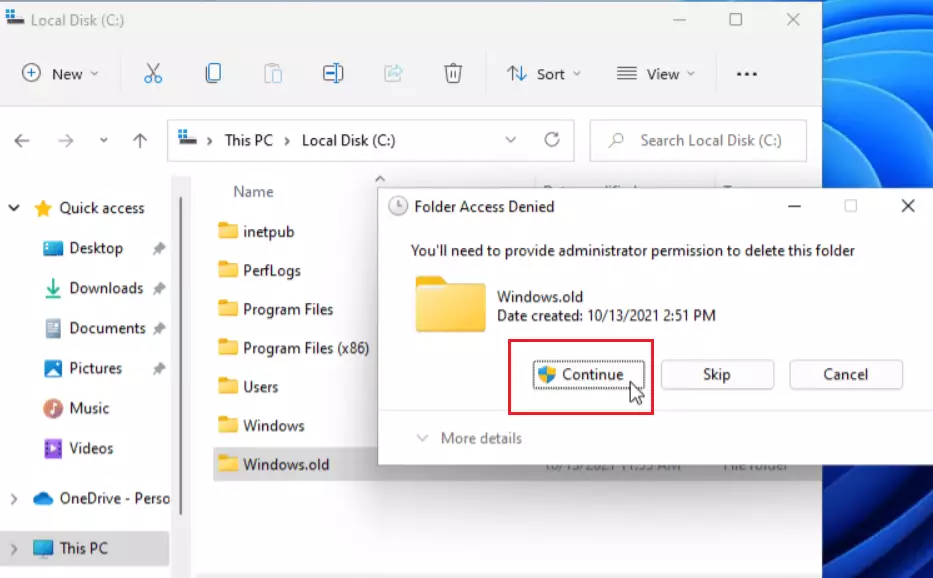
You can delete the Windows.old folder in Windows 11 to reclaim significant storage space on your C: drive.
The Windows.old folder is a backup created automatically after a major Windows upgrade, such as moving from Windows 10 to Windows 11. It contains your previous operating system files, allowing you to roll back if necessary within a 10-day window.
After this period, or if you are confident you won’t revert, you can safely remove it. This folder can often be tens of gigabytes, sometimes exceeding 20GB, making its removal a popular disk cleanup task.
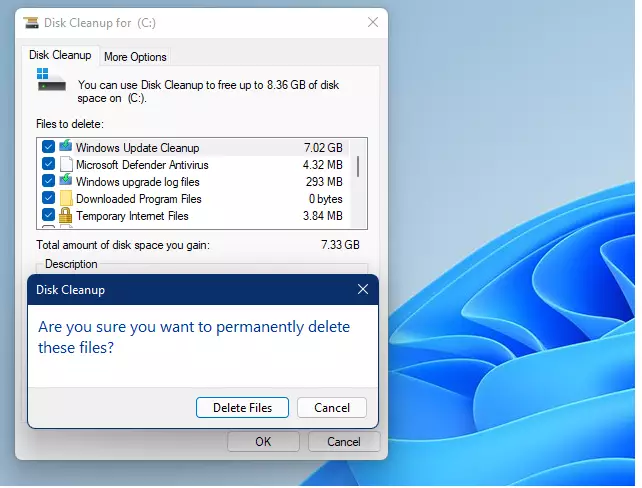
Use Disk Cleanup by searching for it, clicking “Cleanup system files,” checking “Previous Windows installation(s),” and clicking OK. Alternatively, use Command Prompt with administrator privileges and type `rd /s /q 📁C:\Windows.old`.
Why delete the Windows.old folder?
The Windows.old folder stores files from your previous Windows version after an upgrade, but it can take up a lot of space, often 10GB to 30GB.
What happens when done?
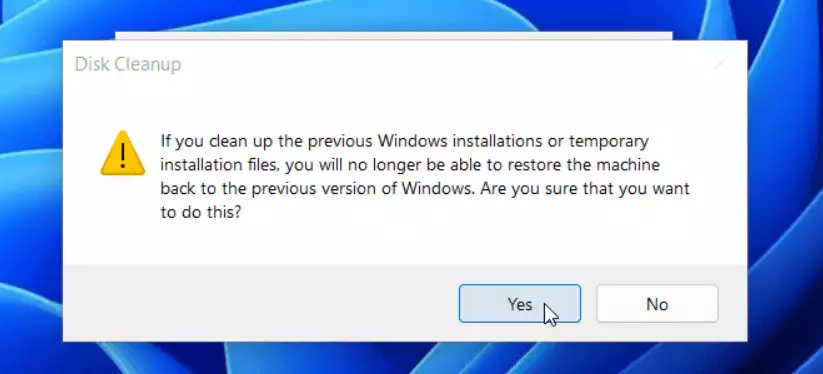
Deleting the Windows.old folder frees up significant disk space, but it permanently removes your ability to easily revert to your previous Windows version through the Settings menu.
How to use Disk Cleanup (Recommended)
Using the Disk Cleanup tool is the recommended and safest method to delete the Windows.old folder, as Windows handles the process properly.
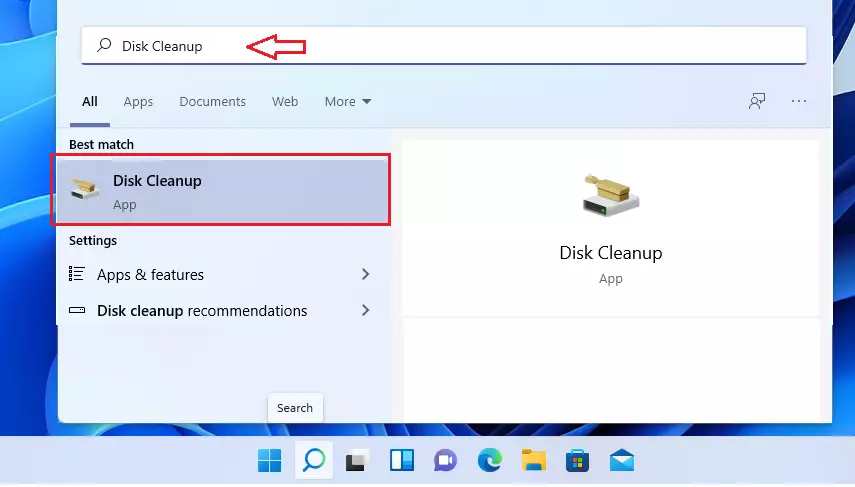
- Click the Start button and search for Disk Cleanup.
- Select the app from the list.
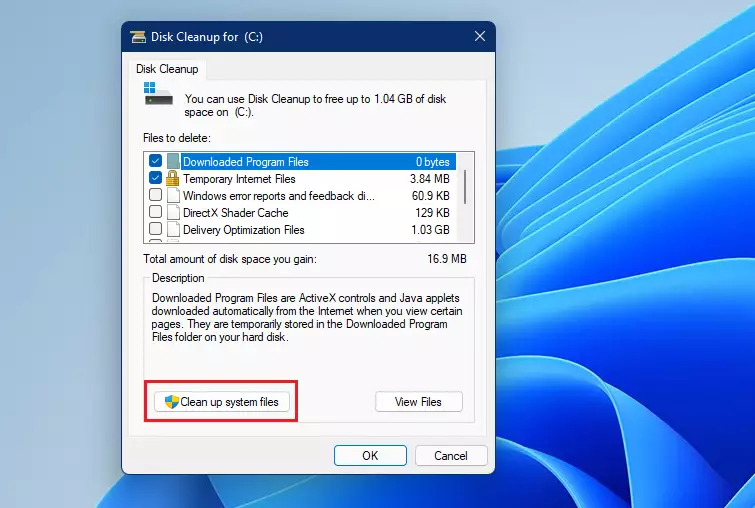
- Click the Cleanup System Files button. (Requires administrator privileges).
- The tool will scan your drive. This might take a few minutes.
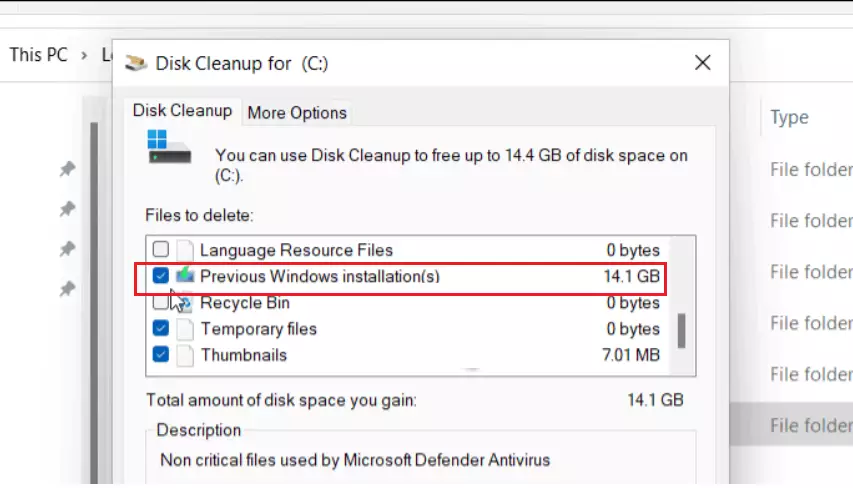
- Look for Previous Windows installation(s) in the list.
- Check the box and click OK.
How to use Command Prompt for stubborn files
If the Windows.old folder won’t delete using regular methods, you can use the Command Prompt to force its removal with a specific command.
- Search for cmd in the Start menu.
- Right-click it and select Run as administrator.
- Type the following command and press Enter:Code
rd /s /q C:\Windows.old
This command tells Windows to remove the directory (rd) with all subfolders (/s) and without asking for confirmation (/q).
Automating cleanup with Storage Sense
You can let Windows handle this automatically. Go to Settings > System > Storage > Storage Sense. Turn it on, and Windows will automatically delete temporary files and old installation folders when you are low on space.
Troubleshooting: What if it still won’t delete?
If you still see the folder, run the System File Checker. Open Command Prompt as an administrator and type
sfc /scannow
to repair any system file issues that might be preventing the deletion. For more details, visit the official Microsoft Support page.
Summary
The Windows.old folder holds files from your previous Windows version, and you can delete it to free up storage space if you don’t plan to revert.Is it safe to delete Windows.old?
Yes, it is perfectly safe to delete the Windows.old folder if you are satisfied with your current Windows 11 installation. It contains temporary system files from your previous OS. Deleting it simply removes the ability to easily roll back your system to the older version using built-in Windows tools.





No comments yet — be the first to share your thoughts!