If you share your computer with others or have old accounts you no longer use, it’s a good idea to remove those accounts. This helps keep your computer clean, safe, and running smoothly.
Why Remove User Accounts?
- Clear out old or unused accounts to reduce clutter.
- Improve your computer’s security by removing accounts that no longer need access.
- Make it easier to manage who can use your PC.
How to Delete User Accounts Using Windows Settings
Windows 11 lets you manage accounts easily from the Settings app.
Step 1: Press the Windows key + I on your keyboard to open Settings.
Or, click the Start button (the Windows logo) and then click Settings.
Or, click the Start button (the Windows logo) and then click Settings.

Step 2: In the Settings window, click on Accounts.
Step 3: On the right side, click Family & Other Users.
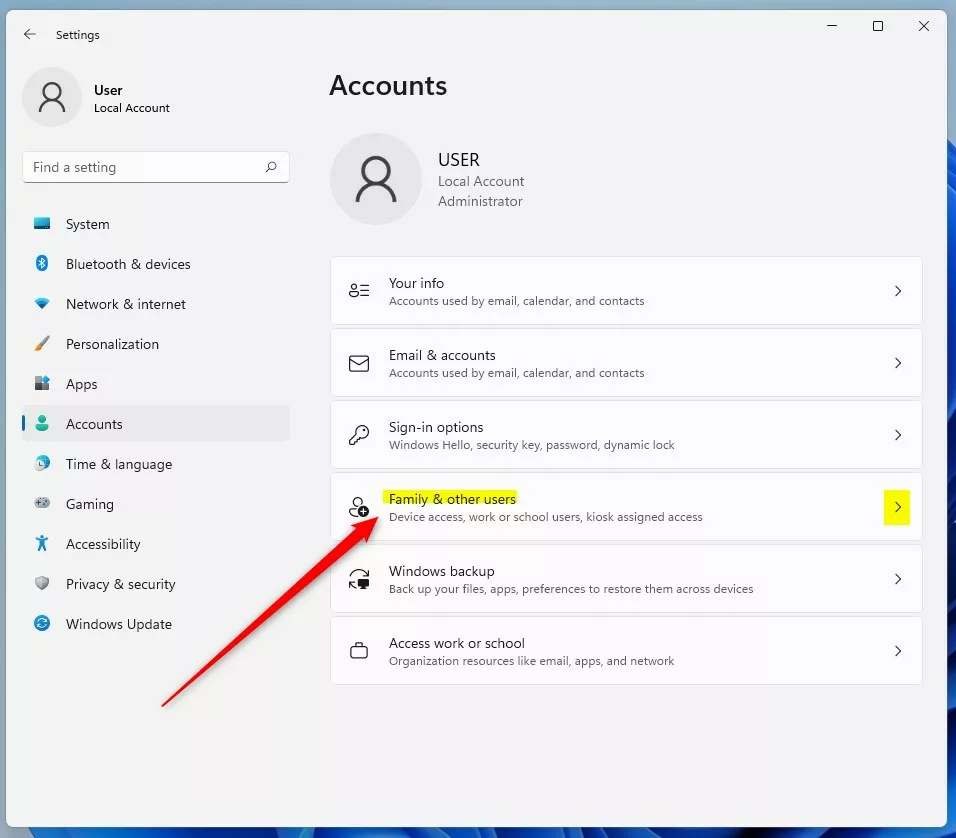
Step 4: Find the user account you want to remove under Other users. Click on the account to open options.
Step 5: Click the Remove button.
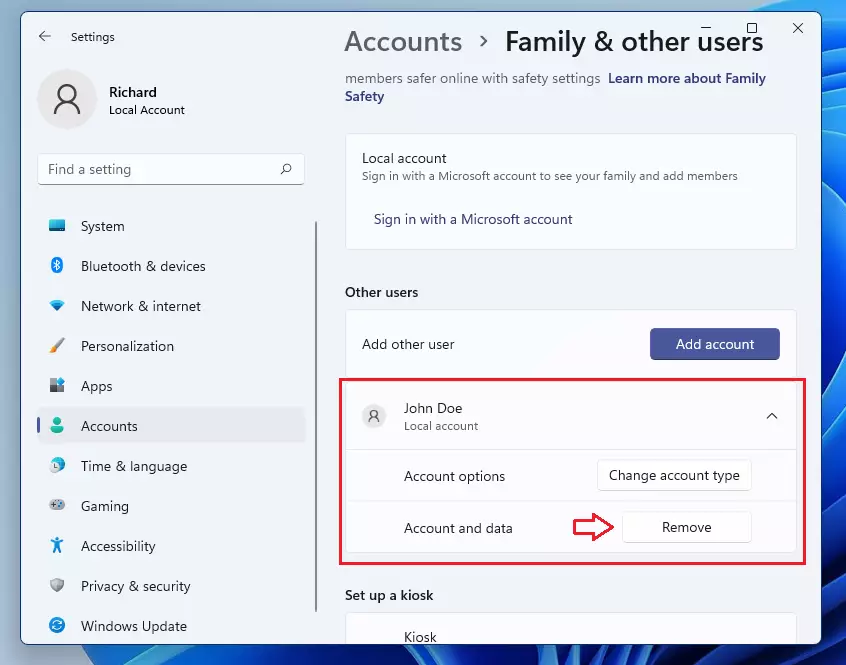
Step 6: A box will pop up asking you to confirm. Click Delete account and data to finish.
Note: This will delete the user account and everything saved under it, like files and settings.
How to Remove a Microsoft Account Using Control Panel
If the above method doesn’t work for some reason, you can also delete accounts using the Control Panel.
Step 1: Open the Start menu and type Control Panel in the search box. Click the Control Panel app to open it.
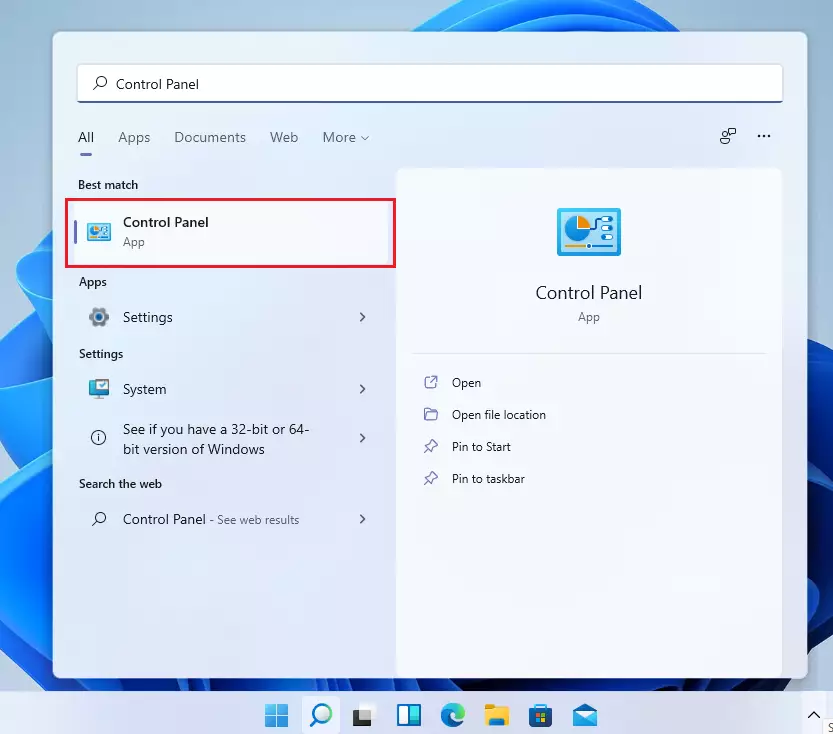
Step 2: In Control Panel, click on User Accounts.
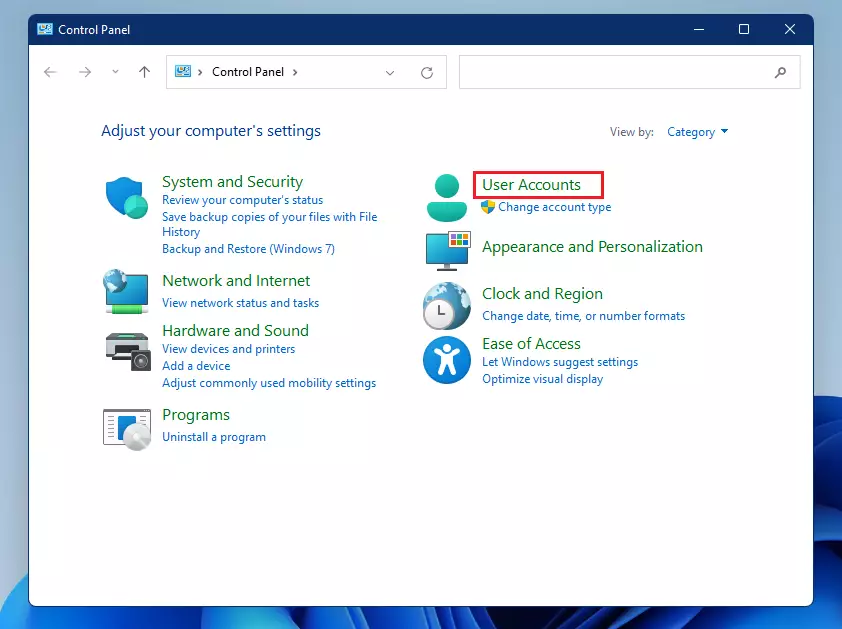
Step 3: Click Remove User Account.
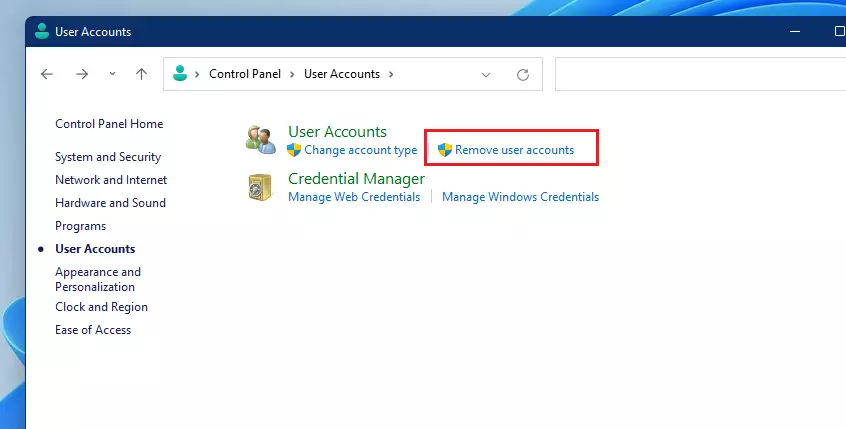
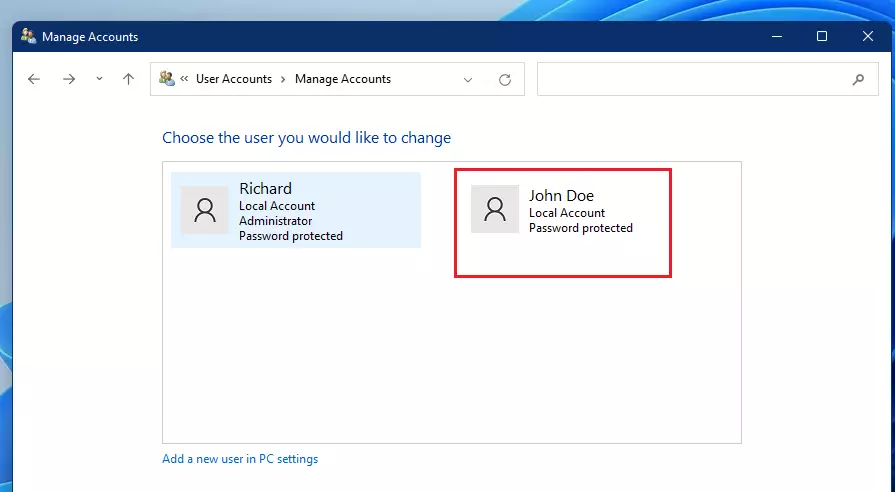
Step 4: Select the user account you want to delete.
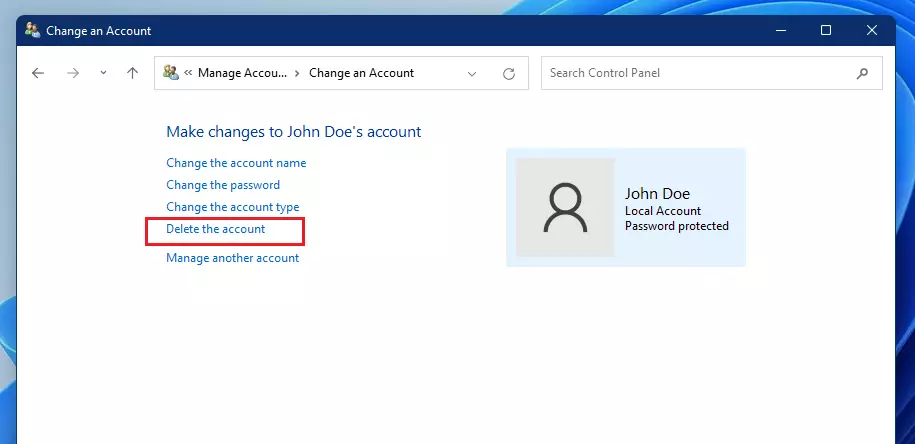
Step 5: Click the Delete the Account link.
Step 6: Choose whether to delete the user’s files or keep them. Then click your choice to delete the account.
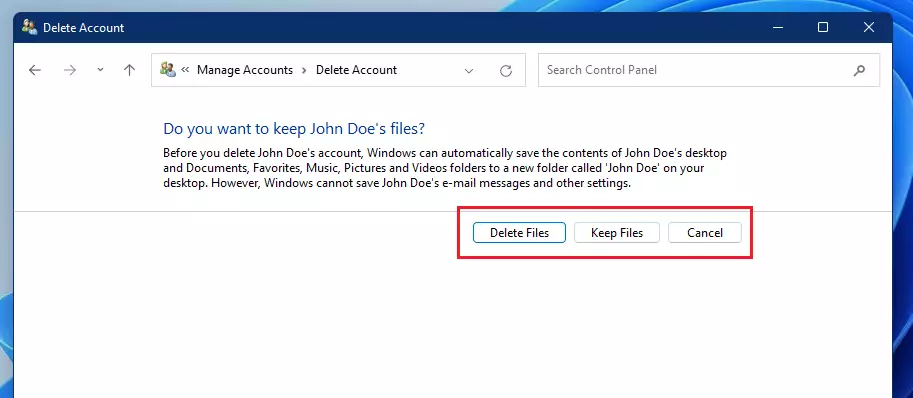
That’s it! The account will be removed from your PC.
Summary
- Deleting old user accounts keeps your computer clean and safer.
- You can remove accounts from the Settings app or the Control Panel.
- Be careful: deleting an account can also delete all files saved under that account.
- Always double-check which account you are deleting to avoid losing important data.
For more tips about Windows 11, you can visit the official Microsoft support page: Microsoft Windows Support.
Leave a Reply