
What is Copilot Memory?
Microsoft Copilot is a smart helper that learns about you. When you sign in with your Microsoft account, it remembers things from your chats. For example, it might remember that you like bullet points or prefer Python programming.
Why does this matter? Copilot uses these memories to give you faster, more personal help next time.
What happens when you delete memories? Copilot will forget those details. This helps protect your privacy or lets you reset your preferences.
How to Delete Copilot Memory
Option 1: Using the Copilot App on Windows 11
- Open the Copilot app on your Windows 11 PC.
- Sign in with your Microsoft account if needed.
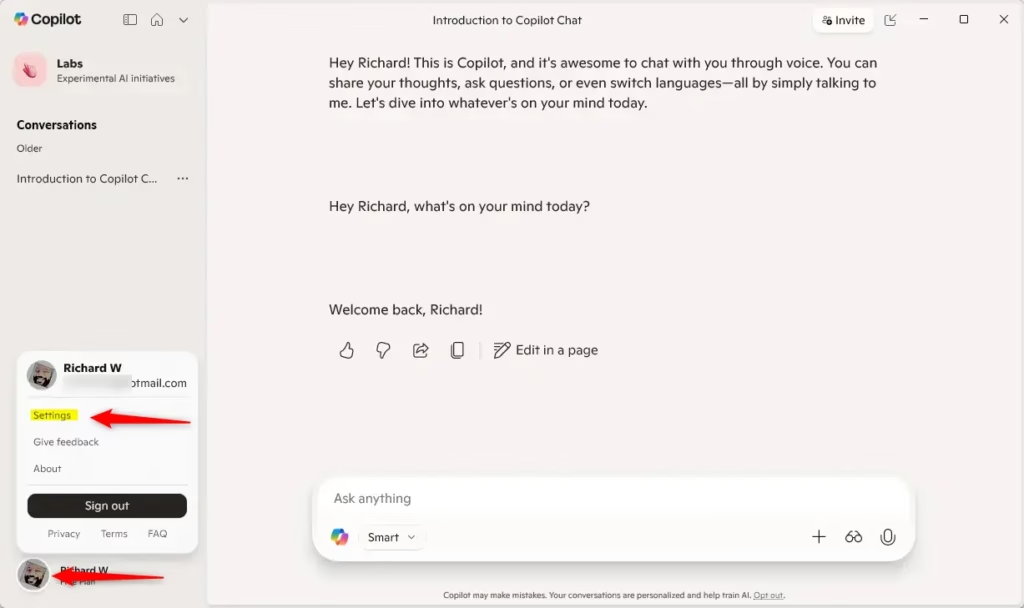
- Make sure Copilot is in full view. Then click the Account button on the sidebar and choose Settings.
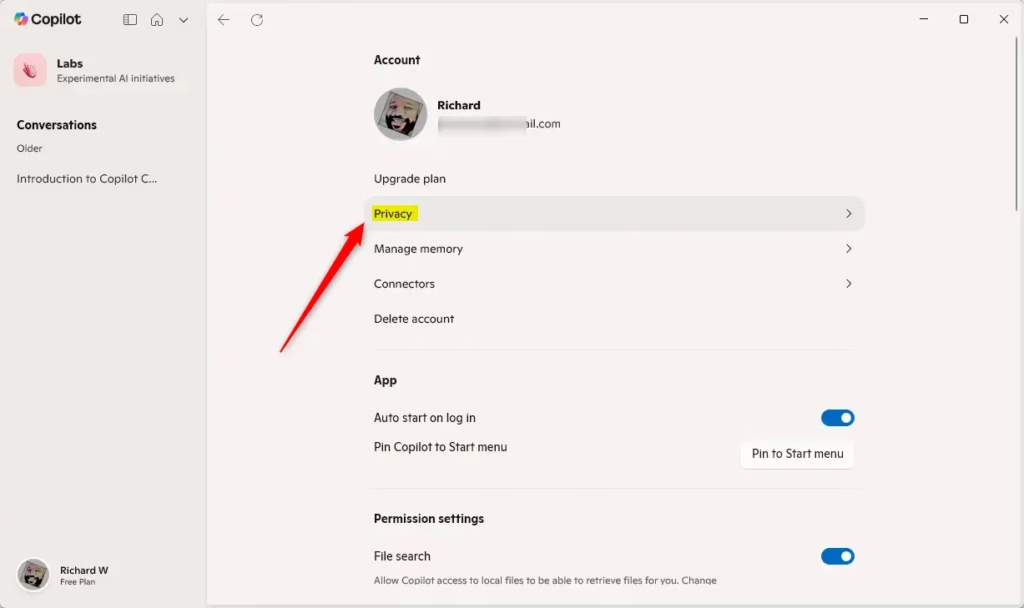
- Click on Privacy.
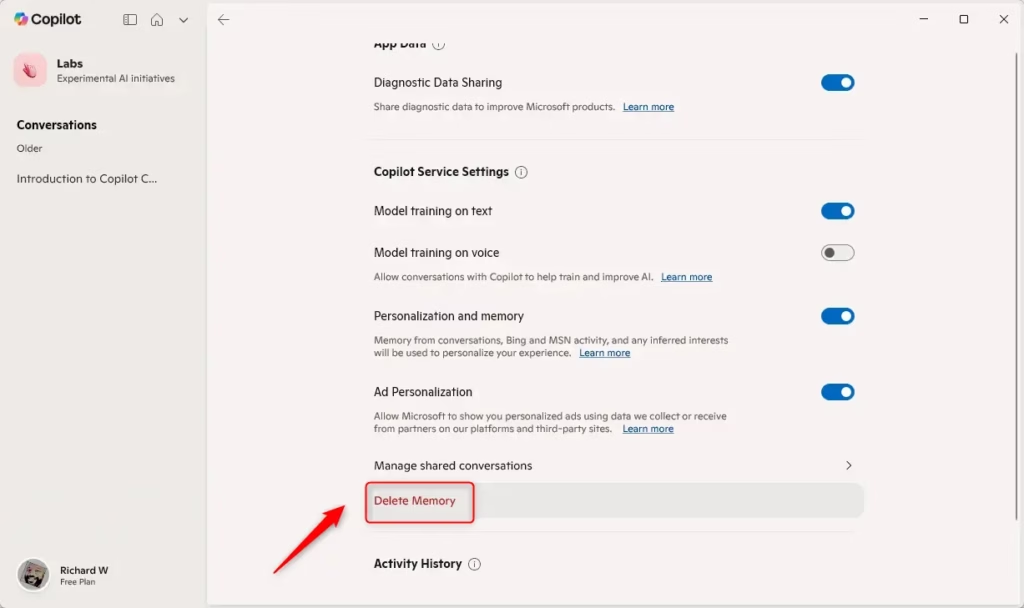
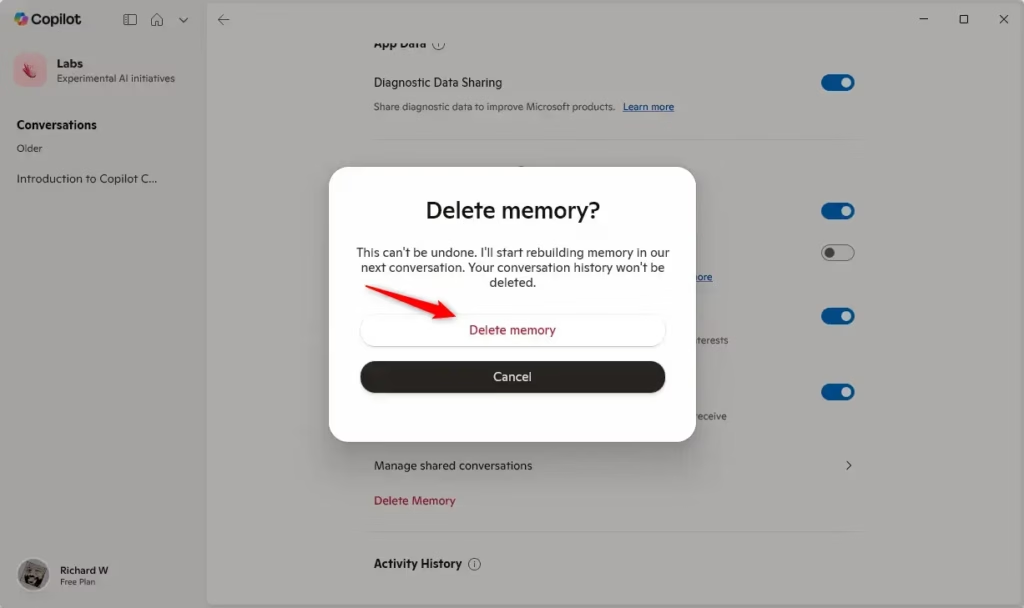
- To delete all memories: Click Delete Memory at the bottom. Then click Delete Memory again to confirm.
- To delete specific memories:
- Click Manage memory.
- Find the memory you want to remove and click the trash can icon.
- Click Delete to confirm.
- Close the settings when you’re done.
Option 2: Using Microsoft Edge Browser
- Open Microsoft Edge on your computer.
- Sign in to Edge with your Microsoft account if you haven’t already.
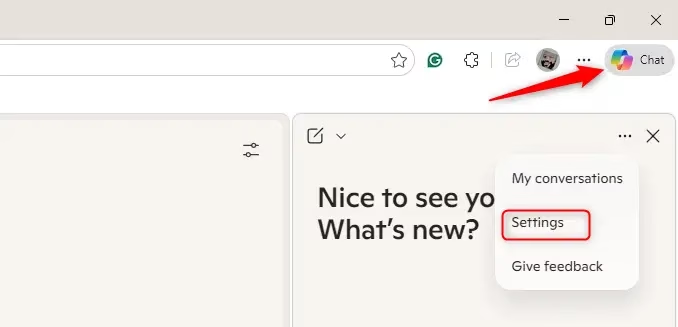
- Click the Copilot icon on the toolbar.
- Click the More options button (3 dots). Then select Settings.
- Go to the Privacy section.
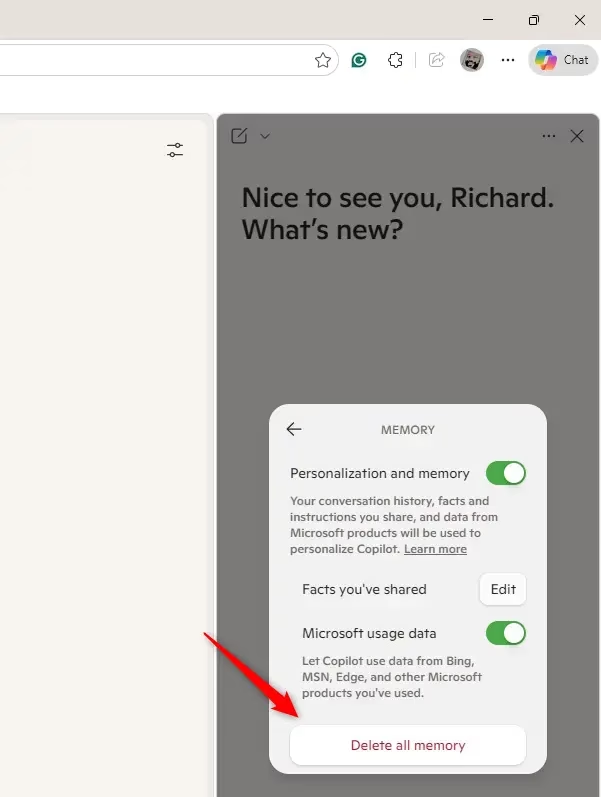
- Click Manage personalization and memory.
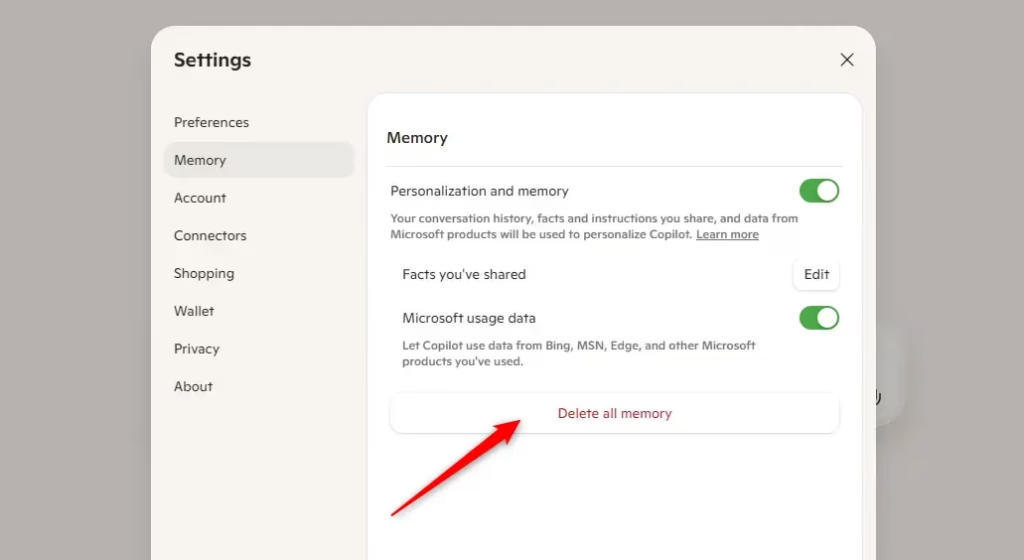
- To delete all memories: Click Delete all memory. Then click it again to confirm.
- To delete specific memories:
- Click Edit next to “Facts you’ve shared.”
- Click the trash can icon for the memory you want to remove.
- Click Delete to confirm.
- Close settings when finished.
Option 3: Using the Copilot Website
- Go to the Copilot website.
- Sign in with your Microsoft account if needed.
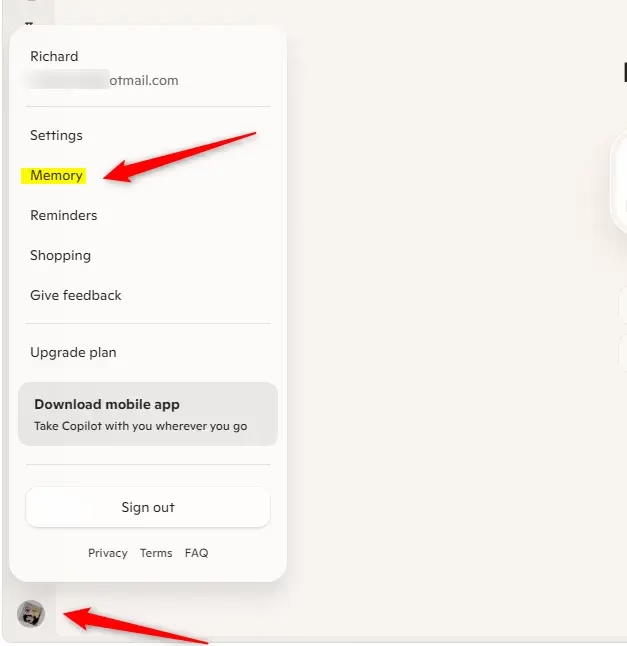
- Click the Account button (your profile picture) on the sidebar. Then select Memory.
- To delete all memories: Click Delete all memory. Then click it again to confirm.
- To delete specific memories:
- Click Edit next to “Facts you’ve shared.”
- Click the trash can icon next to the memory you want to delete.
- Click Delete to confirm.
- Close settings when done.
Tip: Regularly checking and managing your Copilot memory helps protect your privacy. It also keeps your assistant personalized the way you want.
Learn More About Copilot
Want to know more? Check out these resources from Microsoft:
- Introducing Copilot Memory – Microsoft Community Hub
- Personalize What Microsoft 365 Copilot Remembers – Microsoft Support
- Microsoft Copilot Privacy Controls – Microsoft Support
Summary
Here’s what you need to know about Copilot memory:
- Personalized Help: Copilot uses your saved memories to give better, faster assistance.
- Easy Management: You can delete all or some memories anytime. Use the app, Edge browser, or website.
- You’re in Control: Choose what Copilot remembers. Keep your experience exactly how you like it.
- Privacy Matters: Clearing memories regularly keeps your info safe.
- Stay Updated: Check for new Copilot features to keep using it effectively.
Follow these steps and you’ll have more control over your Copilot assistant and your privacy.


Leave a Reply