

This post explains how to remove or delete all system restore points except the most recent one in Windows 11.
When a drive is added to System protection, Windows creates restore points so one can revert unneeded changes and go back to a previous good state.
A restore point is the state of your computer that Windows captures and saves on a system partition that can be used to restore the computer in the event of a disaster.
Windows lets you change how frequently a restore point is taken and list all available restore points.
If you run out of storage space and want to quickly remove all restore points except the most recent one, the steps below show you how.
Remove all restore points except the most recent one
As described above, Windows lets you clean up your disk space by deleting all restore points except the most recent one using the Disk Cleanup tool.
Here’s how to do it.
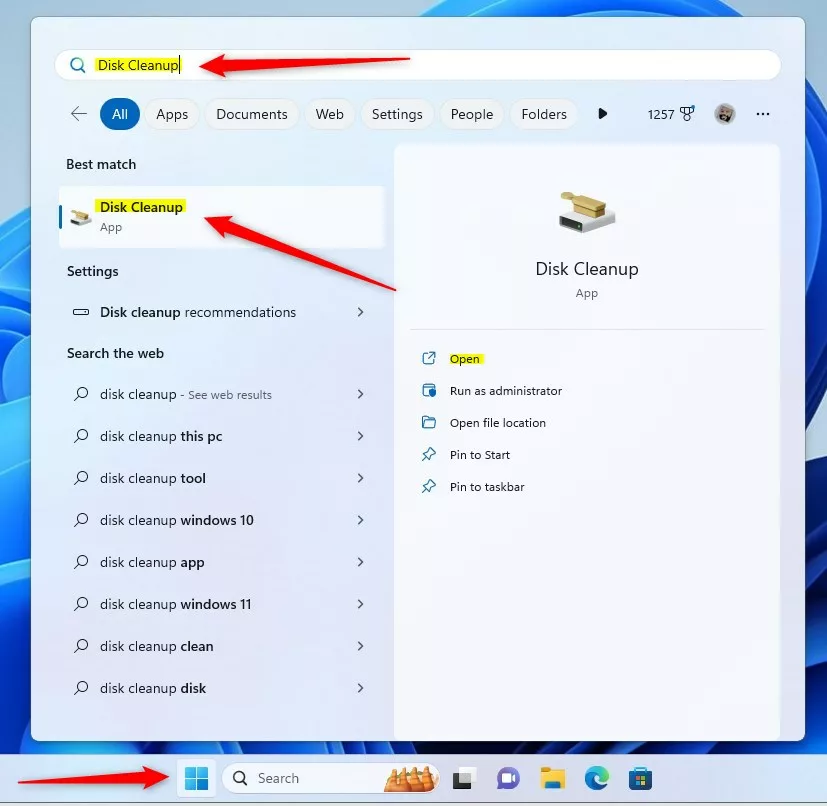
To do that, click the Start menu and search for Disk Cleanup. Then, under Best match, select the Disk Cleanup app.
When the Disk Cleanup app opens, click the “Clean up system files” button.
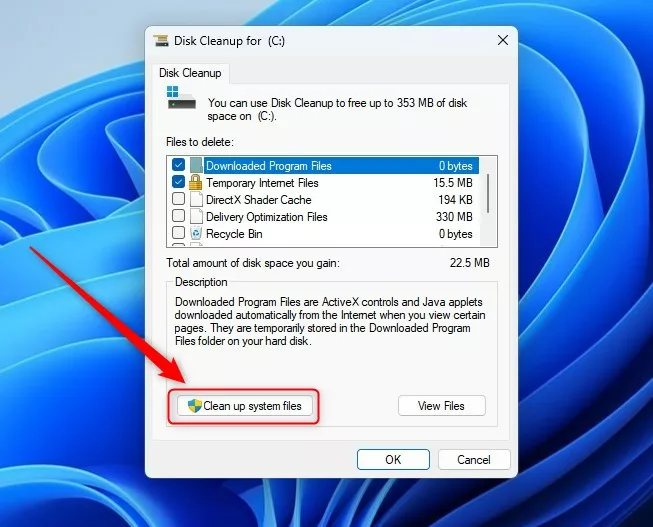
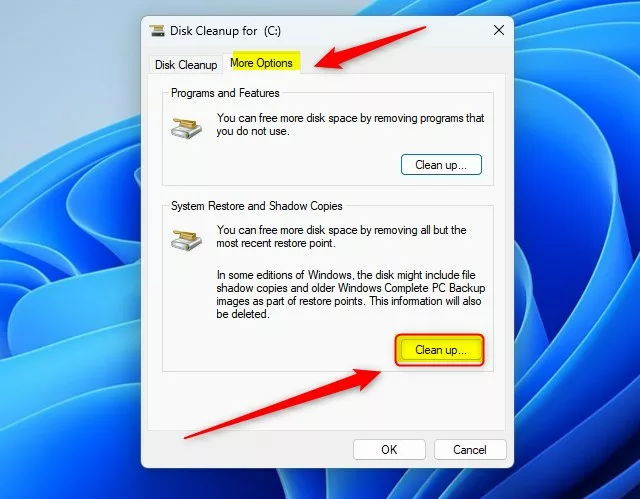
Doing that will allow Windows to scan your device for all system files. Then, after reviewing your device’s filesystem, select the More Options tab.
On the More Options tab, under System Restore and Shadow Copies, select the Clean up button highlighted below.
When you click the Clean up button, a message will pop up (“Are you sure you want to delete all but the most recent restore point?“), asking you to confirm.
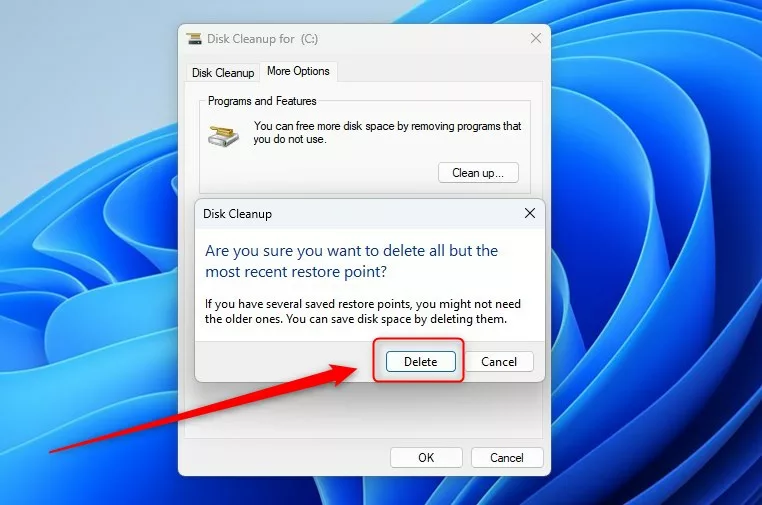
Click the Delete button to delete all restore points except the most recent one.
Click Yes, then OK.
Finally, another message will appear: “Are you sure you want to perform these actions?”
Click Yes.
That should do it!
Conclusion:
- Cleaning up restore points in Windows 11 is crucial for managing disk space effectively and ensuring faster system performance.
- With the Disk Cleanup tool, users can easily remove all but the most recent restore point, streamlining their storage and maintaining system stability.
- Regular maintenance of restore points is essential for optimizing system resources and preventing storage concerns.



Leave a Reply to Enabling or Disabling System Restore on Windows 11 – Geek Rewind Cancel reply