How to Manage Your Addresses in Microsoft Edge Wallet

You manage your addresses in Microsoft Edge Wallet by accessing the Wallet settings within the browser. Microsoft Edge Wallet securely stores your payment information and addresses, making online shopping faster and more convenient.
This feature, integrated into the Chromium-based Edge browser, allows you to add, edit, and delete shipping and billing addresses directly. For example, you can store up to 10 distinct addresses for quick form autofill.
Keeping your address information current in Edge Wallet ensures that when you shop online, your orders go to the right place. It prevents the frustration of mistyping details or using outdated information at checkout.
When you update your addresses, they become instantly available for autofill across all your signed-in devices. This means your shipping and billing details are always accurate and ready to go.
Open Microsoft Edge, click the three dots, select Settings, then Profiles, and finally Wallet. Click Personal info to add new addresses or delete existing ones by clicking the three dots next to an address.
Add or delete saved address in Microsoft Edge Wallet
Keeping your saved addresses tidy in your Microsoft Edge Wallet is simple; you can add new ones or delete old ones anytime to make sure your information is current.
To manage your saved addresses, follow these steps:
- Open the Microsoft Edge browser.
- Click the three horizontal dots in the top right corner and select Settings.
- On the left menu, click Profiles.
- Select Wallet.
Alternatively, you can go directly to your wallet by typing edge://wallet into your address bar and pressing Enter.
Once you are in the Wallet dashboard:
- Click on the Personal info tab.
- To remove an address, click the three dots next to the address and select Delete.
- To add an address, click the Add address button in the top right corner and enter your details.
Close the settings tab when you are finished.
Turn On or Off Autofill address in Microsoft Edge via the Registry Editor
You can stop Microsoft Edge from automatically filling in your addresses by making a small change in the Windows Registry Editor.
To use this method, open the Windows Registry editor and navigate to this path:
🗝️HKEY_LOCAL_MACHINE\SOFTWARE\Policies\Microsoft\Edge
If the Edge folder does not exist, right-click the Microsoft folder, select New, and create a key named Edge.

Right-click in the empty space on the right side, select New, and choose DWORD (32-bit) Value. Name it AutofillAddressEnabled.
Now, double-click on AutofillAddressEnabled to change its settings:
- To turn off autofill, set the value to 0.
- To turn on autofill, delete the AutofillAddressEnabled item.
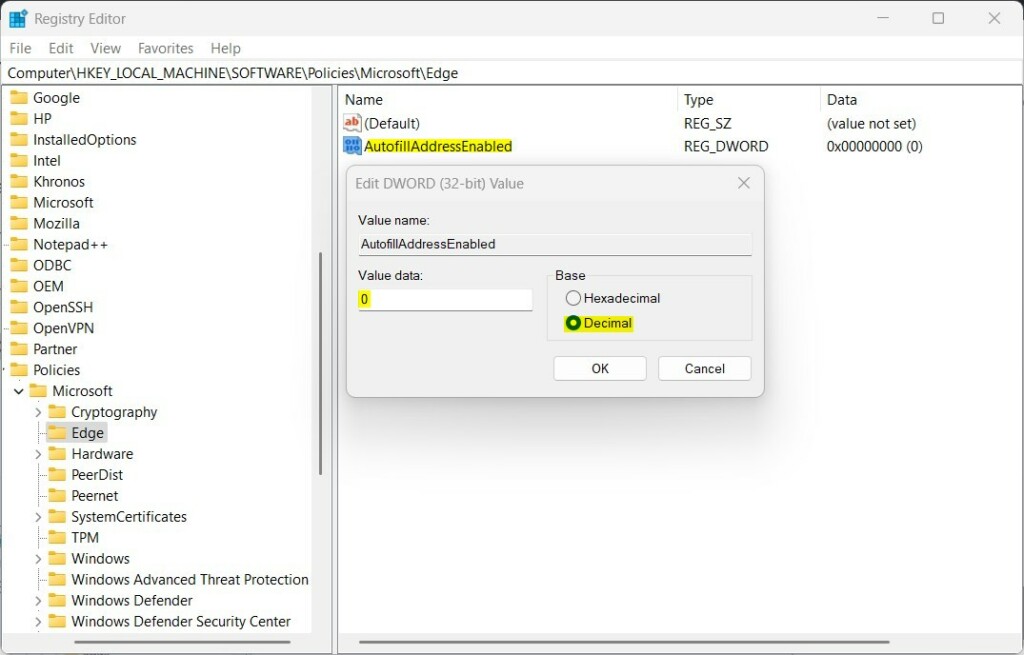
Restart your computer to make sure the changes take effect.
Conclusion
Managing your addresses in the Microsoft Edge Wallet keeps your checkout process smooth and secure. By syncing your account, your data stays consistent across all your devices. If you need to restrict these features in a business setting, the Registry Editor provides a way to control them.
How to find wallet address on Edge?
And there we go i now have a Litecoin wallet also in my Edge. App if I want to receive Litecoin. So I'm going to go buy some Litecoin through Easy Crypto. And send it here i need to go to request.
How to access wallet on Microsoft Edge?
What happened to the data stored in Wallet? Your stored passwords, payments and personal information remain intact and can now be accessed via Passwords and autofill section with Edge's settings.
Where do I find my Microsoft wallet?
Open Microsoft Edge: This is the browser where Microsoft Wallet is integrated. Access Settings: Click on the three dots in the upper right corner of the browser to open the menu, then select Settings. Go to Passwords: In the Settings menu, look for the Passwords section.
Was this guide helpful?

About the Author
Richard
Tech Writer, IT Professional
Richard, a writer for Geek Rewind, is a tech enthusiast who loves breaking down complex IT topics into simple, easy-to-understand ideas. With years of hands-on experience in system administration and enterprise IT operations, he’s developed a knack for offering practical tips and solutions. Richard aims to make technology more accessible and actionable. He's deeply committed to the Geek Rewind community, always ready to answer questions and engage in discussions.




TOO DARNED COMPLICATED FOR A 78 YR OLD USER. THERE SHOULD BE A SIMPLER WAY TO GET WALLET EDITED OR ELIMINATED. THE THING HAS MY NEIGHBOR’S NAME ON IIT AND HER ADDRESS, TOO. I USE DASHLANE AND DO NOT WANT THIS APP INTEFERING W/ MY LIFE.