
This guide will show you how to control Bluetooth on your Windows 11 computer. You can either allow or block Bluetooth so users can or cannot turn it on or off.
What is Bluetooth Access?
Bluetooth lets your computer connect wirelessly to devices like headphones, speakers, or phones. By default, you can easily turn Bluetooth on or off whenever you want.
If you want to stop users from turning Bluetooth on or off, an administrator can set special rules using Windows settings called the “Registry.”
What Are the Options for Bluetooth Access?
The Windows Registry uses numbers to control Bluetooth access:
- 0 – Block Bluetooth. Users cannot turn Bluetooth on or off. The Bluetooth button will be greyed out.
- 1 – Reserved (not typically used).
- 2 – Allow Bluetooth (this is the default). Users can turn Bluetooth on or off.
How to Restrict Bluetooth Access in Windows 11
Follow these simple steps to stop users from turning Bluetooth on or off:
Step 1: Open the Registry Editor
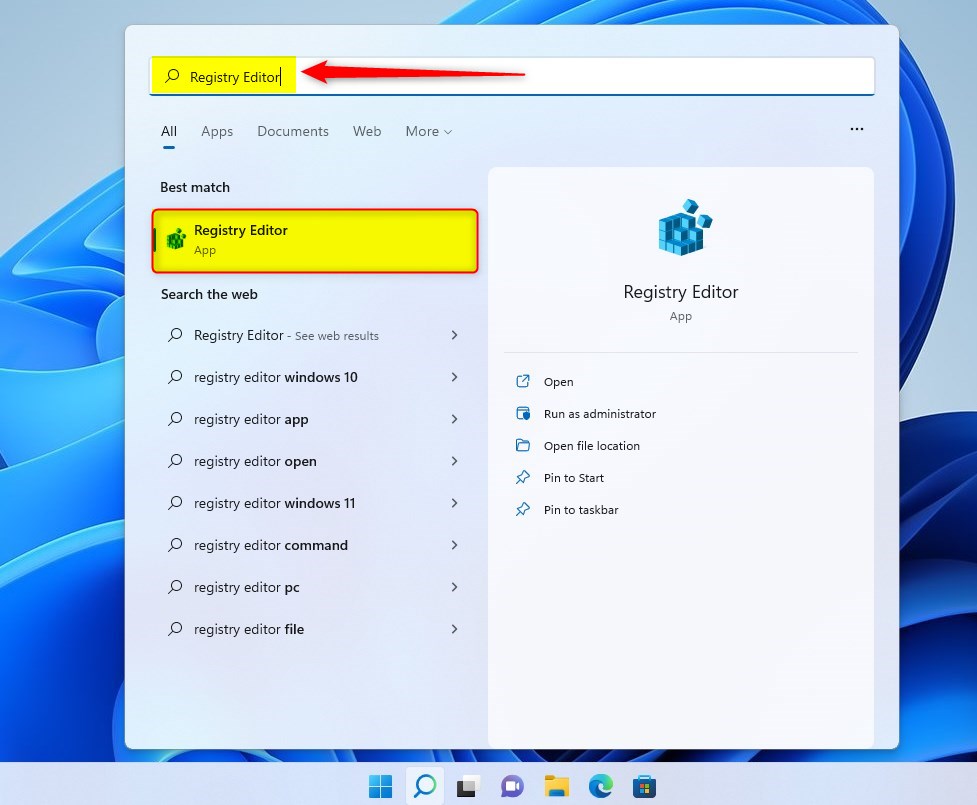
1. Click the Start Menu (Windows icon) at the bottom-left corner of your screen.
2. Type Registry Editor in the search bar.
3. Click on the Registry Editor app from the search results.
Step 2: Find the Bluetooth Settings Folder
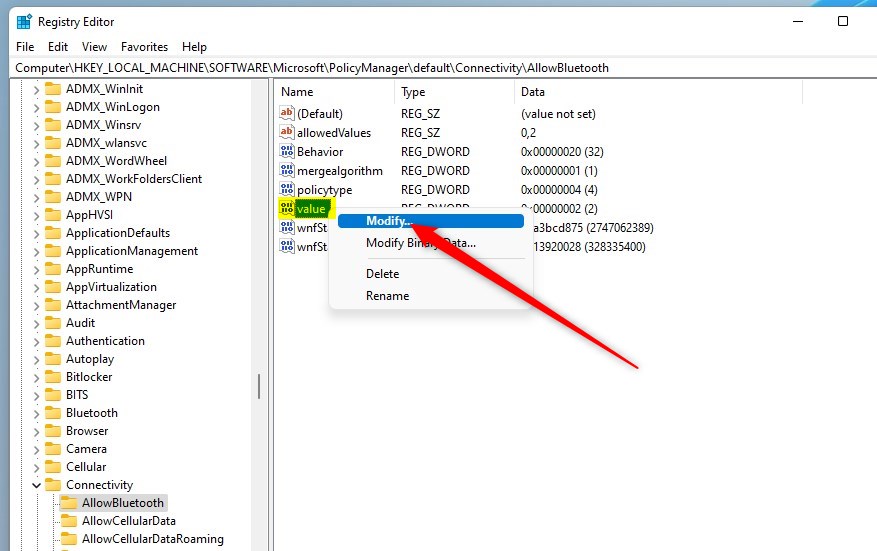
In the Registry Editor window, look at the left side panel and find this path by expanding the folders step-by-step:
HKEY_LOCAL_MACHINE\SOFTWARE\Microsoft\PolicyManager\default\Connectivity\AllowBluetooth
You can also copy the above path, then click the address bar at the top of Registry Editor and paste it to quickly go there.

Step 3: Change the Bluetooth Permission
On the right side of the Registry Editor window, look for an entry named value of type REG_DWORD.
Double-click on it or right-click and choose Modify.
Step 4: Set the Value to Block or Allow Bluetooth
In the box that opens, enter one of these numbers for the value:
- 0 – Block Bluetooth (users cannot turn it on or off)
- 2 – Allow Bluetooth (default, users can turn it on or off)
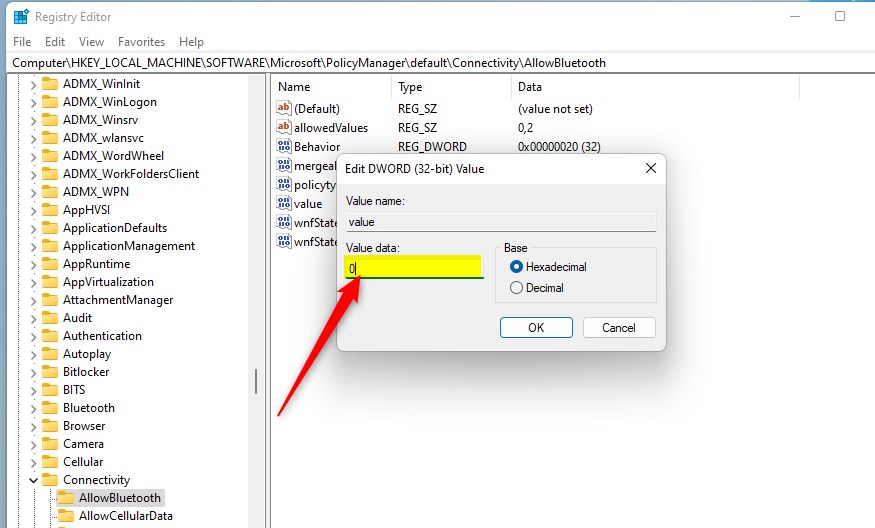
Click OK to save your change.
Step 5: Close Registry Editor
Close the Registry Editor window.
What Happens Next?
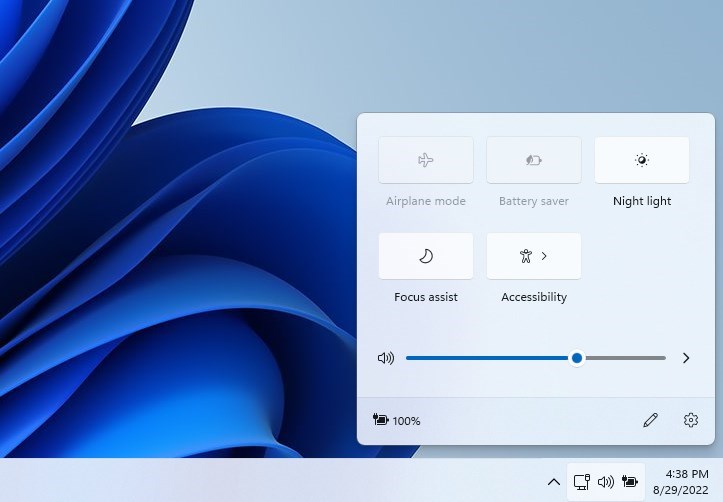
If you set the value to 0, the Bluetooth switch in Windows will be greyed out, and users won’t be able to turn Bluetooth on or off.
Summary
- You can control whether users can turn Bluetooth on or off in Windows 11 by changing a setting in the Registry.
- Setting the value to 0 blocks Bluetooth control, while 2 allows it.
- This is helpful for administrators who want to manage Bluetooth access on computers.
If you want to learn more about pairing Bluetooth devices in Windows 11 or opening the Registry Editor, check out these easy guides.



Leave a Reply