
Sometimes, apps on your Windows 11 PC might want to talk to devices that are not connected or paired with your computer. These could be things like an Xbox or other gadgets. This can help share information. But if you want, you can stop apps from doing this to keep your privacy tighter.
In this guide, we’ll show you easy ways to turn this setting on or off. You can use Windows Settings or a special tool called the Group Policy Editor. You don’t need to be a tech expert. Just follow the steps!
What Does “Communicate with Unpaired Devices” Mean?
This means apps on your PC can send or receive information from devices that you haven’t paired (connected) directly to your PC. For example, your PC might share data with an Xbox or smart gadgets nearby. You can allow or block this communication as you wish.
How to Turn This Setting On or Off Using Windows Settings
- Open Windows Settings. Press the Windows key + I on your keyboard. Or click the Start button and then select Settings.
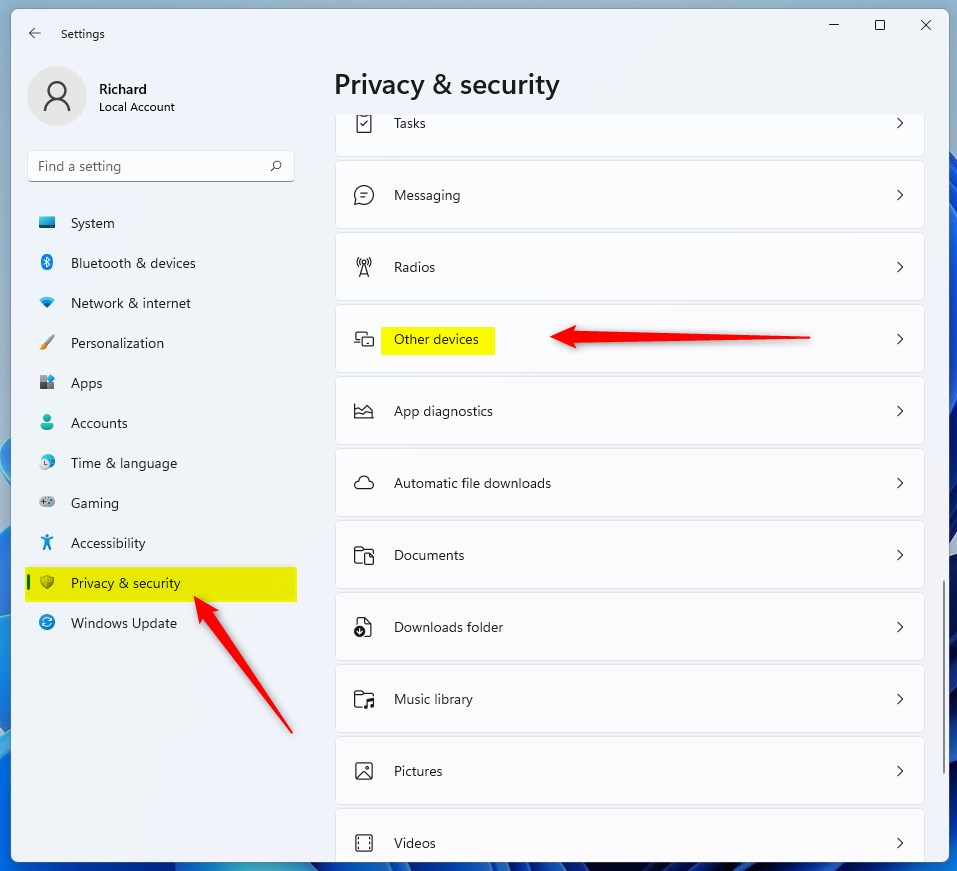
- In the Settings window, click on Privacy & security on the left menu.
- On the right side, scroll down and click on Other devices.
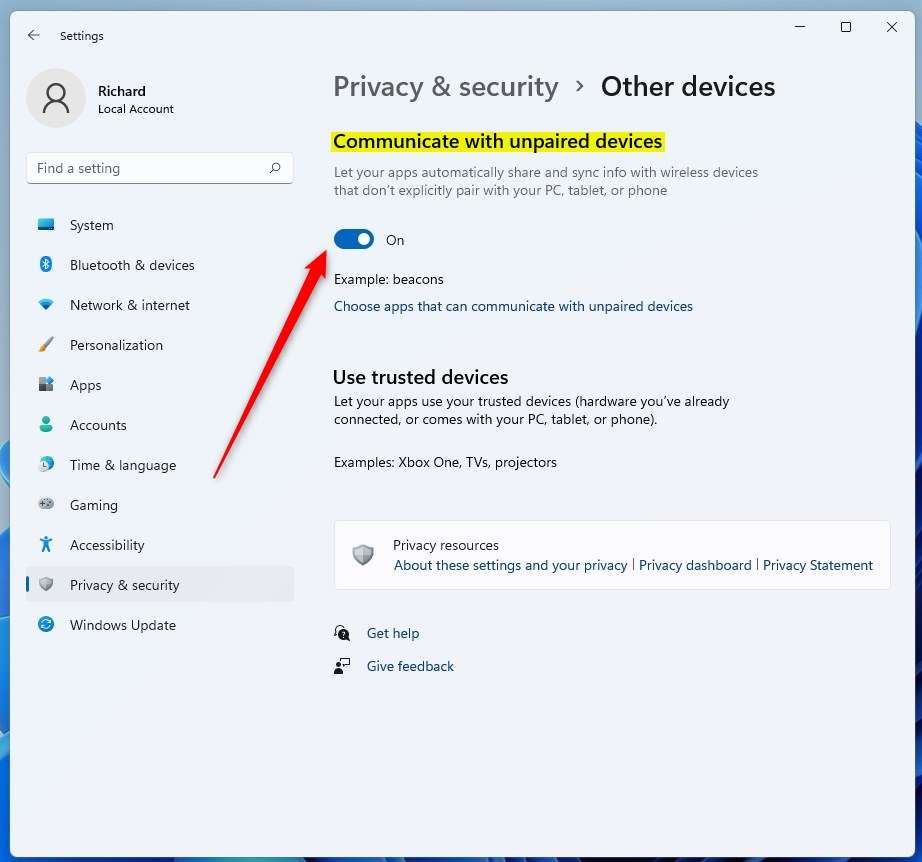
- Find the switch under Communicate with unpaired devices. Click the toggle to turn it On or Off depending on what you want.
How to Change This Setting Using the Local Group Policy Editor
If you want another way, especially useful on Windows 11 Pro or higher, you can use the Local Group Policy Editor:
- Click the Start button. Type
Edit group policyin the search box. - Select Edit group policy from the search results to open the editor.

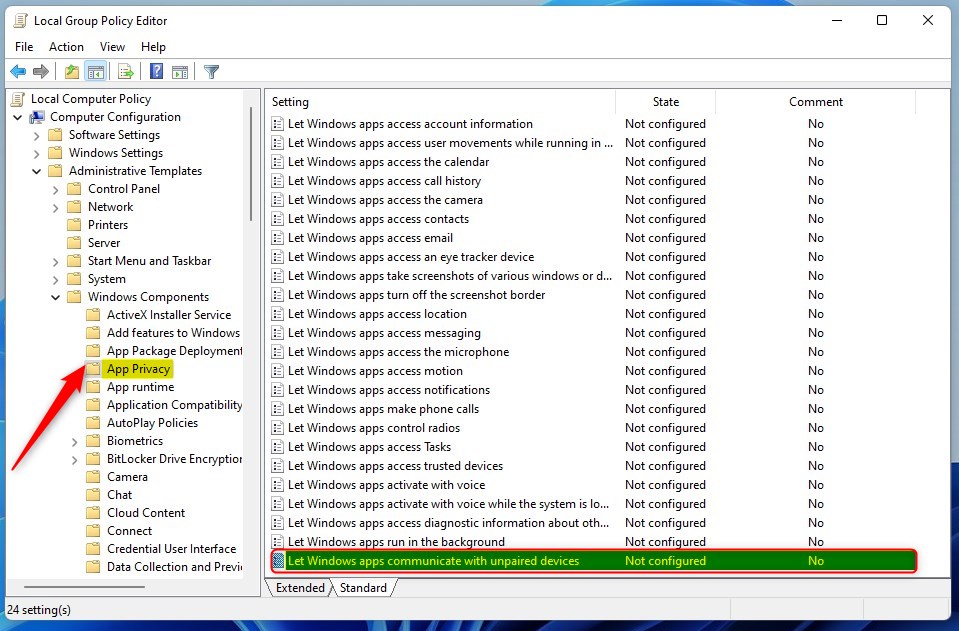
- In the left panel, follow this path by clicking the arrows to expand the folders:
Computer Configuration \> Administrative Templates \> Windows Components \> App Privacy - On the right side, find and double-click Let Windows apps communicate with unpaired devices.
- A window will open. Here you can choose one of these options:
- Not Configured – the default option
- Enabled – allow apps to communicate with unpaired devices
- Disabled – block apps from communicating with unpaired devices
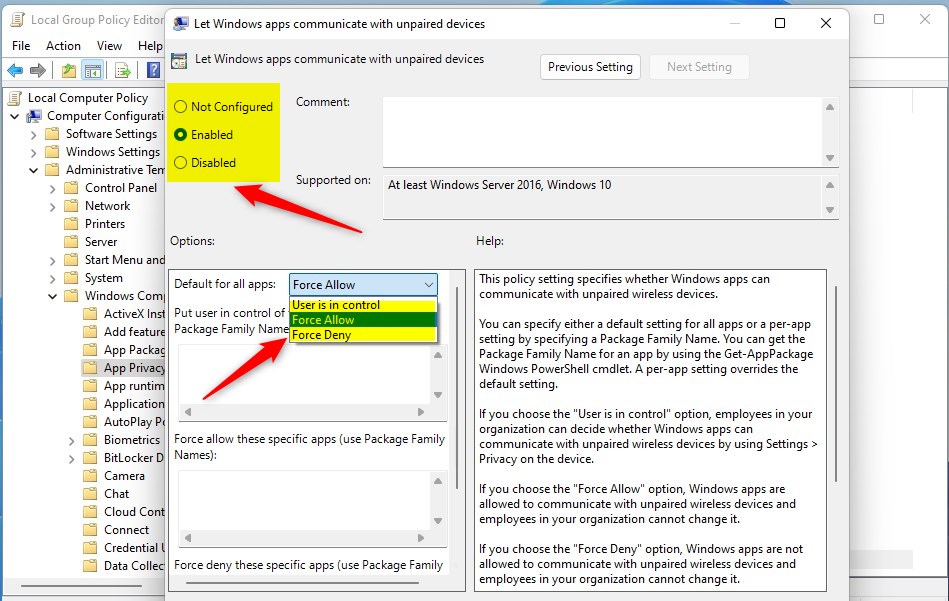
- If you choose Enabled, use the dropdown below labeled Default for all apps and select Force Allow. This makes sure apps can talk to unpaired devices.
- If you choose Disabled, choose Force Deny in the dropdown. This blocks this communication.
- Click OK to save your settings.
- Close the Local Group Policy Editor.
Summary
You can easily control whether apps on your Windows 11 PC talk to devices that aren’t paired with it. Use the Privacy & security settings for a quick way to turn this on or off. If you have Windows 11 Pro or higher, the Local Group Policy Editor gives you more control. This helps protect your privacy and decide how your apps share information with nearby devices. For more info about Windows Registry changes, check this helpful guide: How to open the Registry in Windows 11.


Leave a Reply