How to Clear Windows Update History in Windows 11

Windows 11 automatically downloads and installs updates to keep your computer running smoothly. These include security patches, drivers, and new features. You can view your update history to see exactly what has been installed and when. Sometimes, you might want to wipe this list clean.
Why clear your update history?
Clearing your history helps keep your settings menu tidy. It is also a useful step if you are troubleshooting update errors and want a fresh start.
What happens when you are done?
Once you finish these steps, the list of previously installed updates in your settings menu will be completely removed. Your actual installed updates remain safely on your computer.
Note: You must be signed in as an administrator to perform these steps.
Reference: Windows 11, version 24H2 update history – Microsoft Support
How to clear your update history
- Click the Start button and type “Terminal.”
- Right-click on Terminal and select Run as administrator (requires admin privileges).
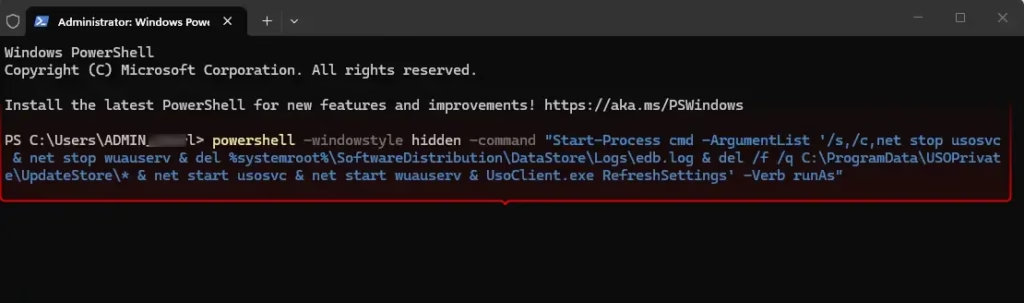
- Copy the following command and paste it into the window, then press Enter:
powershell -windowstyle hidden -command "Start-Process cmd -ArgumentList '/s,/c,net stop usosvc & net stop wuauserv & del %systemroot%\SoftwareDistribution\DataStore\Logs\edb.log & del /f /q C:\ProgramData\USOPrivate\UpdateStore\* & net start usosvc & net start wuauserv & UsoClient.exe RefreshSettings' -Verb runAs"
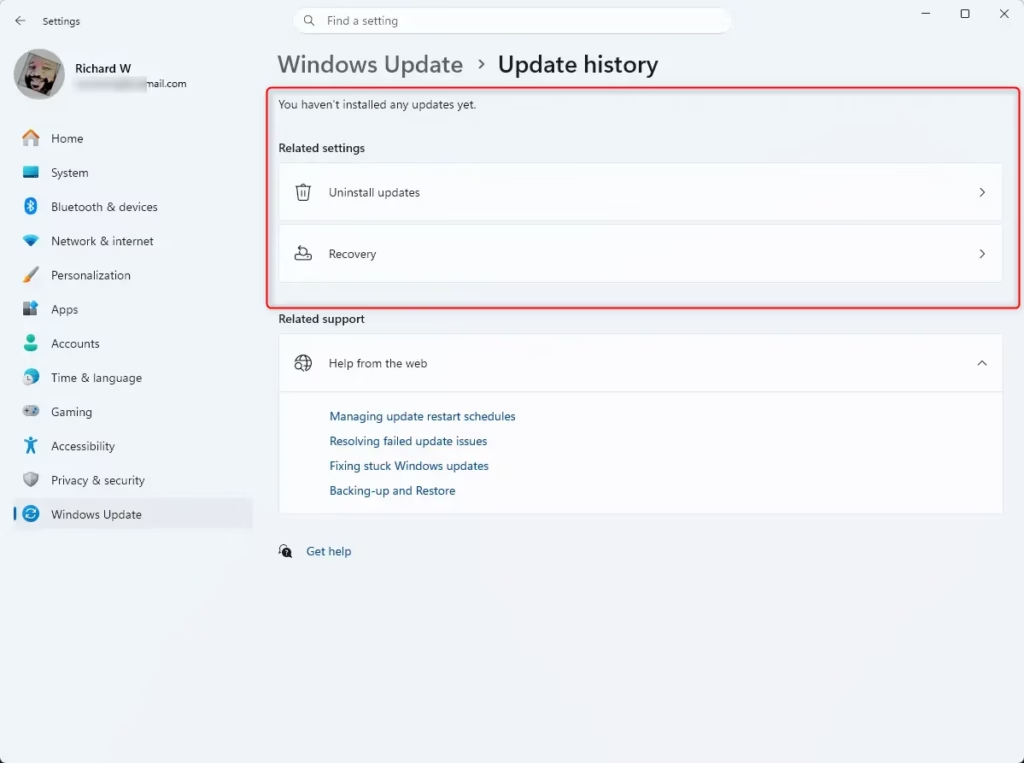
You’ll notice that Update history is cleared.
Summary
Clearing your Windows Update history is a quick way to reset your update logs. By using the command line as an administrator, you can wipe the history list instantly. This does not uninstall your updates; it simply clears the record of them from your view.
How do I clear Windows Update logs?
To clear Windows Update logs, open Terminal as an administrator. Run the command to stop the 'usosvc' and 'wuauserv' services, then delete the 'edb.log' file located in the SoftwareDistribution folder. Finally, restart both services. This process removes the history logs from your settings menu without affecting your installed system updates.
How to clean Windows 11 update cache?
You can clean the Windows 11 update cache by stopping the Windows Update and Update Orchestrator services via Terminal. Once stopped, delete the contents of the 'C:\ProgramData\USOPrivate\UpdateStore\' folder and the 'edb.log' file. Restarting the services afterward will force Windows to rebuild the cache, effectively clearing out corrupted or outdated temporary update files.
How do I delete a previous update?
To uninstall a specific Windows update, go to Settings > Windows Update > Update history. Scroll down to 'Uninstall updates' under Related settings. Select the update you wish to remove from the list and click the 'Uninstall' button. Confirm your choice, and Windows will remove the selected update from your system.
Can I delete old Windows updates to free up disk space?
Yes, you can safely free up disk space by removing old update files. Use the built-in Disk Cleanup tool: search for it in the Start menu, select your system drive, and click 'Clean up system files.' Check the 'Windows Update Cleanup' box to remove unnecessary installation files and reclaim significant storage space.
Was this guide helpful?




Leave a Reply Cancel reply