How to Clear Cloud Synced Settings in Microsoft Account

You clear cloud-synced settings in your Microsoft account by deleting them via Windows Backup settings in Windows 11.
These synced settings include your personalized preferences, app data, and saved credentials like usernames and passwords that Microsoft stores for you.
This action effectively removes data like desktop backgrounds, theme settings, and language preferences from Microsoft’s servers. For instance, it helps you ensure a fresh start on a new PC by preventing old settings from automatically reappearing.
You can manage and delete this information to prevent any personalized data from your previous PC setup from transferring to a new device.
Go to account.microsoft.com/devices, sign in, and find the “Cloud synced settings” section. Click “Clear stored settings” and confirm. Then, visit your OneDrive cloud settings portal and click “Remove” to delete settings from the cloud.
Before You Begin
Before you start, ensure you are logged into the correct Microsoft account. Check your email address in the top right corner of your browser. If you have multiple accounts, you might accidentally clear settings for the wrong one. Why clear these? It ensures you do not lose data you actually want to keep. What happens when done? You will have a clean slate for your account sync preferences.
Why Clear Cloud Synced Settings?
You might want to clear these settings for several reasons. Perhaps you’re selling an old computer, want to stop syncing old preferences to a new device, or wish to improve your digital privacy. Clearing them removes outdated configuration files from Microsoft servers. Your devices will then stop pulling old settings, allowing you to start fresh.
How to Clear Cloud Synced Settings
Note: These steps require you to be signed into your Microsoft account with full administrative access to your profile settings.
Step 1: Sign in to your Microsoft account
Go to the account.microsoft.com/devices page and sign in with your username and password.
Step 2: Clear stored settings
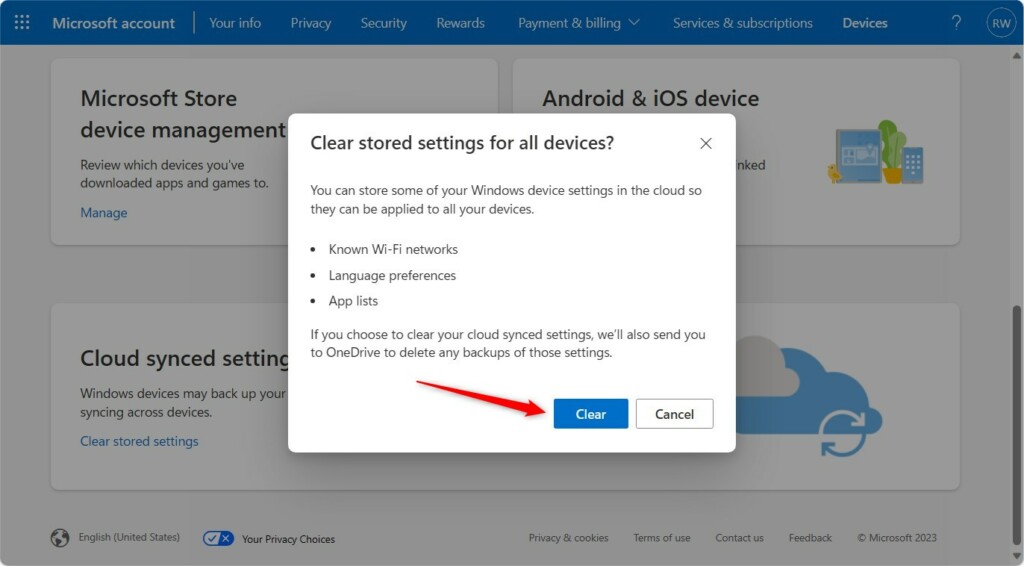
On the Devices page, scroll down to find the “Cloud synced settings” section. Click the link that says “Clear stored settings.” When the confirmation box pops up, click the “Clear” button.
Step 3: Remove settings from OneDrive
Visit your OneDrive account at Microsoft account cloud settings portal. Scroll to the bottom of the page and click the “Remove” button.
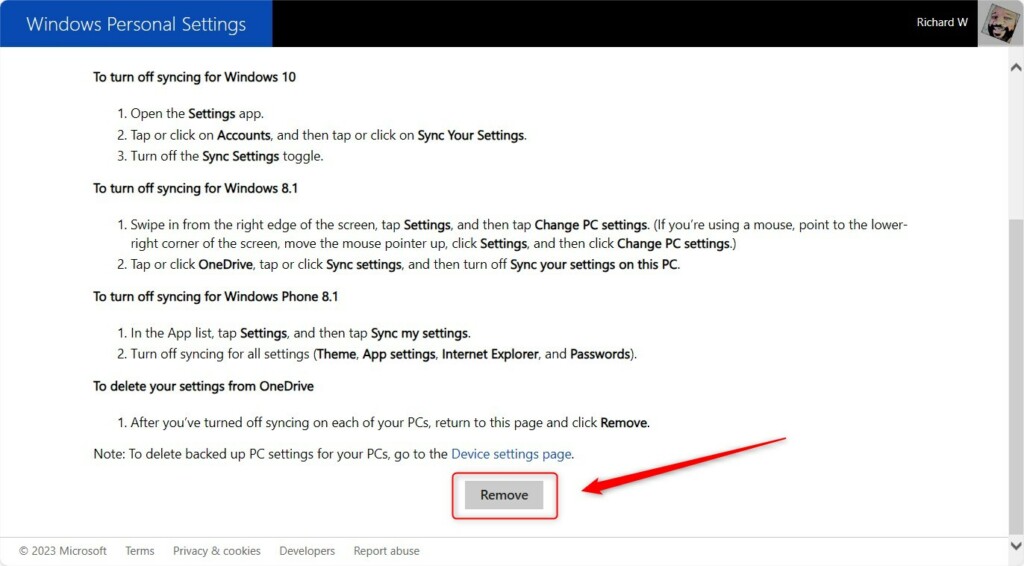
You will see a message confirming that your personal settings have been removed from the cloud. You can turn syncing back on later if you change your mind.
Troubleshooting Failed Deletion and Sync Issues
Sometimes the “Remove” button does not respond. Browser cache issues usually cause this. Try opening your browser in InPrivate (Microsoft Edge) or Incognito (Google Chrome, Mozilla Firefox) mode. If that fails, clear your browser cookies and cache. If you are using Microsoft Edge, go to Settings > Profiles > Sync and turn off sync before trying the portal again. You can also restart the Account synchronization service. To do this, open the Services app (services.msc) as an administrator.
Summary
Clearing your cloud-synced settings helps you start fresh, can fix potential sync errors, and protects your privacy. By removing these settings through the Microsoft Devices page and your OneDrive account, you ensure that old configuration files are no longer stored in the cloud. Remember to use a clean browser session if you encounter issues with the removal buttons. Reference: Microsoft
Why does the ‘Remove’ button not respond in the cloud settings portal?
The button often fails due to browser cache or corrupted cookies. Try using a different web browser or opening an Incognito window. If the issue persists, ensure your internet connection is stable and that you have fully signed out and signed back into your Microsoft account to refresh your session token.
Does clearing cloud settings delete my local files?
No, clearing your cloud synced settings does not delete your local files, photos, or documents stored on your hard drive. It only removes the configuration data, such as your theme, language preferences, and browser settings, that are stored on Microsoft servers to help sync your experience across multiple devices.
How long does it take for cloud settings to reset after removal?
The removal process is usually near-instant. Once you click the button and receive the confirmation message, the data is marked for deletion on Microsoft servers. However, it may take a few minutes for all your connected devices to stop attempting to sync with the now-cleared cloud storage profile.
Was this guide helpful?

About the Author
Richard
Tech Writer, IT Professional
Richard, a writer for Geek Rewind, is a tech enthusiast who loves breaking down complex IT topics into simple, easy-to-understand ideas. With years of hands-on experience in system administration and enterprise IT operations, he’s developed a knack for offering practical tips and solutions. Richard aims to make technology more accessible and actionable. He's deeply committed to the Geek Rewind community, always ready to answer questions and engage in discussions.



No comments yet — be the first to share your thoughts!