
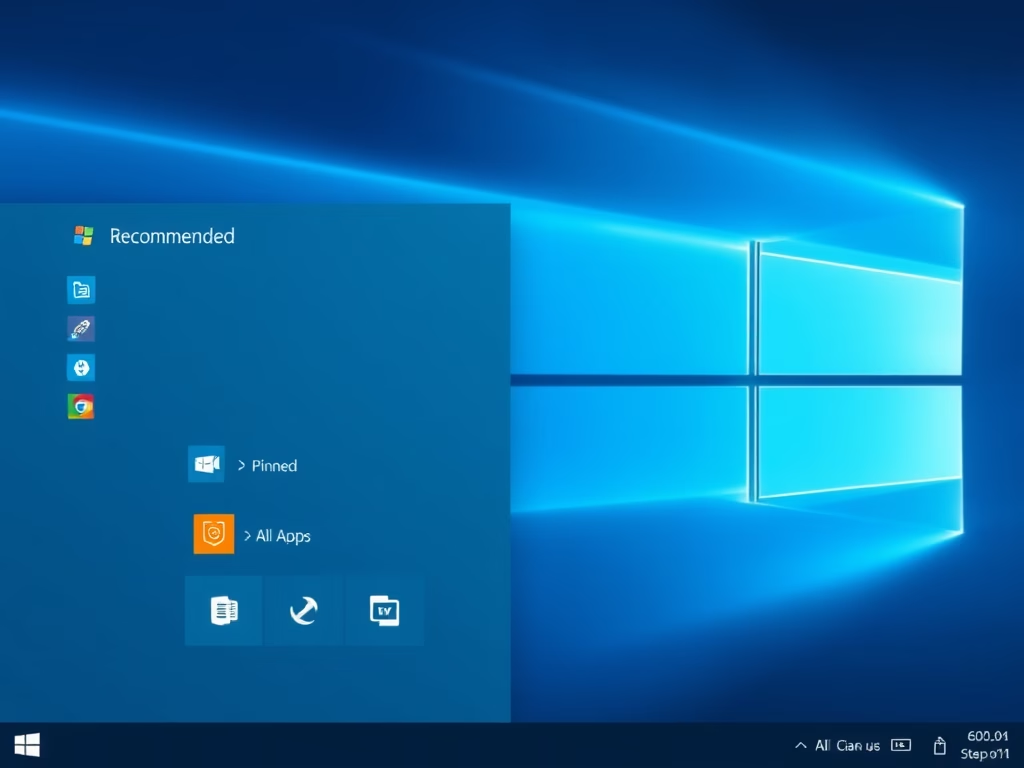
Do you use Windows 11? You might see a section called “Recommended” in your Start menu. This section shows apps you just added, files you opened, and websites you visited. Sometimes you want this section to look clean and empty instead.
Good news! You can clear this section with a few easy steps. Let’s learn how.
Why Should You Clear the Recommended Section?
The Recommended section can get cluttered with items you don’t need to see. Clearing it makes your Start menu look neater and less busy. You’ll have a fresh, clean space to work with.
What Is the Start Menu Made Of?
The Windows 11 Start menu has three main parts:
- Pinned – apps you choose to keep handy
- All apps – a list of all your installed programs
- Recommended – shows your recently added apps, files, and websites
You can’t remove the Recommended section completely. But you can clear it so it stays empty all the time.
Steps to Clear the Recommended Section
- Open Settings. Press
Win + Ion your keyboard. - Go to Personalization. Click on Personalization on the left side menu. Then click Start on the right.
Click here to open Start settings directly
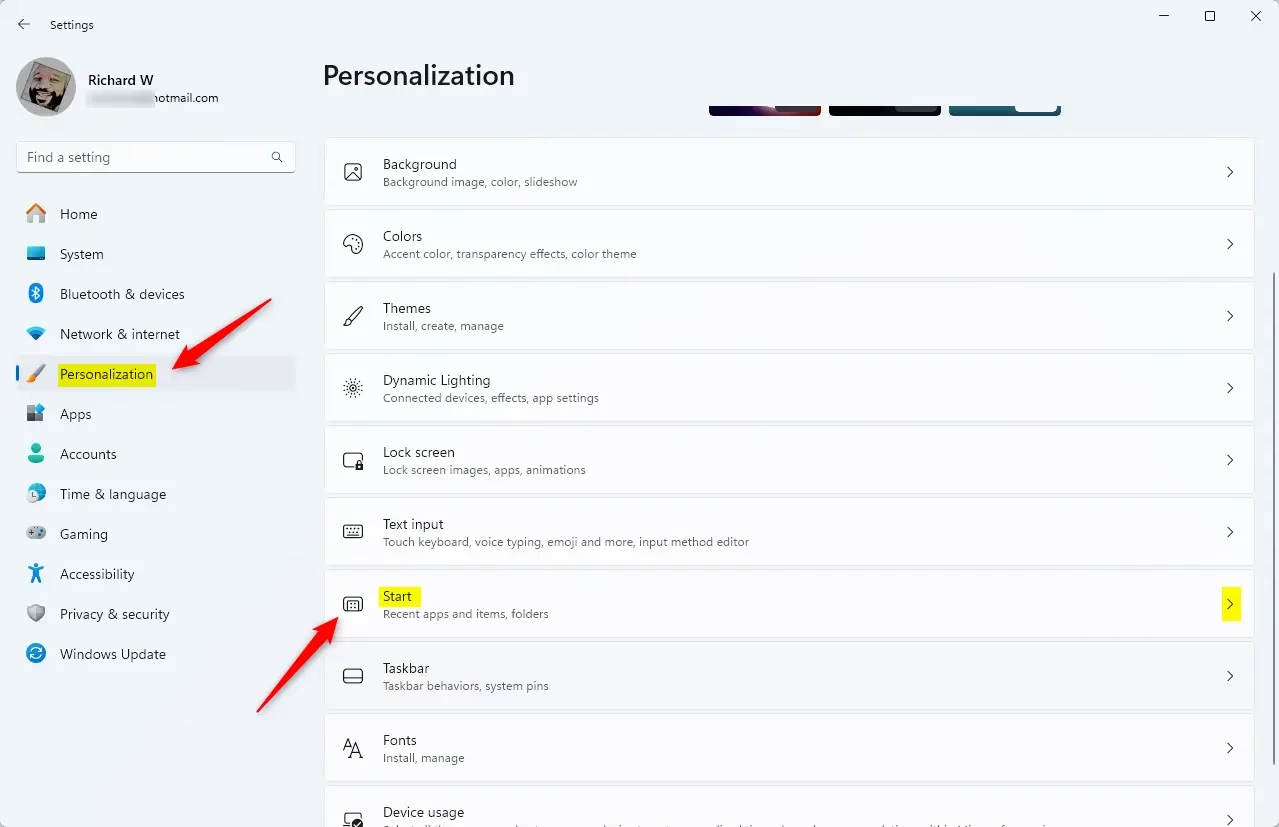
- Change the layout. Under Layout, select More pins. This will make the Recommended section smaller.
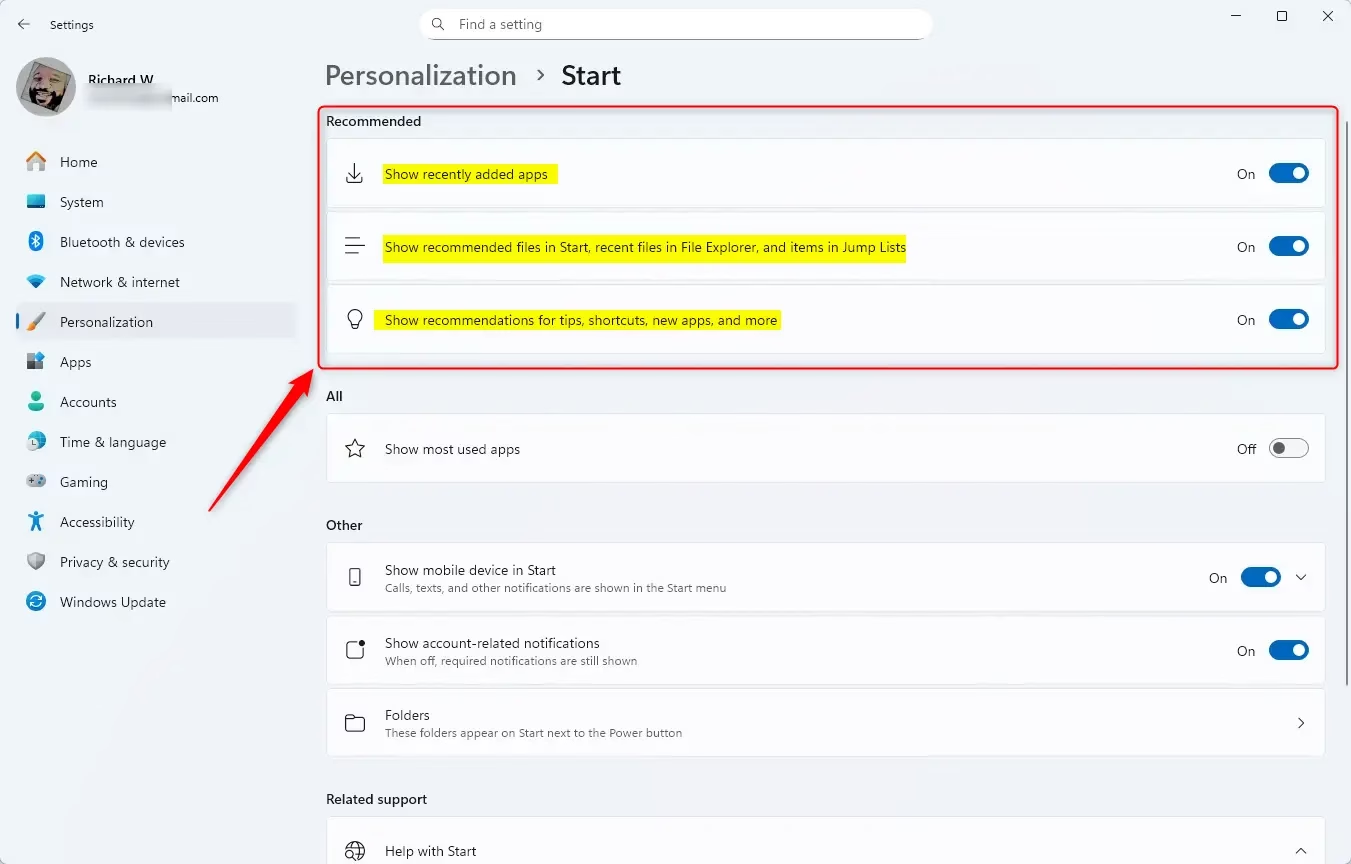
- Turn off the options. Click the switches to turn Off these three options:
- Show recently added apps
- Show recently opened items in Start, Jump Lists, and File Explorer
- Show recommendations for tips, shortcuts, new apps, and more
- Close Settings. Close the Settings window when you are done.
What Happens When You’re Done?
Once you turn off these options, your Recommended section will stop showing recent apps, files, or websites. It will stay empty. Your Start menu will look cleaner and less busy.
Want to Learn More?
If you want to learn more about customizing the Windows 11 Start menu, you can visit the official Microsoft guide here: Customize the Windows 11 Start Menu.
Summary
- Open Settings and go to Personalization > Start
- Set the layout to More pins to shrink the Recommended area
- Turn off all the options to stop showing recent apps, files, websites, and tips
- Enjoy a fresh, clean Start menu without distractions

Leave a Reply