How to Hear Audio from Computer in Windows 11’s Phone Link App

You might want to hear audio through your computer speakers instead of your phone for a few reasons. Your computer speakers might sound better or louder. It also helps you stay focused on your audio without being distracted by phone notifications. Finally, it makes video calls smoother and prevents audio glitches.
What happens when you are done?
Once you finish these steps, your computer will handle the sound for your connected phone. If you choose to hear audio from your computer, keep in mind that if you walk away from your desk while on a call, the other person will not be able to hear you.
System Requirements and Compatibility
To use Windows 11 Phone Link audio, your devices must meet specific standards. You need a PC running Windows 11 and an Android device running Android 9.0 or higher. The Link to Windows service must be active on your mobile device. Ensure your PC and phone are on the same Wi-Fi network for the best performance. Bluetooth must be enabled on both devices to support the A2DP profile for audio streaming.
How to Change Your Audio Settings
You can choose where your audio comes from using the Phone Link app. Follow these steps:
- Open the Phone Link app.
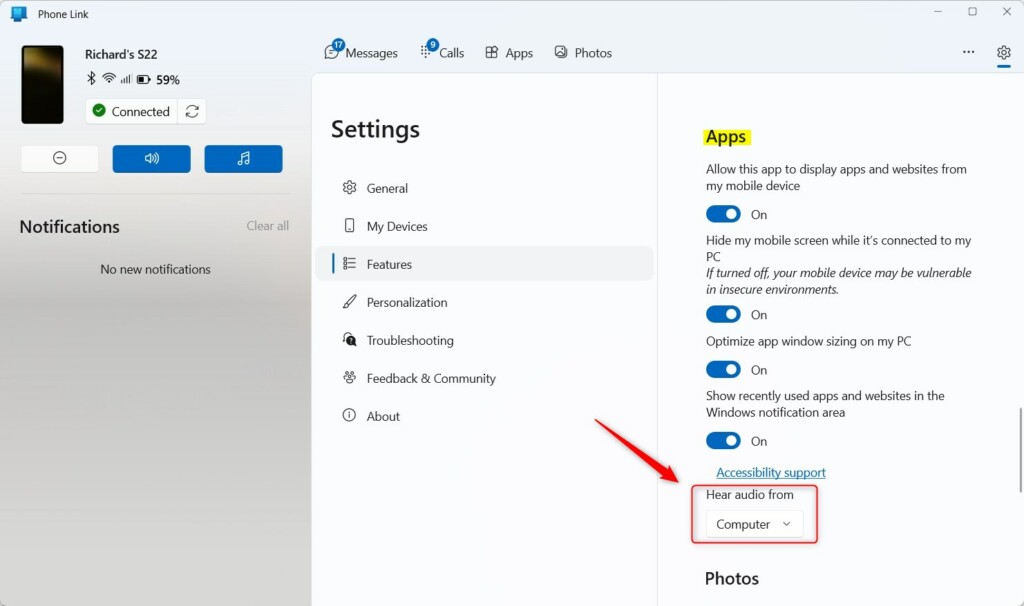
- If you have not added a phone, follow the prompts to add one. If your phone is already connected, click the Settings button (the gear icon) at the top right corner.
- Select the Features tab.
- Scroll down to the Apps section.
- Under the Hear audio from option, select either Computer or Mobile device.
Note: You may need administrator privileges to change certain system settings if your computer is managed by a workplace or school. [ADMIN PRIVILEGES REQUIRED]
Troubleshooting Audio Issues
If you experience audio routing problems, start by checking your Bluetooth pairing. Remove the device from your PC and re-pair it. Ensure your firmware is updated on both your phone and your PC. If audio keeps switching back to the phone speaker, check your mobile device’s Bluetooth settings to ensure the ‘Media Audio’ toggle is enabled for your PC connection.
Supported Devices
Phone Link audio features are primarily supported on Surface Duo devices and select Samsung Galaxy, HONOR, OPPO, ASUS ROG, and Xiaomi devices. Compatibility depends on the specific Link to Windows app version installed on your mobile device.
Summary
The Phone Link app is a powerful tool for mobile device integration. By routing audio through your computer, you gain better control over your sound environment. Remember to keep your Link to Windows service updated and verify your Bluetooth settings if you encounter connectivity issues. Use the Settings menu to toggle your audio source whenever you need to switch between your PC and your mobile device.
Why is there a delay in audio when using Phone Link?
Audio latency often occurs due to network congestion or distance between devices. Because Phone Link uses Wi-Fi and Bluetooth to route audio, a weak signal or interference from other wireless devices can cause a noticeable delay. Ensure your devices are close to your router and your PC for the best results.
Does Phone Link support high-fidelity audio streaming?
Phone Link is designed for convenience rather than high-fidelity audio. It uses standard Bluetooth A2DP profiles which compress audio data. While it is perfectly fine for phone calls and basic app sounds, it may not provide the same audio quality as a dedicated wired or high-end wireless headset connection.
Can I use Phone Link audio with third-party Bluetooth headphones?
Yes, you can use third-party Bluetooth headphones. Once your phone is linked to your PC, your computer treats the phone audio as a standard input. You can select your Bluetooth headphones as the primary output device in your Windows 11 Sound Settings to hear your mobile audio through them.
Was this guide helpful?

About the Author
Richard
Tech Writer, IT Professional
Richard, a writer for Geek Rewind, is a tech enthusiast who loves breaking down complex IT topics into simple, easy-to-understand ideas. With years of hands-on experience in system administration and enterprise IT operations, he’s developed a knack for offering practical tips and solutions. Richard aims to make technology more accessible and actionable. He's deeply committed to the Geek Rewind community, always ready to answer questions and engage in discussions.



No comments yet — be the first to share your thoughts!