
Want to know which version of Windows 11 is running on your computer? This guide will show you simple ways to find out. Windows gets updates often, so your version might change over time.
Why Check Your Windows Version?
Knowing your Windows version helps you install new programs and fix problems. Some software only works with certain Windows versions. Checking your version takes just a few minutes.
Method 1: Use the “About Windows” Screen
This is the quickest way to see your Windows version.
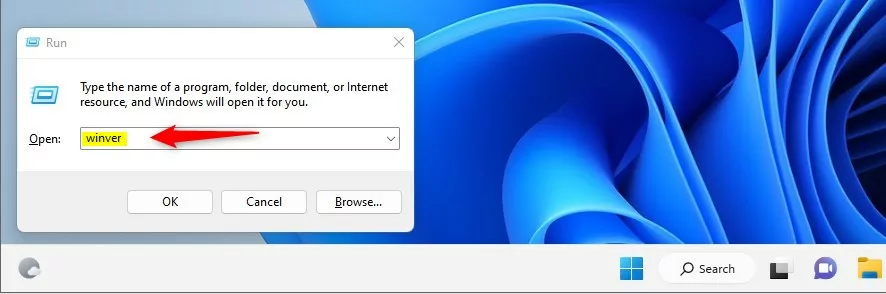
- Press the Windows key and the R key at the same time. A box called “Run” will open on your screen.
- Type
winverin the box. - Press Enter.
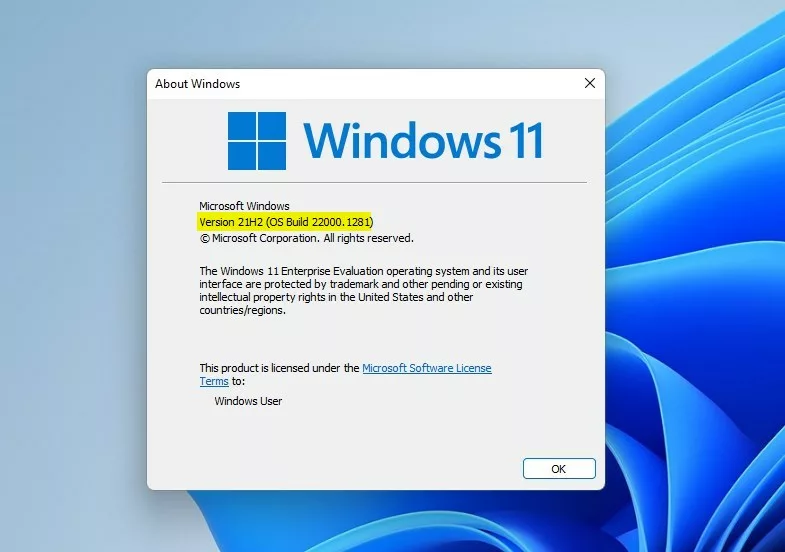
A window called “About Windows” will pop up. It shows your Windows version and build number.
Method 2: Find Windows Version Using Settings
You can also find your Windows version through the Settings app. This method is easy and uses familiar tools.
- Click the Start button (Windows icon) at the bottom-left corner of your screen.
- Click the Settings icon (looks like a gear). Or press Windows key + I to open Settings right away.

Now in Settings:
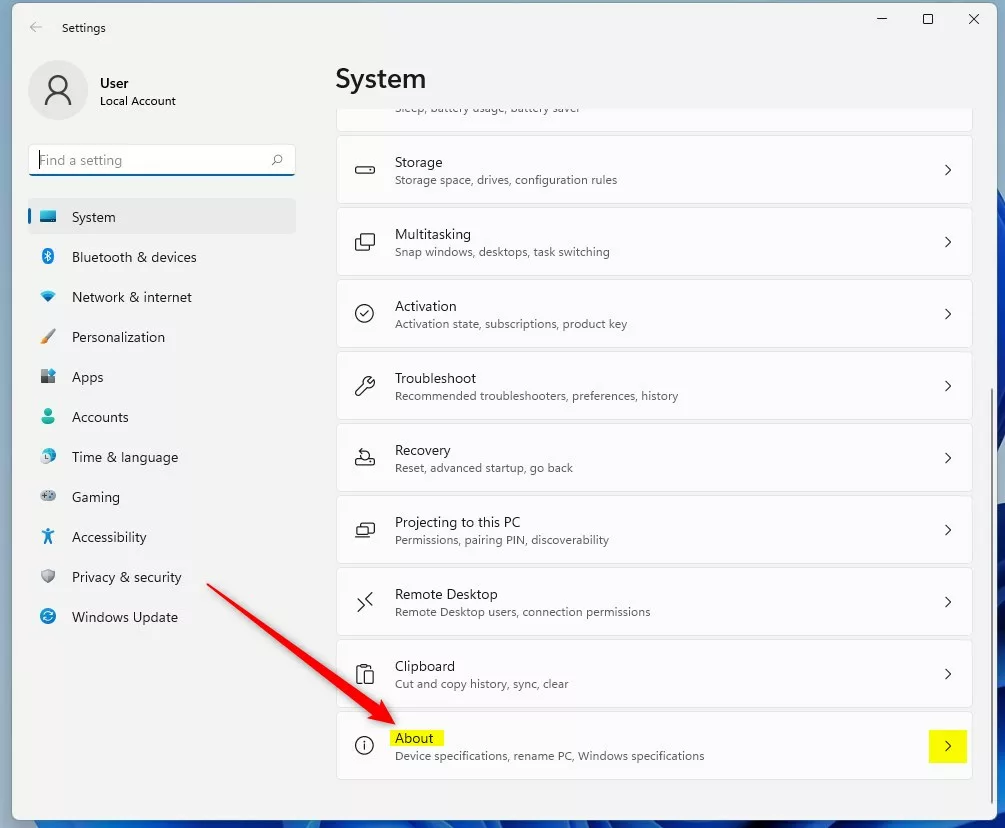
- Click System on the left side menu.
- Scroll down and click About at the bottom of the right side pane.
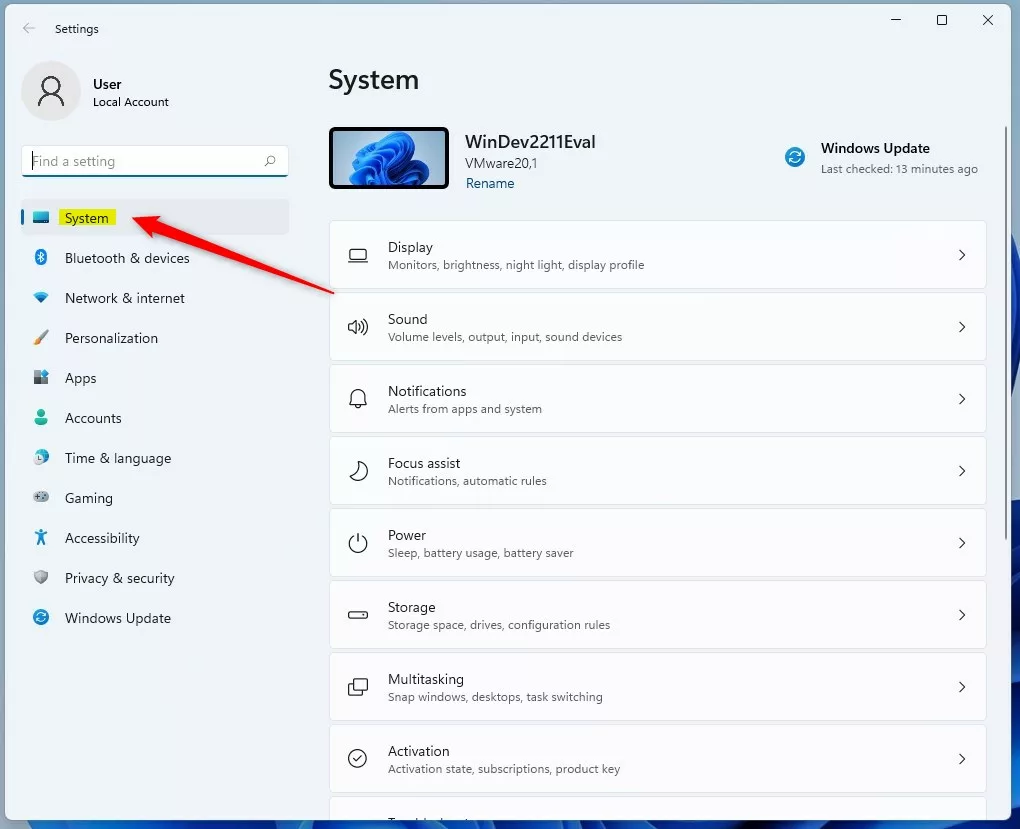
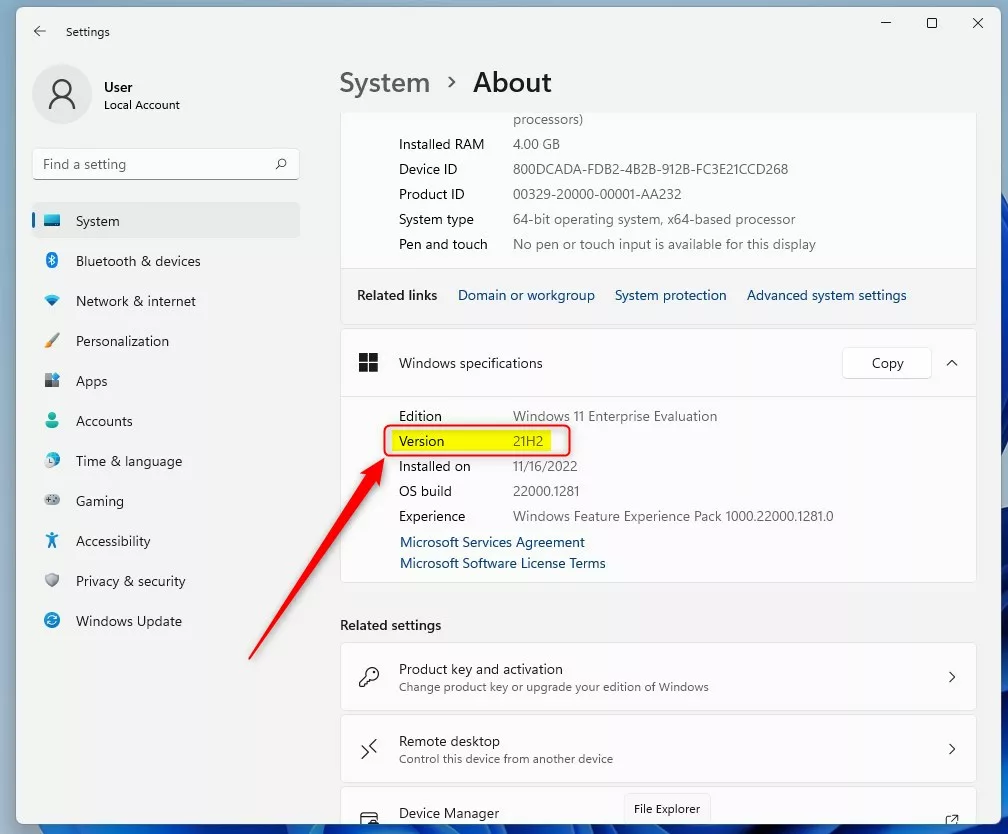
Look under Windows specifications. You will see the Version number listed there.
Method 3: Check Windows Version Using Registry Editor (Advanced)
This method is for users who feel comfortable with a more technical tool called the Registry Editor.
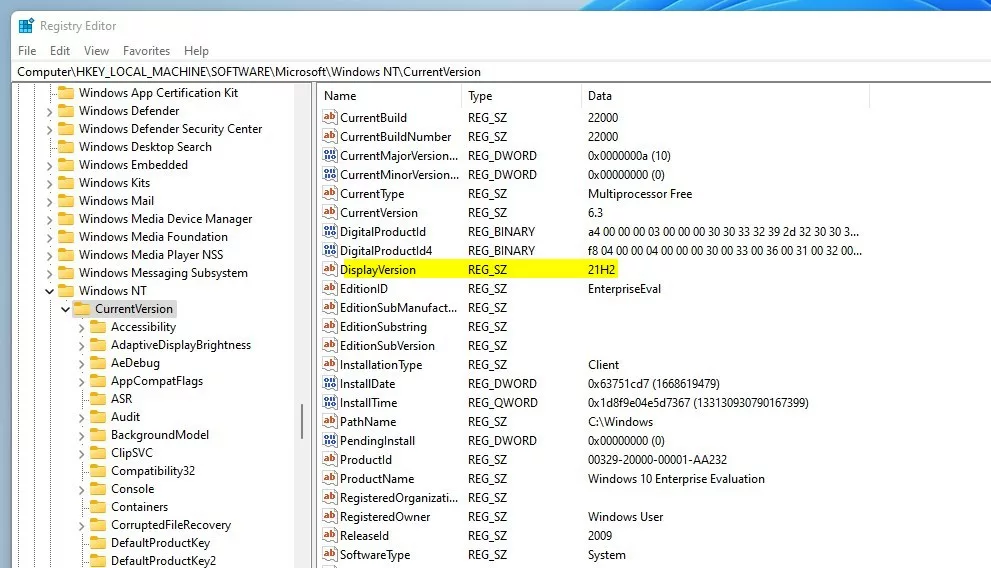
- [ADMIN REQUIRED] Open the Registry Editor by pressing Windows key + R, typing
regedit, and pressing Enter. (If you want a guide on opening Registry Editor, see this tutorial.) - In Registry Editor, follow this path:
HKEY_LOCAL_MACHINE\SOFTWARE\Microsoft\Windows NT\CurrentVersion - Look for DisplayVersion on the right side. This shows your Windows 11 version.
Summary
You now know three ways to check your Windows 11 version:
- The
winvercommand is the fastest and easiest for most users. - The Settings app is simple and user-friendly.
- Registry Editor is for advanced users who want more detailed information.
Knowing your Windows version helps you install the right software and keep your PC updated. For more info about Windows 11 updates, visit Microsoft’s official Windows 11 release info page.
If you have questions or want to share your experience, feel free to leave feedback!



Leave a Reply