How to Check UEFI BIOS Version in Windows 11

Want to know your UEFI BIOS version in Windows 11? You can check it using the System Information tool.
UEFI, which stands for Unified Extensible Firmware Interface, is the modern replacement for traditional BIOS. Think of it as the foundational software that gets your hardware up and running when you turn on your PC.
Knowing your specific UEFI BIOS version, like finding the entry labeled “BIOS Version/Date” in System Information, is crucial for troubleshooting hardware issues or determining if you need to update your system’s firmware for better compatibility or security.
Open System Information by typing “System Information” in the Start menu search. In the System Summary, find the “BIOS Version/Date” entry to see your UEFI BIOS version.
Method 1Using the System Information App
Checking your UEFI BIOS version in Windows 11 is simple with the System Information app, which gives you a clear look at your computer’s details.
- Click the Start button and type System Information or msinfo32 and press Enter.
- When the app opens, make sure System Summary is selected on the left.
- Look for these items on the right:
- BIOS Mode: It should say UEFI.
- BIOS Version/Date: This shows your BIOS version and its release date.
Method 2Using Device Manager
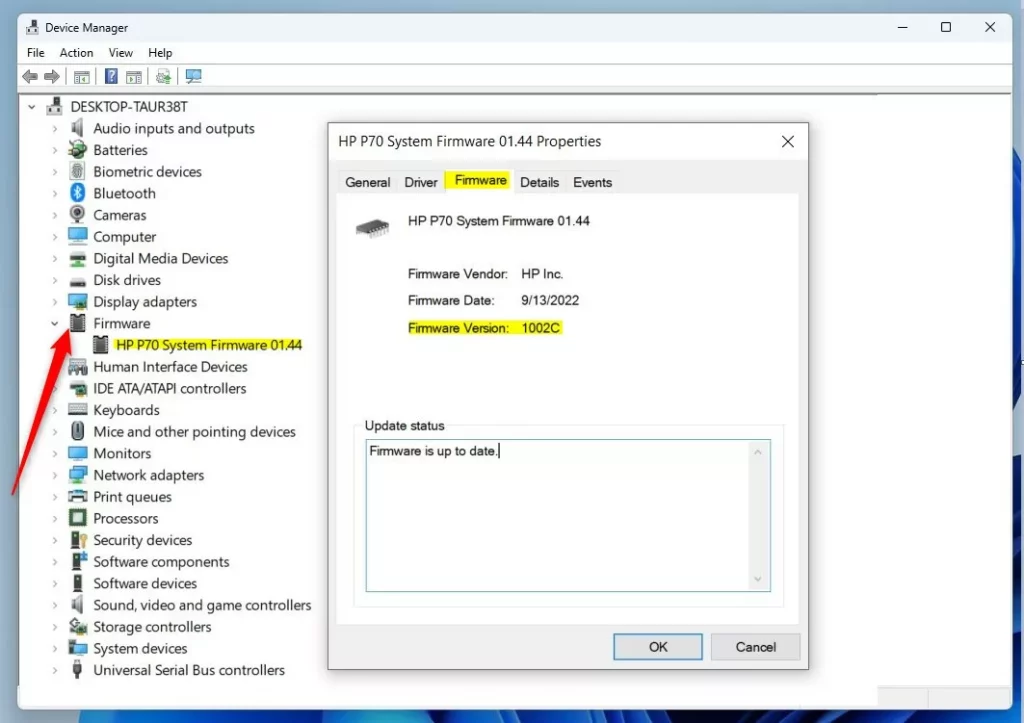
You can also track down your BIOS version with Device Manager.
- Right-click the Start button and select Device Manager.
- Scroll down and find Firmware. Click the arrow to expand it.
- Double-click System Firmware.
- In the window that opens, go to the Details tab or look for the Firmware Version.
Method 3Using DirectX Diagnostic Tool
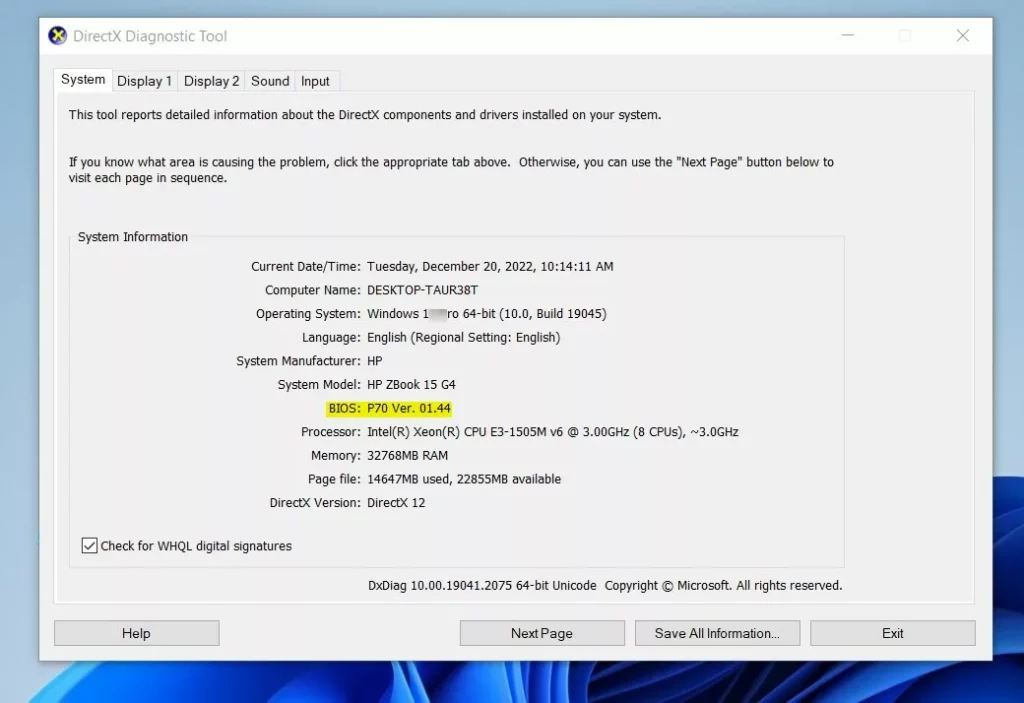
The DirectX Diagnostic Tool is another place you can find your BIOS version.
- Press ⊞ Win+R keys to open the Run box.
- Type
dxdiagand press Enter. - On the System tab, look under System Information for the BIOS line.
Method 4Using Command Prompt or PowerShell
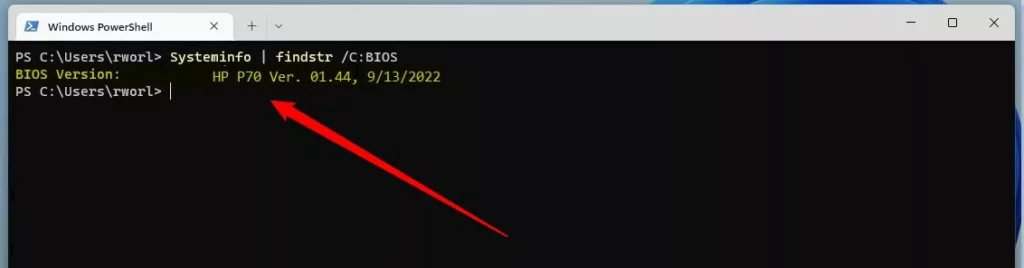
You can quickly check your UEFI BIOS version in Windows 11 using Command Prompt or PowerShell by typing a straightforward command.
- Right-click the Start button and select Windows Terminal (or search for Command Prompt or PowerShell).
- If Windows Terminal opens, make sure you are in the Command Prompt or PowerShell tab.
- Type the following command and press Enter:
systeminfo | findstr /C:BIOS
This command will display your BIOS version details.
Summary
You can easily check your UEFI BIOS version in Windows 11 using tools like System Information, Device Manager, or Command Prompt, with each method taking just a moment.
Can you check BIOS versions in UEFI diagnostics?
Open UEFI Firmware Settings. On the Advanced options screen, click UEFI Firmware Settings. If UEFI Firmware Settings is not shown, the computer may not have Windows pre-installed. Get the BIOS version via the command prompt or the BIOS menu.
Was this guide helpful?

About the Author
Richard
Tech Writer, IT Professional
Richard, a writer for Geek Rewind, is a tech enthusiast who loves breaking down complex IT topics into simple, easy-to-understand ideas. With years of hands-on experience in system administration and enterprise IT operations, he’s developed a knack for offering practical tips and solutions. Richard aims to make technology more accessible and actionable. He's deeply committed to the Geek Rewind community, always ready to answer questions and engage in discussions.




No comments yet — be the first to share your thoughts!