How to Change Touchpad Double Click Speed on Microsoft Surface Devices

You can change your Microsoft Surface touchpad’s double-click speed directly within Windows 11 settings.
This setting adjusts how quickly you must perform a double-tap on your touchpad for it to register as a single double-click action.
Fine-tuning this speed is crucial; if it’s too fast, you might accidentally trigger double-clicks, and if it’s too slow, you’ll find yourself struggling to open items. For Surface devices using Precision Touchpads, this adjustment is easily accessible.
Option One
Change Touchpad Double Click Speed in Surface App
- Open the Surface app.
- Click or tap on Touchpad settings to open it.
- Move the Double click speed slider left (very slow) or right (fast) to find the speed you want.
- You can now close the Surface app if you like.
Option Two
Change Touchpad Double Click Speed in Control Panel
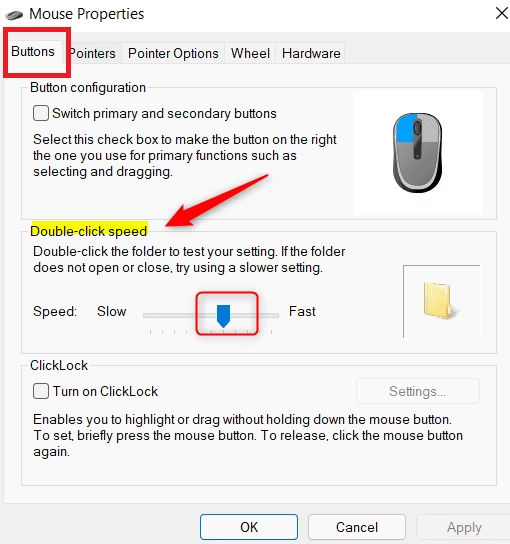
- Open the Control Panel in icons view, and click or tap on the Mouse icon.
- Click or tap on the Buttons tab.
- Move the Double-click speed slider left (slow) or right (fast) to the speed you want.
- Click or tap on OK.
- You can now close the Control Panel if you like.
Option Three
Change Touchpad Double Click Speed in Registry Editor
- [Requires admin privileges] Open Registry Editor by typing
regedit.exein the search box. - Navigate to the key below in the left pane of Registry Editor.
HKEY_CURRENT_USER\Control Panel\Mouse- In the right pane of the Mouse key, double click or tap on the DoubleClickSpeed string value (REG_SZ) to open it.
- Type a number between 200 (faster) to 2000 (slower) for the double click speed you want, and click or tap on OK. The default double click speed is 480.
- Close Registry Editor when finished.
- Either sign out and sign in, or restart your computer to apply the changes.
Summary
You now know three ways to adjust your touchpad’s double click speed on a Microsoft Surface device. The easiest method is using the Surface app. If you prefer the Control Panel, that works too. The Registry Editor method gives you more precise control but requires admin access. Pick whichever method feels most comfortable for you, and enjoy your touchpad at the speed that works best for your clicking style!
Frequently Asked Questions
Why would you want to do this?
How do you change the speed of double-click?
You can change the double-click speed on a Surface device through the Surface app or the Windows Control Panel. In the Surface app, navigate to Touchpad settings and adjust the slider. Alternatively, open Control Panel, select Mouse, go to the Buttons tab, and move the Double-click speed slider to your preference.
What is the normal double-click speed?
The normal or default double-click speed is typically set to the middle position on the slider in Windows settings. This provides a balanced timing that accommodates most users. If you find yourself accidentally triggering double-clicks or struggling to register them, you can manually adjust this slider to better suit your clicking rhythm.
How to change touchpad Mouse speed?
To change your touchpad mouse speed, open the Windows Settings app and navigate to Bluetooth & devices, then select Touchpad. From there, you can adjust the Cursor speed slider to make your pointer move faster or slower across the screen. These settings allow you to customize your navigation experience for better precision.
How do I change the double-click time?
You change the double-click time by adjusting the speed slider in your mouse settings. Open the Control Panel, click on the Mouse icon, and select the Buttons tab. Move the slider toward 'Slow' to increase the time allowed between clicks, or toward 'Fast' to decrease the time required for a double-click.
Was this guide helpful?

About the Author
Richard
Tech Writer, IT Professional
Richard, a writer for Geek Rewind, is a tech enthusiast who loves breaking down complex IT topics into simple, easy-to-understand ideas. With years of hands-on experience in system administration and enterprise IT operations, he’s developed a knack for offering practical tips and solutions. Richard aims to make technology more accessible and actionable. He's deeply committed to the Geek Rewind community, always ready to answer questions and engage in discussions.



No comments yet — be the first to share your thoughts!