How to Enable Dark Mode in Windows 11 Paint App

This guide shows you how to change the look of the Paint app in Windows 11. We will show you how to turn on Dark Mode.
Open the Paint app, click the Settings gear icon in the top right, then select “Dark” from the App theme dropdown menu. Your Paint app will immediately switch to dark mode.
Why use 🪟 Windows 11 Paint dark mode?
Dark mode is easier on your eyes, especially if you work in a dim room. It reduces screen glare and helps your colors pop. It can also help save battery life on some laptop screens. By using this mode, you create a more comfortable workspace for long editing sessions.
What happens when done?
Your Paint app will switch to a dark background. The menus, buttons, and toolbars will change to dark gray or black. This makes your drawings stand out more clearly against the interface. The change happens instantly without needing to restart your computer.
Prerequisites and Version Requirements
You need at least version 11.2304.17.0 or newer of the Windows 11 Paint app to use dark mode.
How to update Microsoft Paint
If your Windows 11 Paint app doesn’t show the dark mode option, you’ll need to update it first.
- Open the Microsoft Store app on your computer.
- Click on the Library icon in the bottom left corner.
- Click the Get updates button.
- Wait for the Paint app to download the latest files.
You can also visit the official Microsoft Store Paint page to trigger an update.
How to change your Paint theme
You can change your Windows 11 Paint app theme to dark mode directly within the app’s settings.
- Open the Paint app on your computer.
- Click the Settings (gear icon) button located at the top right of the window.
Paint app settings button - On the Settings menu, click the App theme box to open it.
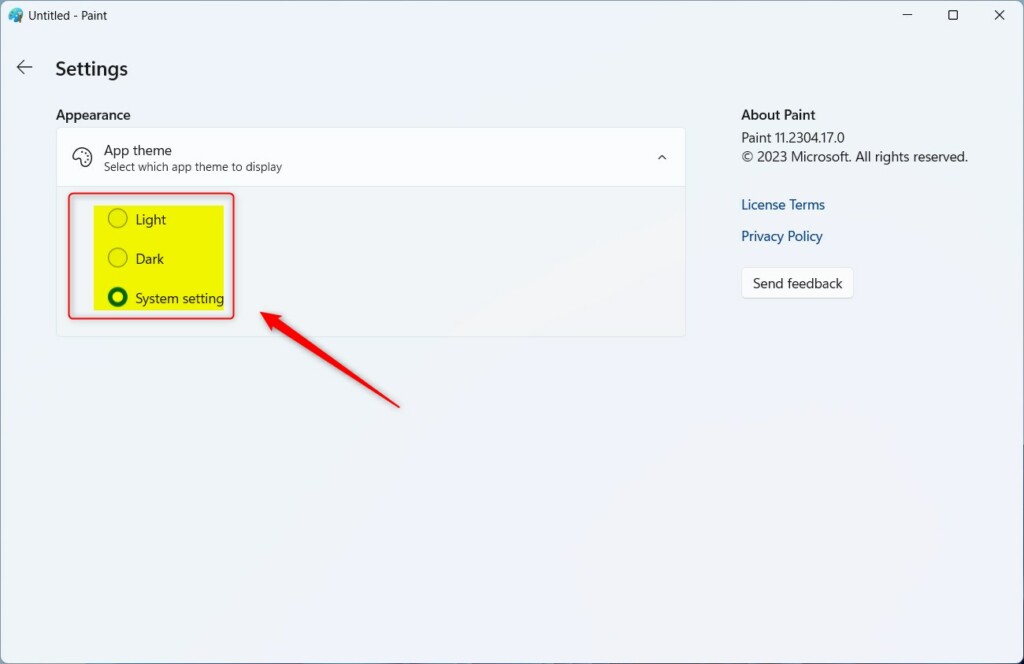
Paint app theme options - Select your preferred theme from the dropdown menu. You can choose Light, Dark, or System setting.
- Close the Settings pane when you are finished.
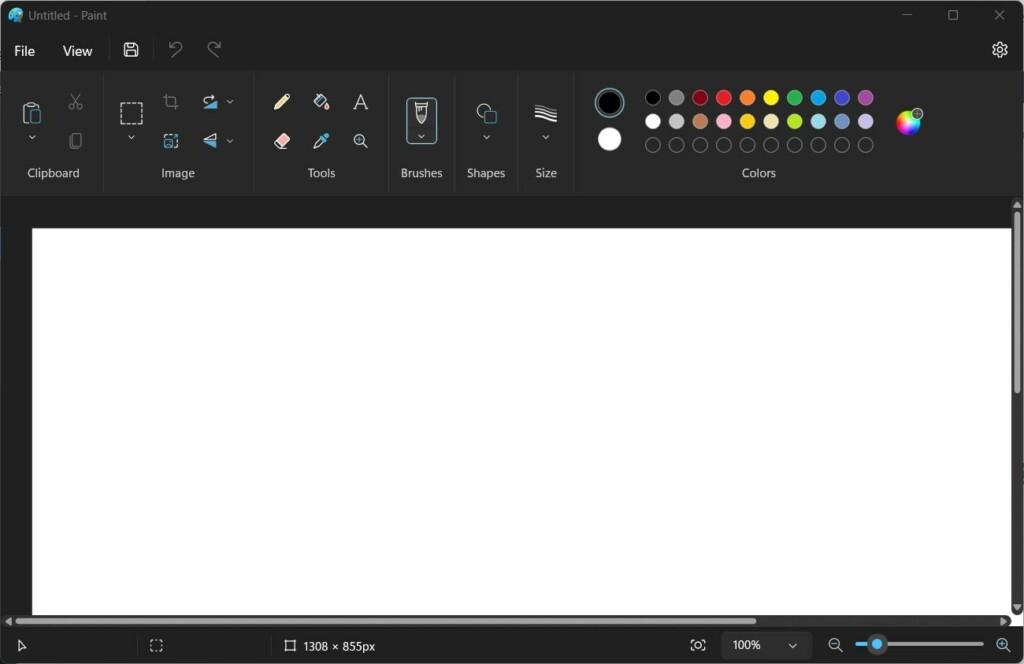
The Paint app dark mode
Troubleshooting and Common Issues
If dark mode isn’t working in your Windows 11 Paint app, try checking for Windows updates or resetting the app.
- Check Windows Updates: Ensure your Windows 11 is fully updated via System Settings.
- Reset the App: Go to Settings > Apps > Installed Apps > Paint. Click the three dots, select Advanced options, and click Reset. Note: This does not require admin privileges, but it resets app preferences.
- Windows Insider Program: If you are on an older build, you might need to join the Windows Insider Program to get the latest app features early.
Summary
Turning on Windows 11 Paint dark mode is easy and helps reduce eye strain, making your creative work more comfortable.
Reference: Paint app in the Microsoft Store.
Does Paint dark mode automatically follow Windows system theme?
Yes, by default, the Paint app is set to follow your system theme. If your Windows 11 is set to Dark mode, Paint will automatically switch to dark mode. You can override this behavior at any time by selecting a specific theme in the Paint settings menu.
Is dark mode available on 🪟 Windows 10?
No, the modern dark mode feature for the Paint app is exclusive to Windows 11. Windows 10 users are limited to the classic Paint interface, which does not support native dark mode settings. You would need to upgrade to Windows 11 to access this specific UI redesign.
Was this guide helpful?

About the Author
Richard
Tech Writer, IT Professional
Richard, a writer for Geek Rewind, is a tech enthusiast who loves breaking down complex IT topics into simple, easy-to-understand ideas. With years of hands-on experience in system administration and enterprise IT operations, he’s developed a knack for offering practical tips and solutions. Richard aims to make technology more accessible and actionable. He's deeply committed to the Geek Rewind community, always ready to answer questions and engage in discussions.



[…] File Explorer is good, users can also use the Paint and Photos apps to rotate images in […]