

This article explains how to change the Narrator audio output device on Windows 11.
Narrator is a screen-reading app built into Windows that reads the text on your screen aloud and describes events for users with low vision or blindness.
When you use the Narrator app, you can turn on or off its keyboard shortcuts, launch it automatically, adjust the voice, speed, and volume, manage natural voices, lower the volume of other apps when the Narrator is speaking, and more.
If multiple audio devices are available, you can choose the default audio output device in another Narrator app setting.
For example, suppose you have multiple audio output devices connected to your computer. In that case, switch the Narrator to a different device to control which speakers or headphones the Narrator’s voice comes through.
Additionally, changing the audio output device can help you troubleshoot issues with audio playback or ensure that the Narrator is working correctly on a specific device.
Changing the default audio output device for the Narrator
As mentioned above, users can change the default audio output device for Narrator on Windows.
Here’s how to do it.
First, open the Windows Settings app.
You can do that by clicking on the Start menu and selecting Settings. Or press the keyboard shortcut (Windows key + I) to launch the Settings app.
When the Setting app opens, click the Accessibility button on the left and select the Narrator tile on the right to expand it.

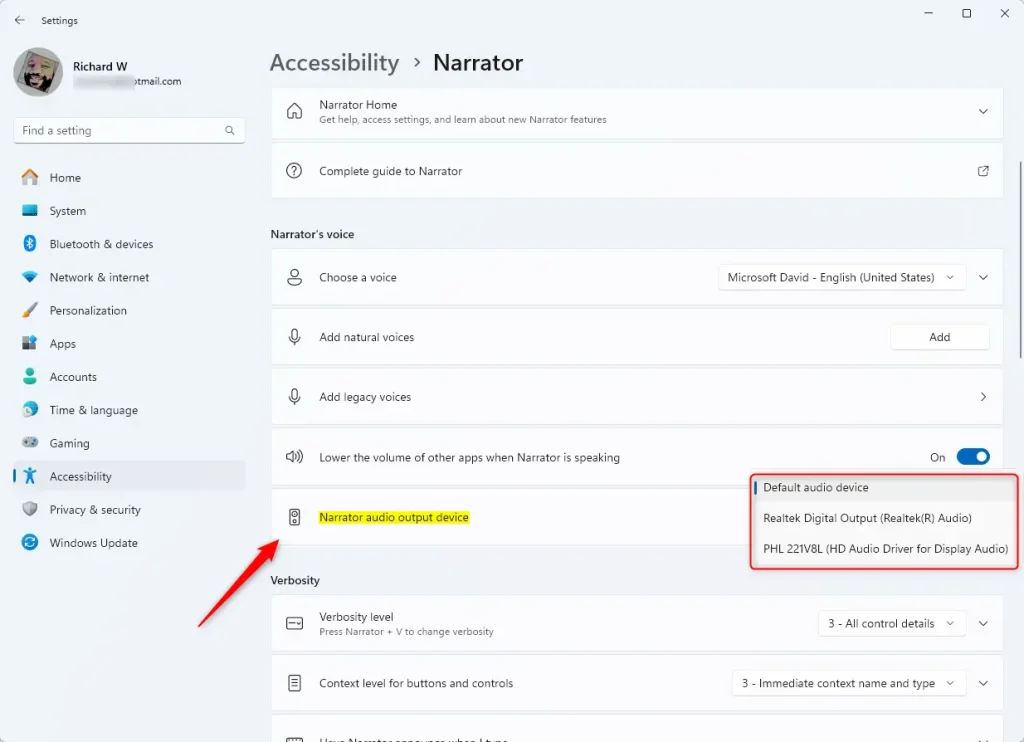
On the Narrator settings pane, under the “Narrator’s voice” section, select the “Narrator audio output device” tile. If multiple devices are available, choose one of the options.
When you select the “Default audio device,” the Narrator will use your computer’s audio output device as its default.
That should do it!
Conclusion:
- Changing the audio output device for the Narrator on Windows 11 can improve the user experience for individuals with low vision or blindness.
- Users can select the appropriate audio device to ensure the Narrator’s voice comes through the desired speakers or headphones.
- Adjusting the default audio output device can also help troubleshoot audio playback issues and ensure the Narrator functions correctly on a specific device.



Leave a Reply Cancel reply