How to Change the Maximum Storage for Snapshots in Windows 11

This guide will help you easily change how much storage Windows 11 uses to save snapshots of your screen.
Recall & Snapshots is a handy feature in Windows 11. It works like a photo album for your computer. It saves pictures (snapshots) of what’s on your screen. Later, you can search through these snapshots to find things you’ve seen before.
Why use this feature? It helps you remember what you saw on your screen without taking manual screenshots.
These snapshots are saved safely on your computer. Windows sets a limit on how much space these snapshots can take. When the limit is reached, Windows deletes the oldest snapshots to make room for new ones. But don’t worry—you can change this storage limit anytime to fit your needs.
What happens when you change the limit? Windows will use only the amount of storage you choose. Older snapshots get deleted automatically when you hit your new limit.
Want to keep more snapshots or free up space? You can easily manage how much storage Recall & Snapshots uses. If your PC is running low on storage, you can also delete snapshots anytime by going to Settings > Privacy & security > Recall & Snapshots.
Storage Options for Different PC Sizes
| Device Storage Size | Storage Options for Snapshots |
|---|---|
| 256 GB | 25 GB (default), 10 GB |
| 512 GB | 75 GB (default), 50 GB, 25 GB |
| 1 TB or more | 150 GB (default), 100 GB, 75 GB, 50 GB, 25 GB |
Steps to Change Maximum Storage for Snapshots in 🪟 Windows 11
- Open Windows Settings:
- Click the Start menu (Windows icon) and select Settings.
- Or press Windows key + I on your keyboard to open Settings quickly.
- Go to Privacy & security:
- In the Settings window, click Privacy & security on the left side menu.
- Find Recall & Snapshots:
- On the right side, scroll down and click Recall & Snapshots.
- Make sure the Save snapshots feature is turned ON.
- Adjust the storage limit:
- Click on the Storage section to expand it.
- Here, adjust the Maximum storage for snapshots slider or dropdown to pick how much space Windows should use for snapshots.
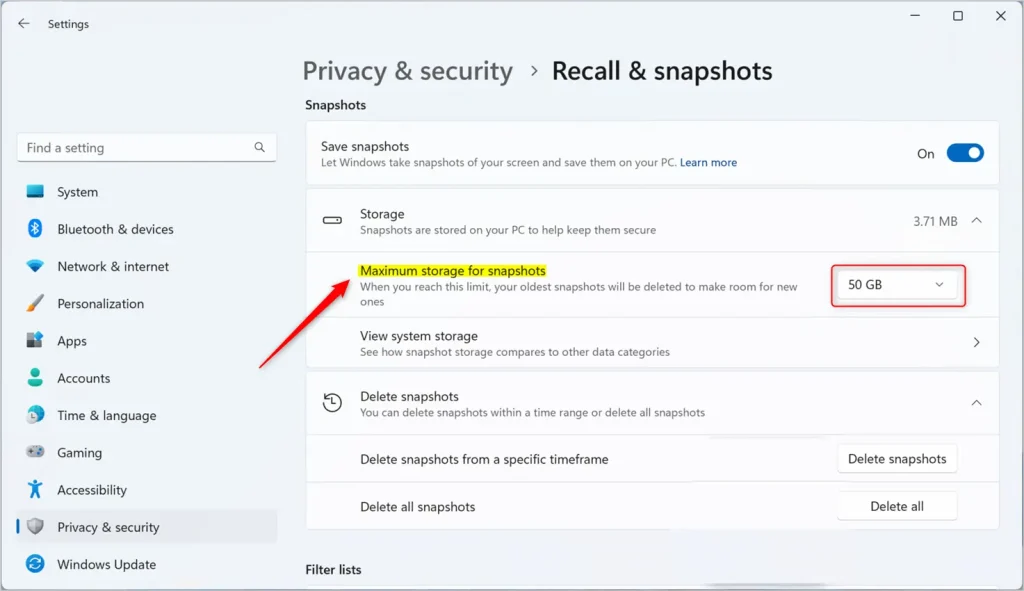
- Save your changes:
- Close Settings when you’re done. Your new storage limit will be saved automatically!
Helpful Tips
- If you want to save more snapshots, choose a bigger storage size—but make sure you have enough free space on your PC.
- If your PC is low on disk space, pick a smaller size or delete some snapshots to free up space.
- You can always turn off the snapshot feature if you don’t want Windows to save snapshots.
Reference: Official Microsoft Support on Recall & Snapshots
Summary
- Changing the max storage for snapshots is easy and helps you manage space on your PC.
- You can choose how much space Windows uses to keep snapshots safe.
- Access the settings anytime through the Privacy & security section in Windows Settings.
- Adjusting storage helps keep your important snapshots without filling up your hard drive.
Was this guide helpful?
No comments yet — be the first to share your thoughts!