
Do you have trouble seeing things on your screen? Windows 11 has a tool called Magnifier that can help. It makes part or all of your screen bigger so you can read text and see pictures more clearly.
This guide will show you simple ways to change how much Magnifier zooms in. You can pick the zoom level that feels best for you.
What is Magnifier?
Magnifier helps you by enlarging things on your screen. When you turn it on, it remembers the zoom level you used last time and starts there.
Learn more about Magnifier on the official Microsoft support page: Use Magnifier to make things on the screen easier to see
Why Use Magnifier?
Magnifier makes it easier to see text and images. This is helpful if you have vision problems or just want to see something more clearly.
Option 1: Change Zoom Level Using Keyboard Shortcuts
- Turn on Magnifier by pressing the Windows key + Plus (+) on your keyboard.
- To zoom in (make things bigger), press Windows key + Plus (+) again.
- To zoom out (make things smaller), press Windows key + Minus (-).
Option 2: Change Zoom Level Using Mouse Scroll Wheel
- Turn on Magnifier (Windows key + Plus (+)).
- Hold down the Ctrl and Alt keys on your keyboard.
- While holding these keys, scroll your mouse wheel up to zoom in or scroll down to zoom out.
Option 3: Change Zoom Level Using the Magnifier Toolbar
- Turn on Magnifier (Windows key + Plus (+)).
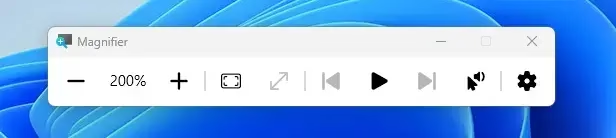
- Look for the Magnifier toolbar that appears on your screen.
- Click the + button to zoom in or the – button to zoom out.
Option 4: Change Zoom Level in Windows Settings
- Press Windows key + I to open Settings.
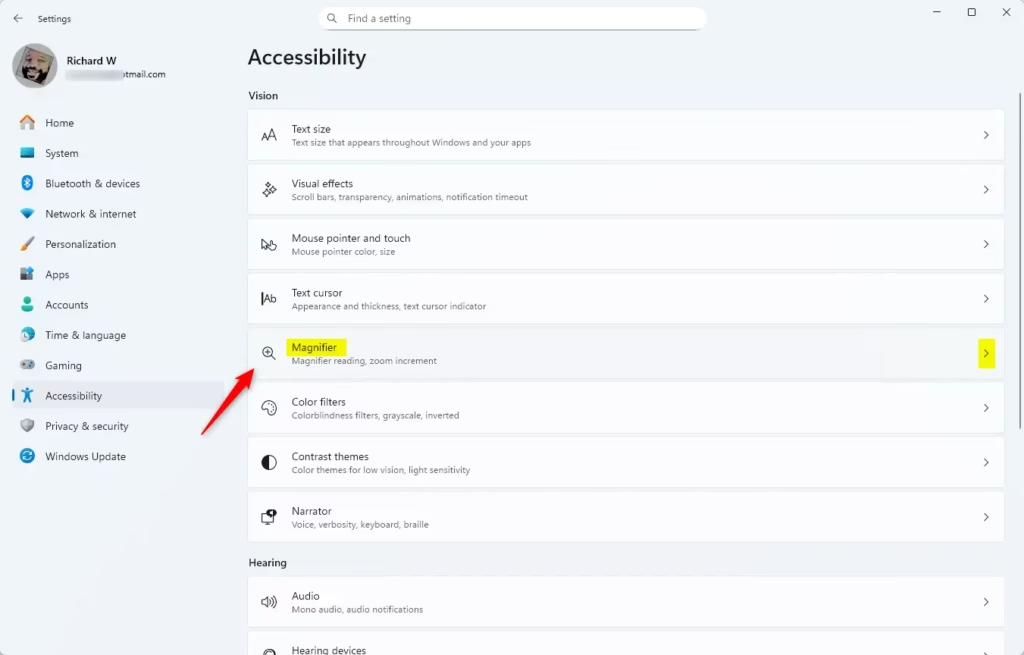
- Click on Accessibility on the left menu.
- Click Magnifier on the right.
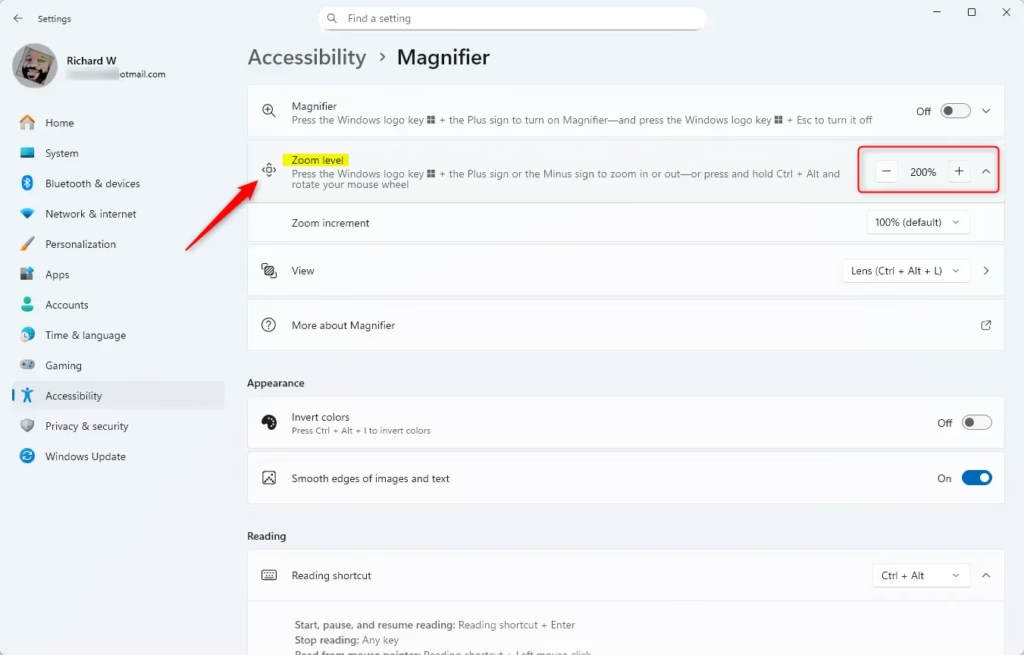
- Under Zoom level, click the – or + buttons to change the zoom.
- Click here to open Magnifier settings directly
- You can close Settings when you’re done.
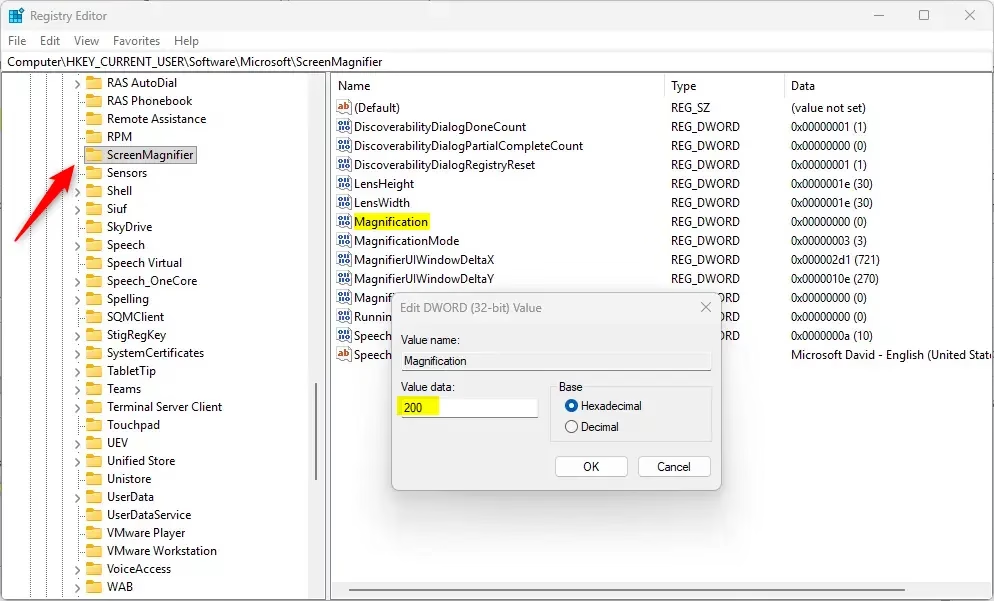
Option 5: Change Zoom Level Using Registry Editor (Advanced)
Warning: Changing the Registry can affect your computer if done wrong. Only do this if you feel comfortable with advanced steps.
⚠️ Admin privileges required
- Press Windows key + R, type
regedit, and press Enter to open Registry Editor. - Navigate to this folder:
Computer\HKEY_CURRENT_USER\Software\Microsoft\ScreenMagnifier - In the right pane, double-click Magnification.
- Select Decimal for the number format.
- Type a number between 100 (100%) and 1600 (1600%) to set your zoom level.
- Click OK and close Registry Editor.
Summary
Windows 11 Magnifier helps you see your screen better by making things bigger. You have five ways to change the zoom level:
- Keyboard shortcuts: Use Windows key + Plus or Minus to zoom in and out.
- Mouse scroll: Hold Ctrl + Alt and scroll your mouse wheel.
- Magnifier toolbar: Click the + or – buttons on the toolbar.
- Settings: Go to Accessibility and find the Magnifier zoom controls.
- Registry Editor: Change the zoom level directly in the Registry (advanced users only).
Try whichever method works best for you. Each one gives you control over how much your screen magnifies.



Leave a Reply