

This article explains how to change the skin tones for hand gestures, emojis, and other reactions in Zoom on Windows 11.
Zoom is a video conferencing and online meeting platform that allows users to connect remotely. It offers Video and audio conferencing, screen sharing, and recording features.
There are many settings one can configure in the Zoom app on Windows. Users can download and install, start Zoom automatically when Windows starts, use dual monitors, turn Video and audio on or off screen lock, mute microphone when joining meetings, change where to save meeting recordings, turn message preview on or off, turn chat notifications on or off, turn new message sound on or off, and more.
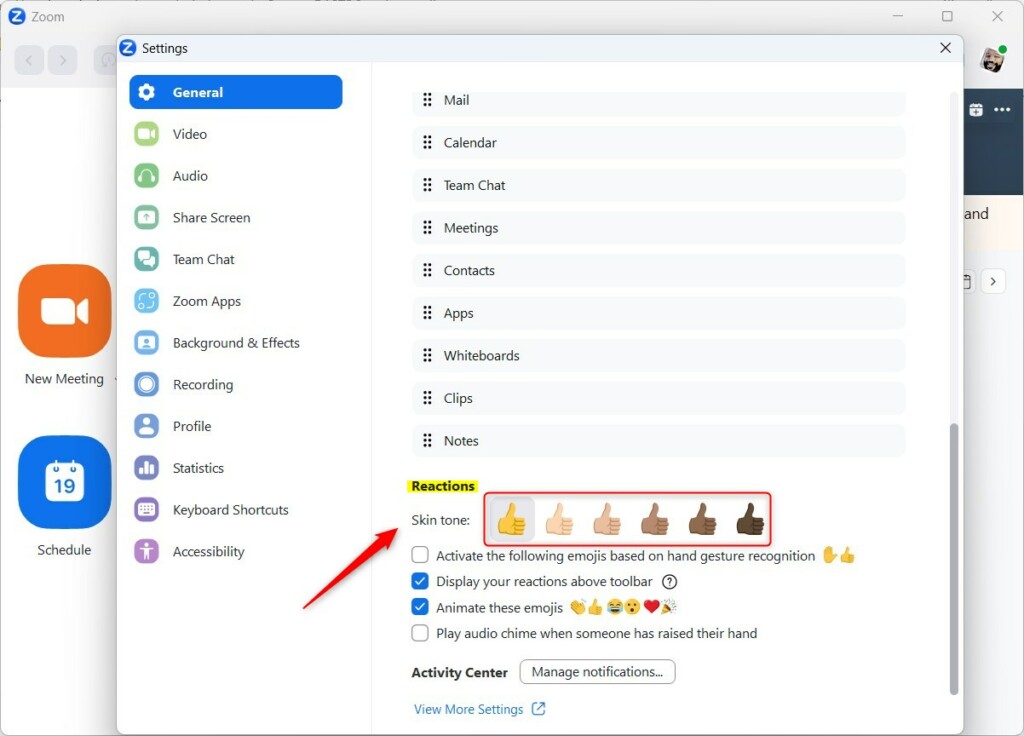
When you use Zoom, you can change the skin tones of emojis, hand gestures, and other reactions. Skin tones are based on these colors: [Default], [Light], [Medium Light], [Medium], [Medium Dark], and [Dark].
Changing the skin tone for emojis and hand gestures in Zoom is important because it allows users to personalize their reactions and expressions during video conferences. It helps to make communication more inclusive and diverse, especially for people of color who may feel left out when the default options do not represent their skin tone accurately.
The steps below show you how to do that.
Change skin tones for emojis and hand gestures in Zoom
As mentioned above, users can change their skin tones for emojis and hand gestures in Zoom to personalize their reactions and expressions during video conferences.
Here’s how to do that.
First, open the Zoom app. You can do that by clicking Start and selecting the ‘All apps’ button on the Start menu.
Under All apps, scroll down alphabetically to the bottom and open the Zoom app.

When the Zoom app opens, click the Settings (gear) to open its Setting pane.

Alternatively, click on your profile image at the top right and select Settings on the context menu.

Select the General button on the left menu when the Settings pane opens.
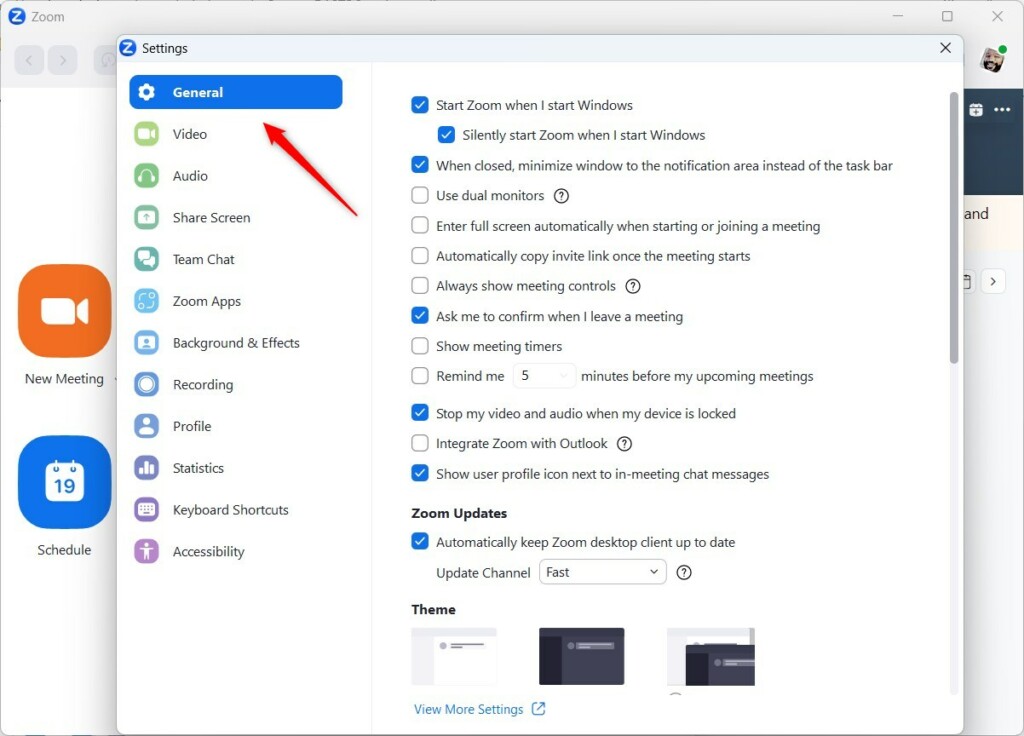
On the General settings page, scroll down to Reactions. Then, choose the “Skin tones” to match your personality.
Whatever tone you select will also apply to emojis and other gestures.
That should do it!
Conclusion:
- Changing skin tones for emojis and hand gestures in Zoom is an important feature for personalizing reactions and expressions during video conferences.
- This personalized feature makes communication more inclusive and diverse, especially for people of color whose skin tones may not be accurately represented in default options.
- Following the steps, users can seamlessly adjust skin tones for emojis and hand gestures in the Zoom app on Windows, thereby enhancing their overall conferencing experience.

Leave a Reply