How to Change Magnifier Reading Keys in Windows 11

Do you use the Magnifier tool in Windows 11? It helps you see things better on your screen. The good news is that you can change the keyboard shortcuts that control it. Let’s walk through how to do that.
What Is the Magnifier?
The Magnifier app works like a digital magnifying glass. It makes parts of your screen bigger so you can read or see things more clearly. This is very helpful if you have trouble seeing small text or details on your computer.
Understanding the Default Shortcut Keys
Magnifier reading shortcuts always start with a special key combination called the modifier key. By default, this is Ctrl + Alt.
Here are some common Magnifier reading shortcuts:
| Press this key | What it does |
| Windows key + Plus sign (+) | Turn Magnifier ON |
| Modifier key + Enter | Start, pause, or resume reading |
| Any key | Stop reading |
| Modifier key + Left mouse click | Read from mouse pointer location |
| Modifier key + H | Read previous sentence |
| Modifier key + K | Read next sentence |
How to Change Magnifier Reading Keys Using Settings
Follow these easy steps to change the modifier key from Ctrl + Alt to something else like Caps Lock or Insert:
Open the Settings app:
- Click the Start menu and select Settings.
- Or press Windows key + I on your keyboard.
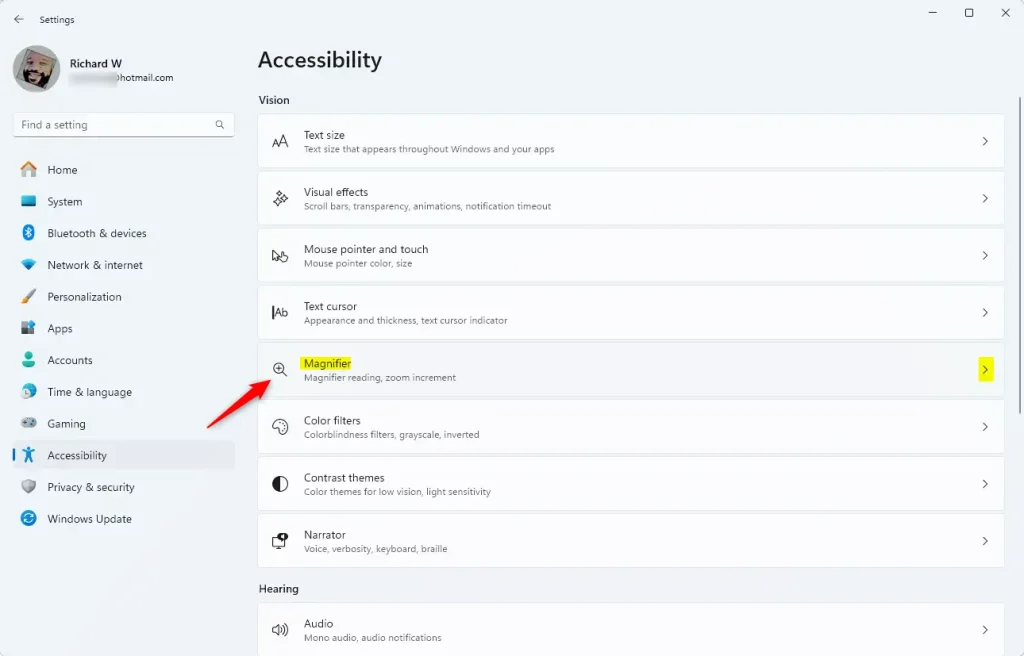
In Settings, click on Accessibility from the left menu.
On the right side, find and click Magnifier to open its options.
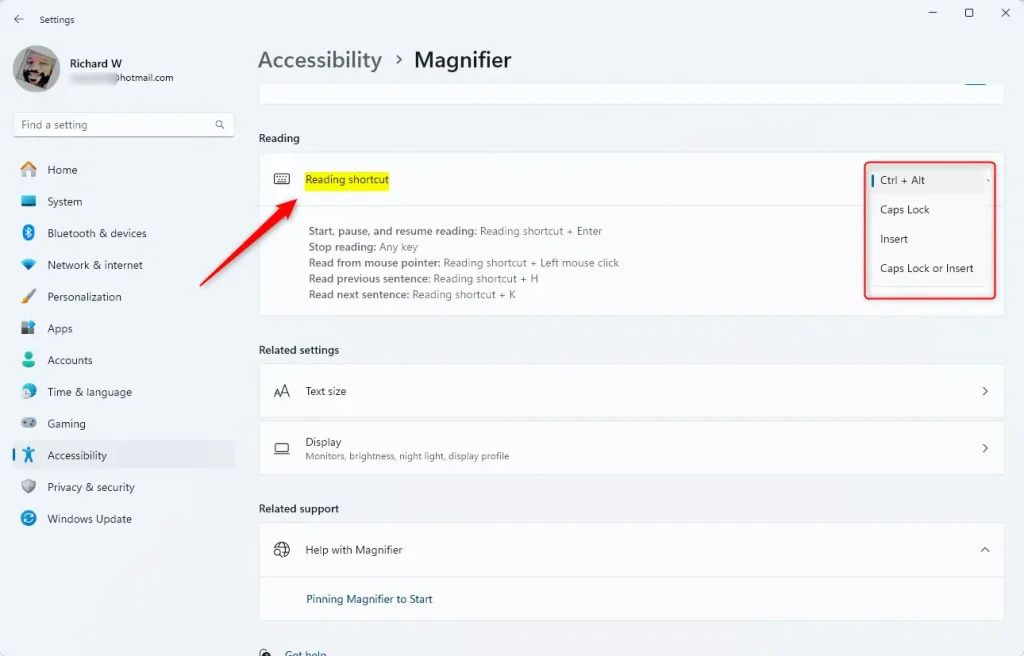
Look for the Reading shortcut section.
Click the drop-down menu under “Modifier key” and pick the key combination you want.
Close the Settings app when done.
Here are some screenshots to help you find these settings:
How to Change Magnifier Reading Keys Using the Registry (Advanced)
⚠️ This section requires admin privileges.
Why would you use the Registry? The Settings app might not have all the options you need. The Registry gives you more control. What happens when you edit it? You can customize your keys exactly how you want them.
Be careful: Changing the Registry can affect your system. It’s important to back up your Registry or create a System Restore point before making changes.
Here’s how to do it:
Open the Registry Editor:
- Press Windows key + R, type
regedit, and press Enter.
- Press Windows key + R, type
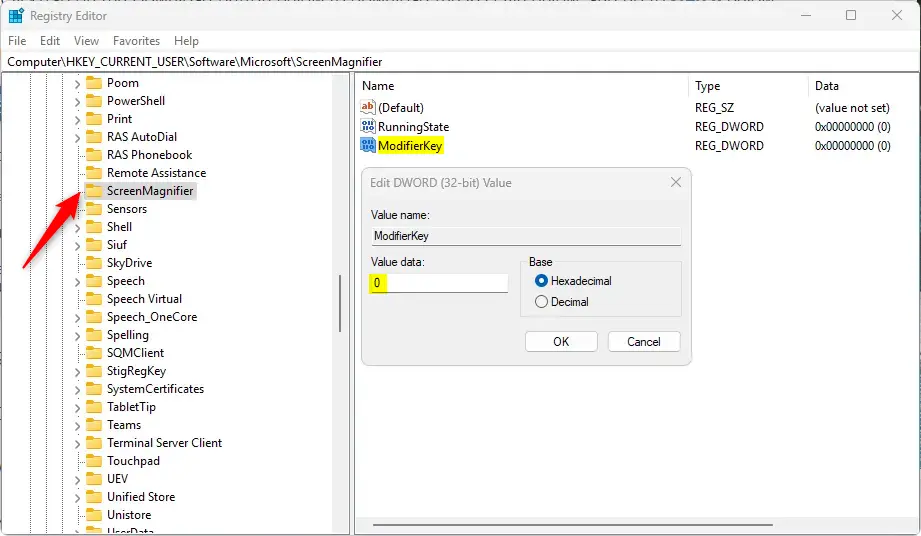
Navigate to this folder path:
Computer\HKEY_CURRENT_USER\Software\Microsoft\ScreenMagnifierRight-click the ScreenMagnifier folder, select New > DWORD (32-bit) Value.
Name the new DWORD ModifierKey.
Double-click ModifierKey and enter one of these values:
- 1 = Ctrl + Alt (default)
- 2 = Caps Lock
- 4 = Insert
- 6 = Caps Lock or Insert
Click OK and close the Registry Editor.
Restart your computer to apply the changes.
Summary
- Windows Magnifier helps you see things more clearly on your screen.
- You can change the reading shortcut keys easily in the Settings app.
- If you want more options, you can edit the Registry. Just be careful when you do.
- The default modifier key is Ctrl + Alt, but you can switch it to Caps Lock or Insert.
- Always back up your system before making big changes.
- Changing these keys can make using Magnifier easier and more comfortable for you.
References:
Microsoft Support – How to use Magnifier reading
Frequently Asked Questions
What Is the Magnifier?
Was this guide helpful?
No comments yet — be the first to share your thoughts!