How to Change How Narrator Reads Capital Letters in Windows 11

Narrator is a built-in tool in Windows 11 that reads text on your screen out loud. It helps people who have difficulty seeing or reading text on their computer.
Sometimes, when Narrator reads words in all capital letters (like THIS), it sounds different. You can change how it reads these capital letters to make it easier to understand.
What Are Your Options?
Windows 11 gives you three choices for how Narrator reads capital letters:
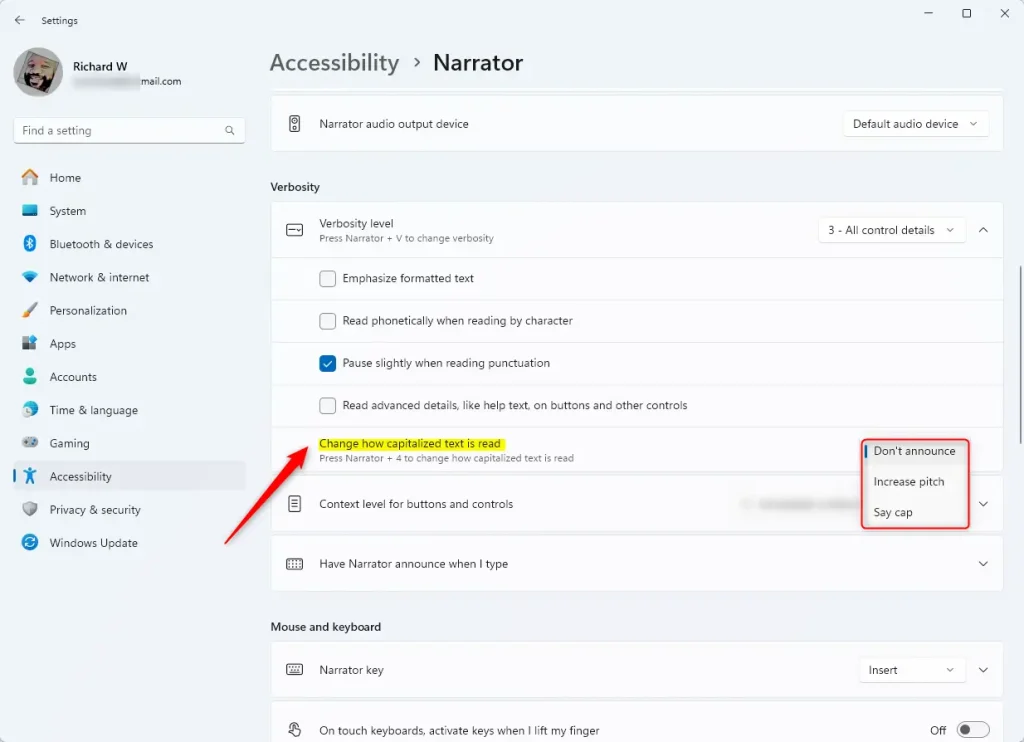
- Don’t announce: Narrator reads the text normally without saying anything special for capital letters.
- Increase pitch: Narrator changes its voice to a higher tone when reading capital letters.
- Say cap: Narrator says the word “cap” before the capitalized word to let you know it’s in all caps.
How to Change This Setting
Follow these simple steps to adjust how Narrator reads capital letters:
- Open Settings. Click the Start menu (the Windows icon in the bottom left corner), then click Settings. Or, press
Windows key + Ion your keyboard to open Settings quickly. - In Settings, click on Accessibility in the left menu.
- On the right side, find and click on Narrator.
- Scroll down to the Verbosity section and click to expand it.
- Look for Change how capitalized text is read and click on it.
- Choose one of the three options: Don’t announce, Increase pitch, or Say cap.
- When done, you can close the Settings app.
Quick Tip
You can also press Narrator key + 4 to cycle through these capital letter reading modes without opening Settings. The “Narrator key” is usually the Caps Lock key or the Insert key on your keyboard.
Why Change This?
Microsoft updated Narrator to make it easier to understand capital letters for everyone. You can pick the option that sounds best to you!
Summary
- Narrator reads text aloud to help people with low vision or blindness.
- You can choose how it reads capital letters: no special announcement, a higher voice, or saying “cap”.
- Changing this is easy and helps make reading out loud clearer for you.
- For more help with Narrator, check out this easy guide on how to turn Narrator on or off in Windows 11.
Was this guide helpful?




Leave a Reply Cancel reply