
If you use a Windows 11 tablet or a touchscreen device, you can write with your finger or a pen using the Handwriting Panel. This panel changes your handwriting into typed text automatically.
Sometimes, the default font size (medium) might be too small or too big for you. Don’t worry — you can easily change it to small, medium, or large. Below, you’ll find simple steps to do this.
Change the Font Size Using Windows Settings
- Open the Settings app:
- Click the Start menu and select Settings, or
- Press Windows key + I on your keyboard.
- In Settings, click on Bluetooth & devices on the left side.
- On the right side, find and click Pen & Windows Ink.
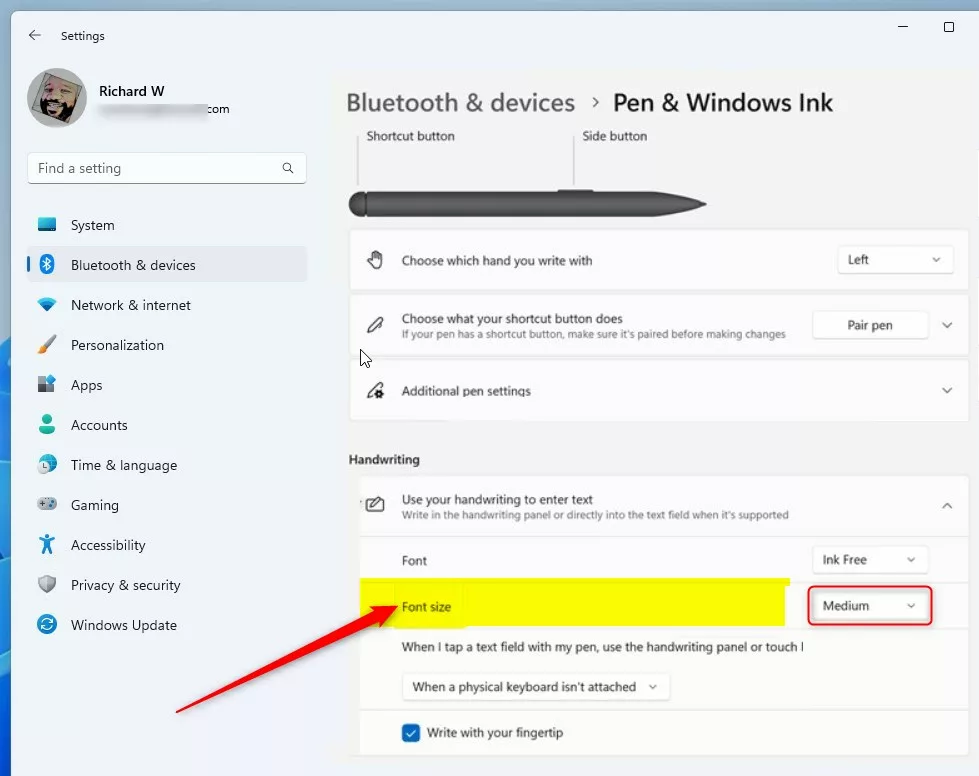
- Look for the section called Use your handwriting to enter text and click to expand it.
- Here, choose the font size you want for your handwriting panel:
- Small
- Medium (default)
- Large
- Close the Settings app when you’re done.
Change the Font Size Using Windows Registry Editor (Advanced)
If you feel comfortable making changes in Windows Registry, here’s another way to change the handwriting font size:
- Open the Windows Registry Editor:
- Press Windows key + R, type
regedit, and press Enter.
- Press Windows key + R, type
- Go to this folder path:
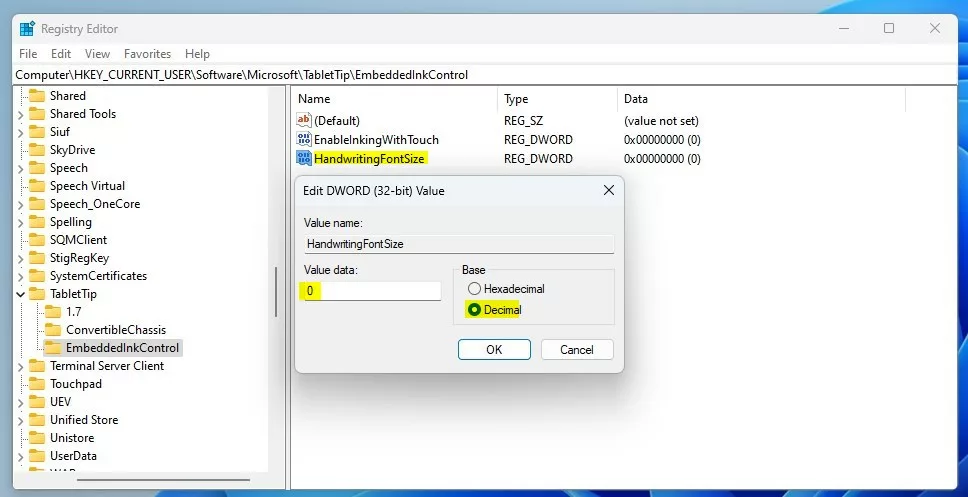
HKEY_CURRENT_USER\Software\Microsoft\TabletTip\EmbeddedInkControl
- If the EmbeddedInkControl folder is missing, right-click on TabletTip, select New > Key, and name it EmbeddedInkControl.
- Inside EmbeddedInkControl, right-click on the right side pane and select New > DWORD (32-bit) Value.
- Name this new value HandwritingFontSize.
- Double-click HandwritingFontSize, set the Base to Decimal, then enter one of the following numbers for font size:
- 0 for Small
- 1 for Medium
- 2 for Large
- Click OK, close the Registry Editor, and restart your computer to apply the changes.
Summary
- You can change the handwriting panel font size to small, medium, or large in Windows 11.
- The easiest way is through the Windows Settings app under Bluetooth & devices > Pen & Windows Ink.
- Advanced users can change it using the Windows Registry Editor.
- If you have questions or problems, feel free to leave a comment below!
Leave a Reply