This guide will help you easily change the language your Windows 11 computer shows. This means menus, buttons, and messages will appear in the language you choose.
This is useful if you speak more than one language or if you want your computer to use a language you’re more comfortable with.
Note: Some parts of programs might still show up in English if they haven’t been translated.
Steps to Change the Display Language in Windows 11
- Open Settings:
Click the Start button (the Windows icon at the bottom left), then click Settings.
Or, press Windows key + I on your keyboard to open Settings quickly.
- Go to Language Settings:
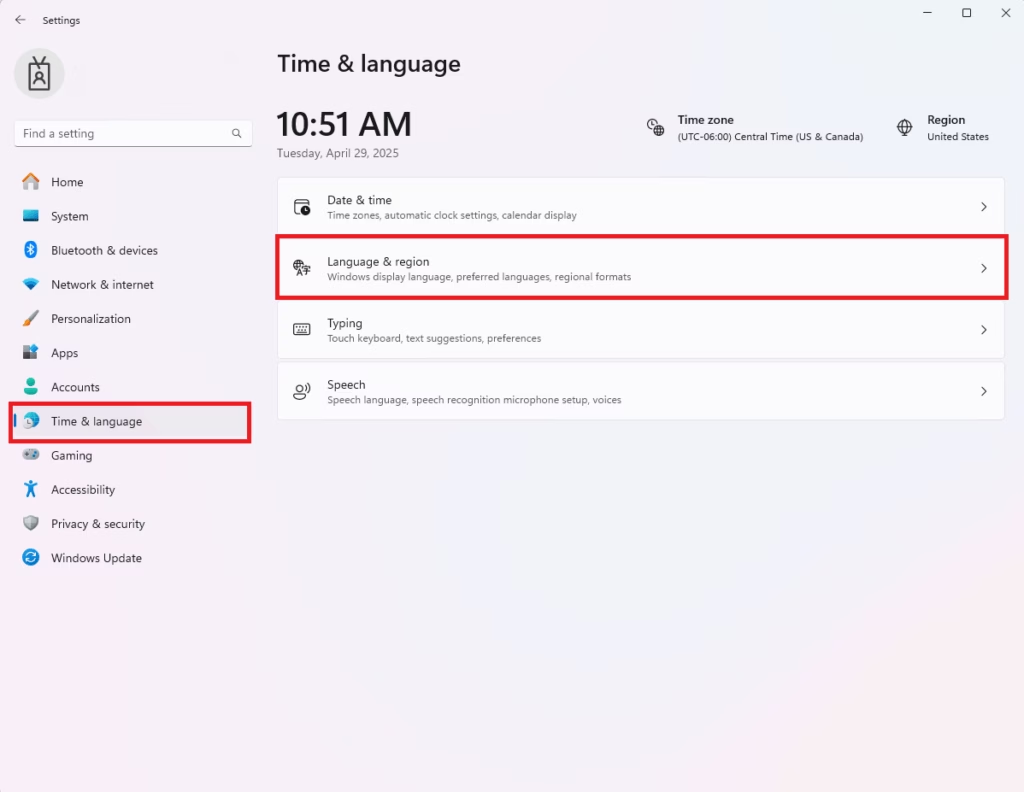
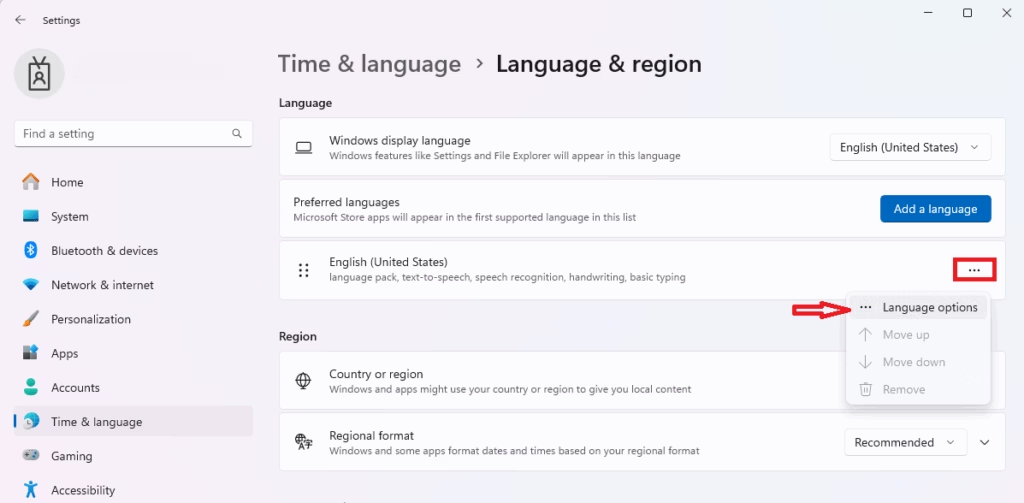
In the Settings window, click Time & language on the left side.
Then click Language & region on the right side.
- Add a New Language:
Click the Add a language button.
- Pick Your Language:
Find the language you want in the list. You can type in the search box to find it faster.
Then click Next.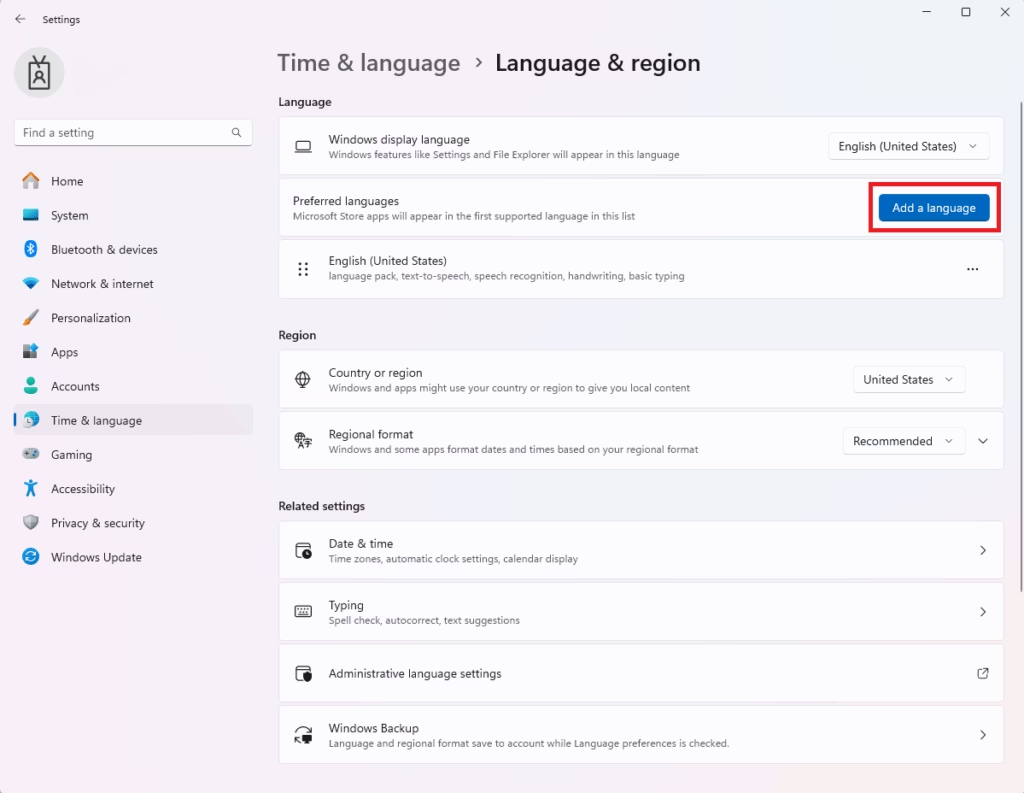
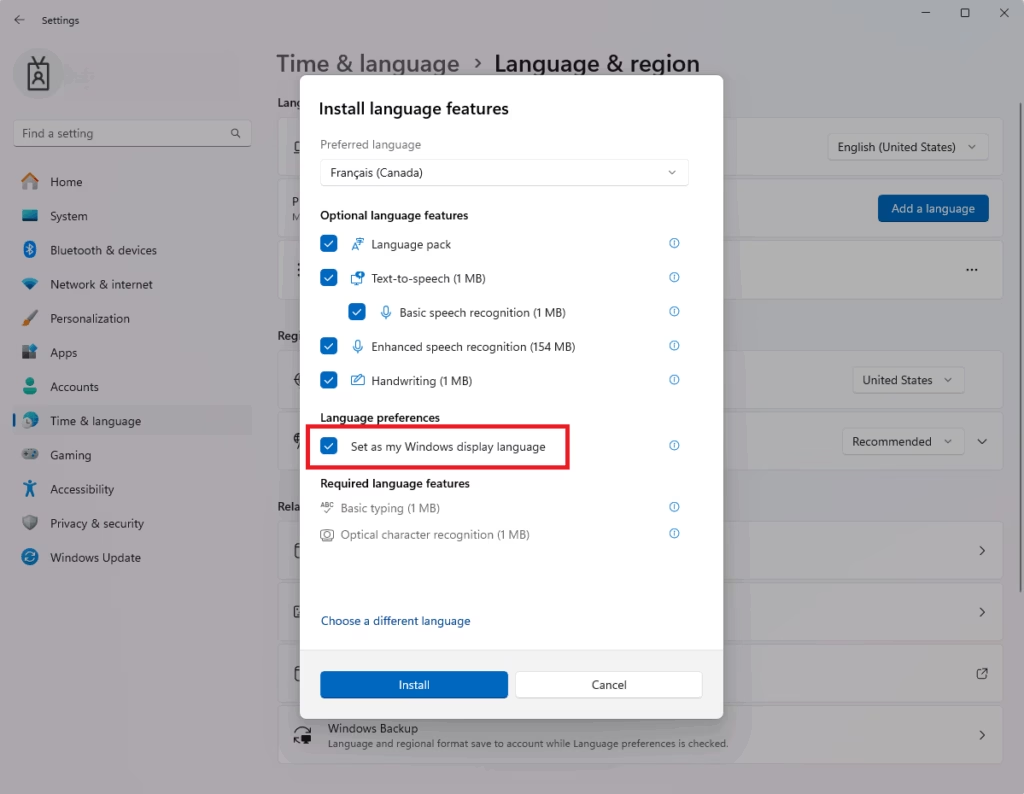
- Set as Display Language:
Make sure to check the box that says “Set as my Windows display language”.
Then click Install.
- Wait for Installation:
Windows will download and install the language pack. This might take a few minutes.
After it’s done, you will need to sign out and then sign back in for the new language to start working.
- Optional: Add Keyboard Layout:
If you want to type in your new language, you can add a matching keyboard.
In the Language & region settings, click your new language, then click Language options.
Click Add a keyboard and choose the keyboard layout for your language.
Extra Tips
- If Windows doesn’t install the language automatically, you might need to download the language pack manually.
- Some folder names like “Music,” “Pictures,” and “Documents” will change to the new language after you log back in.
Summary
- You can easily change Windows 11 to show menus and messages in your favorite language.
- Just open Settings → Time & language → Language & region, then add and select your language.
- Don’t forget to log out and log back in to see the changes.
- You can also add a keyboard for easy typing in that language.
- Enjoy using Windows 11 in the language that feels right for you!
Categories:
Tags:

Leave a Reply