How to Change Account Types in Ubuntu Linux

You change an account type in Ubuntu Linux, typically from Standard to Administrator or Administrator to Standard, directly through the system’s graphical user interface.
Ubuntu Linux supports multiple user accounts, each with specific permissions. Your account type dictates your level of access and control over the operating system.
The two primary account types are Standard, which offers limited privileges for everyday use, and Administrator (often called Superuser or Root), which grants full system control.
New accounts in Ubuntu 22.04 LTS are created as Standard by default, enhancing system security by preventing accidental critical changes.
You might need to elevate a Standard user’s privileges to Administrator, or conversely, restrict an Administrator’s access by downgrading them, for security or management purposes.
Open System Settings, click Users, and unlock the panel with your password. Select the user, then toggle the Administrator switch to On to grant administrative privileges or Off to remove them.
How to switch account type in Ubuntu Linux
You can change an account type in Ubuntu Linux through the System Settings panel to easily adjust user permissions.
Ubuntu Linux keeps most of its settings in one central place. You can manage everything from system configurations to creating new users and updating your system from the System Settings panel.
Another way is to click on the System menu in the top-right corner of your desktop’s top bar.
In the System menu, select Settings, as shown below.

Click the Users tile to open the panel within the Settings app.
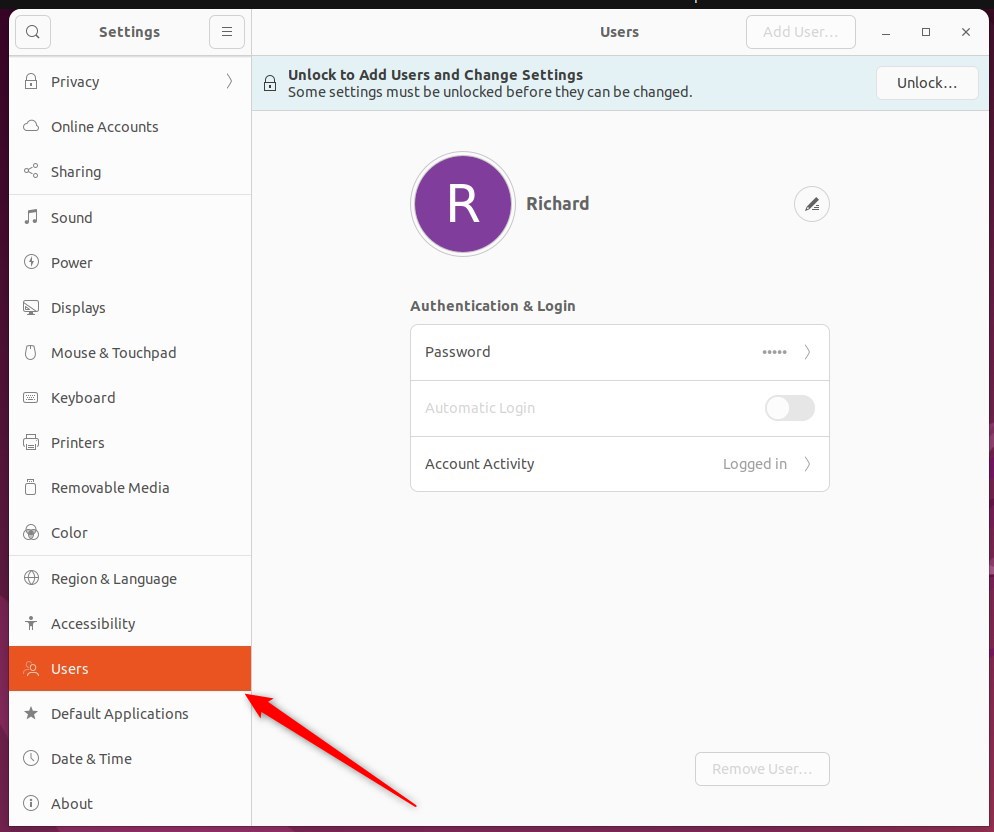
In the ‘Users’ settings panel (you’ll find it under System Settings), click ‘Unlock’ in the top right corner and enter your password when asked.
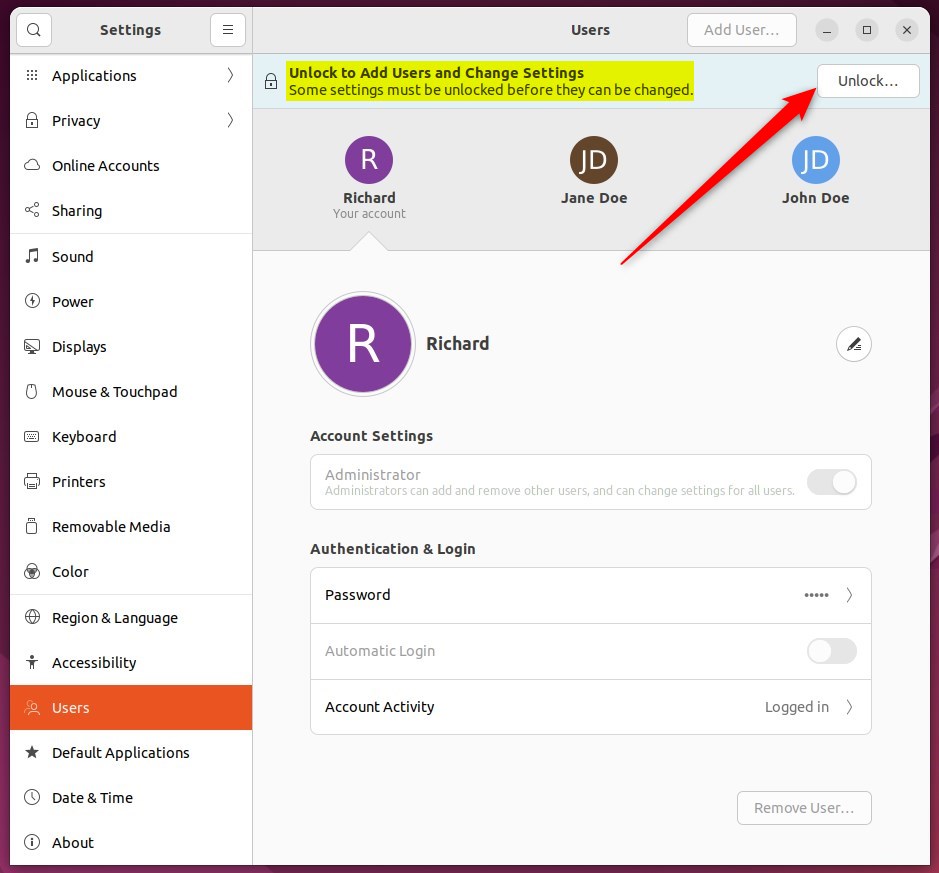
Next, choose the user whose privileges you want to adjust. Then, under Account Settings, toggle the Administrator button to On if you want to make that account an administrator.
To take away administrator rights, toggle the button to Off.
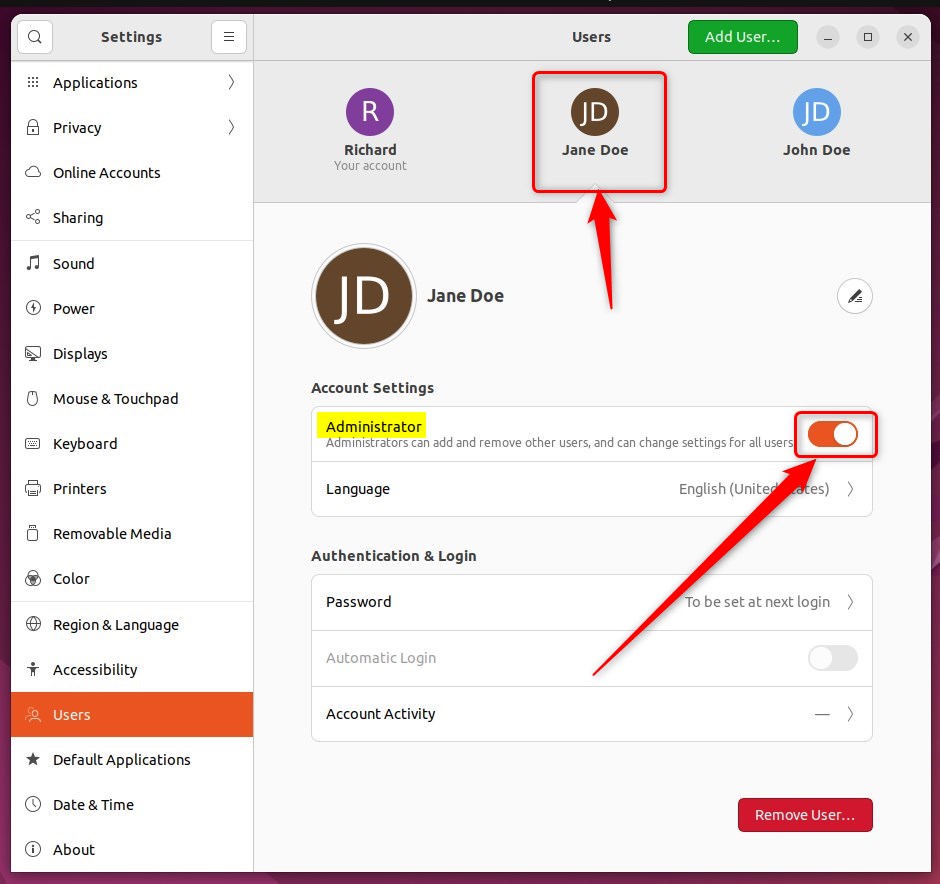
The user’s privileges will update the next time they log in. That’s all there is to it!
You can now close the Settings app.
Conclusion:
- Ubuntu Linux offers the flexibility of multi-user functionality, allowing separate and unique accounts and profiles on the same device.
- Users can easily switch between Standard and Administrator account types through the System Settings panel.
- Users can effectively manage account privileges and access to Ubuntu Linux by following the steps provided.
How do I change my account in Ubuntu?
To switch user, click on the system menu, typically located at the top right corner of your screen. Choose the user icon. Other option is to select either another user to switch directly (if available) or choose “Power Off/ Log Out” return to the login screen.
How to switch user as root?
Using Sudo sudo command Run command as the superuser. sudo -u root command Same as sudo command. sudo -u user command Run command as user. sudo su Switch to the superuser account.
How to switch users with sudo?
Another way to switch to another account with sudo is to use the -s option. If you run sudo -s that will start a shell as root. You can specify a user with the -u option.
How to change normal user to sudo user in Ubuntu?
Creating a sudo-enabled user is a simple 4-step process. The workflow involves logging in as root, creating a new user ( adduser ), adding them to the sudo group ( usermod -aG sudo ), and verifying access with a test command. Group membership controls sudo privileges on Ubuntu.
Was this guide helpful?

About the Author
Richard
Tech Writer, IT Professional
Richard, a writer for Geek Rewind, is a tech enthusiast who loves breaking down complex IT topics into simple, easy-to-understand ideas. With years of hands-on experience in system administration and enterprise IT operations, he’s developed a knack for offering practical tips and solutions. Richard aims to make technology more accessible and actionable. He's deeply committed to the Geek Rewind community, always ready to answer questions and engage in discussions.




[…] you forget your Password, any user with administrator privileges can change it for you. You cannot change your Password if you can’t log […]
[…] You need to be signed in as an administrator on your PC to change these settings. Check your account type […]