Steps to Change Your Password in Ubuntu Linux

You can change your password in Ubuntu Linux using either the graphical user interface or the command line.
Changing your Ubuntu password is a fundamental security practice, ensuring only you can access your system and personal data.
For instance, in Ubuntu 22.04 LTS, you can navigate to the Settings app and select “Users” to initiate the password change process through the graphical interface.
Alternatively, you can leverage the power of the terminal for this task. This method is often quicker if you’re already working in the command line.
When you update your login password, your system automatically syncs this change with your login keyring, which stores your saved passwords and keys.
Access Settings, click Users, then select Password. Enter your current password, followed by your new password twice, and click Change.
How to change your Password in Ubuntu Linux
As we’ve covered, changing your password occasionally is a good idea, especially if you suspect someone else might know it.
To change your password in Ubuntu Linux, follow these steps:
Ubuntu Linux keeps most of its settings in one place: the System Settings panel. Here, you can manage everything from system configurations to creating and updating users.
You can also access these settings by clicking the System menu in the top-right corner of your desktop and selecting Settings.

Click on the Users tile to open the panel in the Settings app.
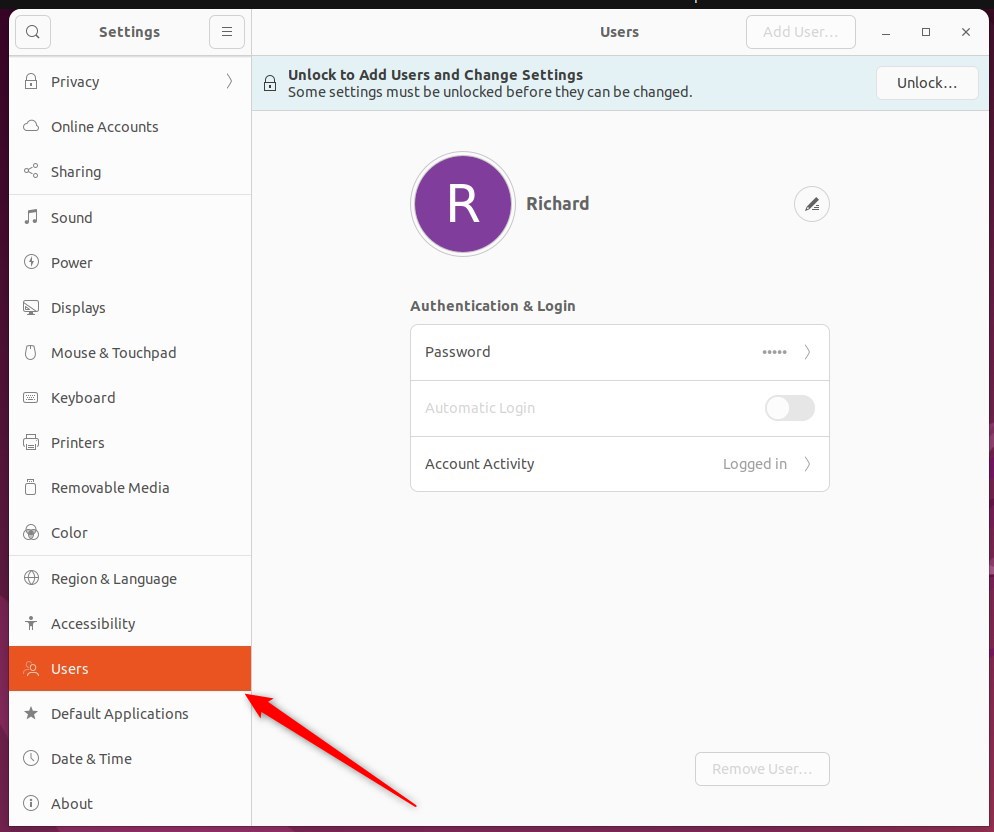
In the System Settings -> Users panel, click the label ····· next to Password. If you’re changing the password for another user, you’ll need to Unlock the panel first.

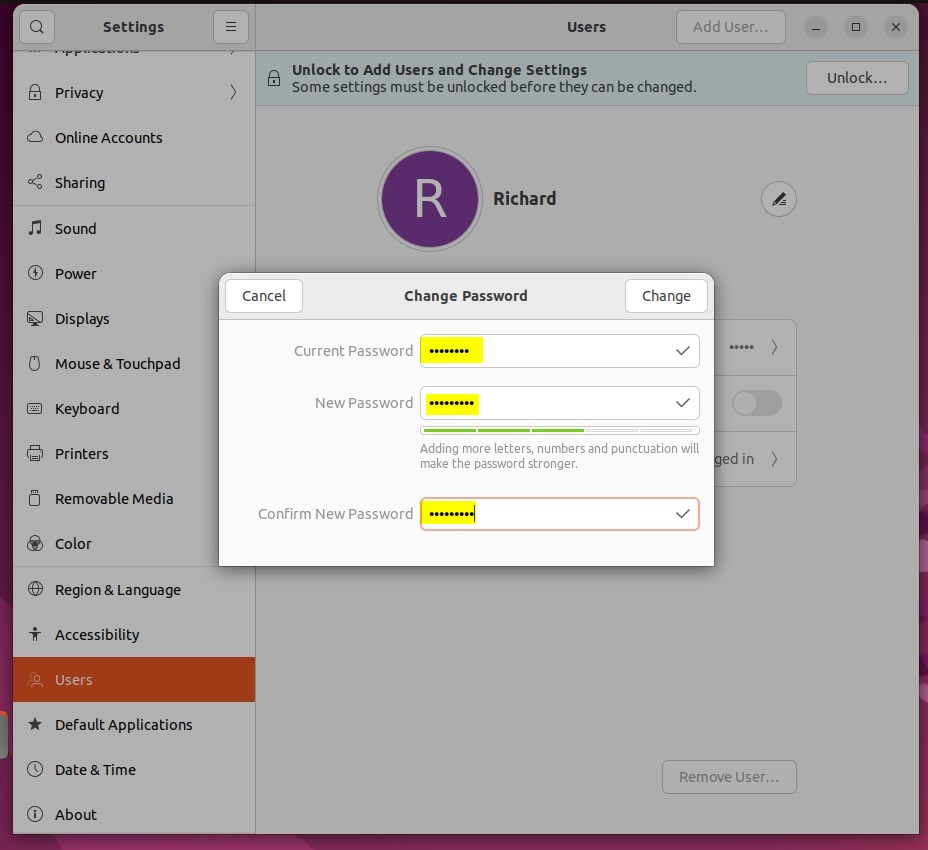
Enter your current password, then type your new password. Finally, enter your new password again in the Verify New Password field.
You can click the icon to automatically generate a random password.
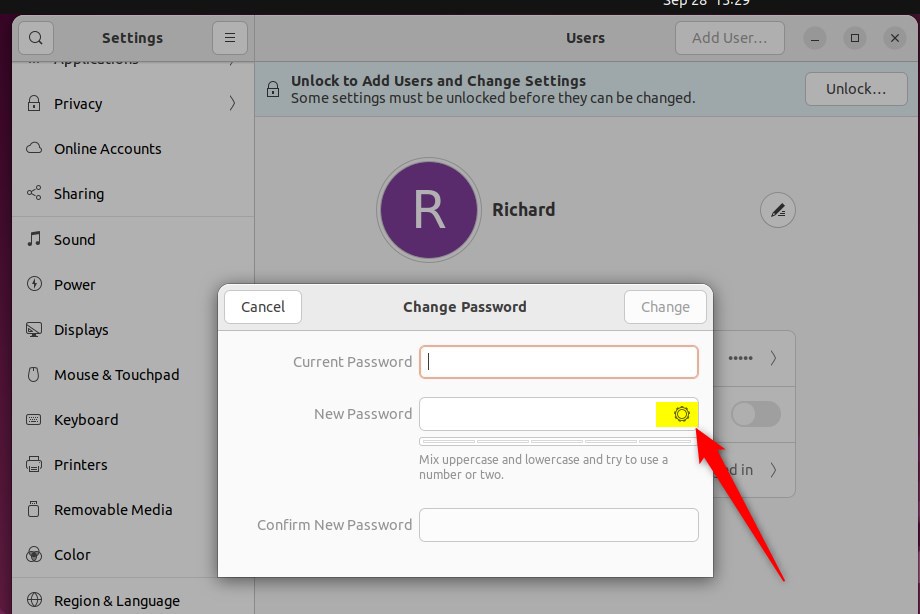
When you’re finished, click the Change button to complete the process.
If you prefer working in the command line, you can change your password there too. We’ll show you how in the section below.
How to change the password on the command terminal in Ubuntu Linux
That should do it!
Conclusion:
- Changing your password regularly is a good practice to enhance security.
- Utilize the System Settings panel or command line terminal to update your password.
- After updating your login password, your login keyring password will automatically sync.
- Keeping your password confidential is essential for maintaining system security.
Was this guide helpful?

About the Author
Richard
Tech Writer, IT Professional
Richard, a writer for Geek Rewind, is a tech enthusiast who loves breaking down complex IT topics into simple, easy-to-understand ideas. With years of hands-on experience in system administration and enterprise IT operations, he’s developed a knack for offering practical tips and solutions. Richard aims to make technology more accessible and actionable. He's deeply committed to the Geek Rewind community, always ready to answer questions and engage in discussions.

No comments yet — be the first to share your thoughts!