How to Change Your Profile Picture in Ubuntu Linux

You change your Ubuntu Linux profile picture in the User Accounts settings panel.
Your profile picture acts as a visual identifier for your user account on the login screen and across the operating system.
This simple customization makes it easy for you to distinguish your session from others. Even recent versions like Ubuntu 22.04 LTS streamline this process.
You have the option to select from pre-designed Ubuntu icons or upload a personal image from your camera or phone. Without a custom picture, your account displays a generic placeholder, making it less immediately recognizable.
Open System Settings, click Users, select your account, and then click the current image to choose a new one or upload your own. This updates your profile picture for login and system identification.
How to add an account picture in Ubuntu Linux
Ready to change your picture? Here’s how to add, change, or remove an account picture in Ubuntu Linux.
Most of Ubuntu Linux’s settings live in one place: the System Settings panel. Here, you can manage everything from system configurations to user accounts. You can also find Settings by clicking the System menu in the top-right corner of your desktop. Then, select Settings.

Alternatively, click on the System menu at the top-right corner of the top bar on your desktop.
On the System menu, select Settings, as highlighted below.

Click on the Users tile to open the panel in the Settings app.
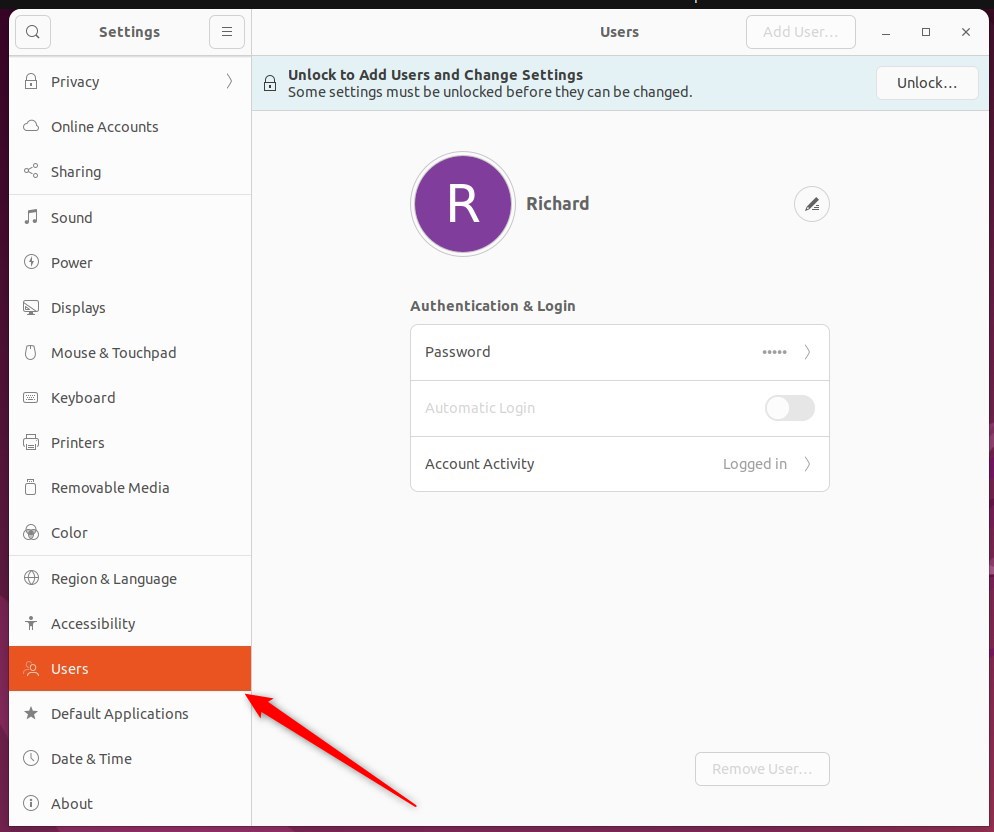
Once in the System Settings -> Users panel, pick the account you want to update.
Next, click the image area next to your account name to see available pictures.
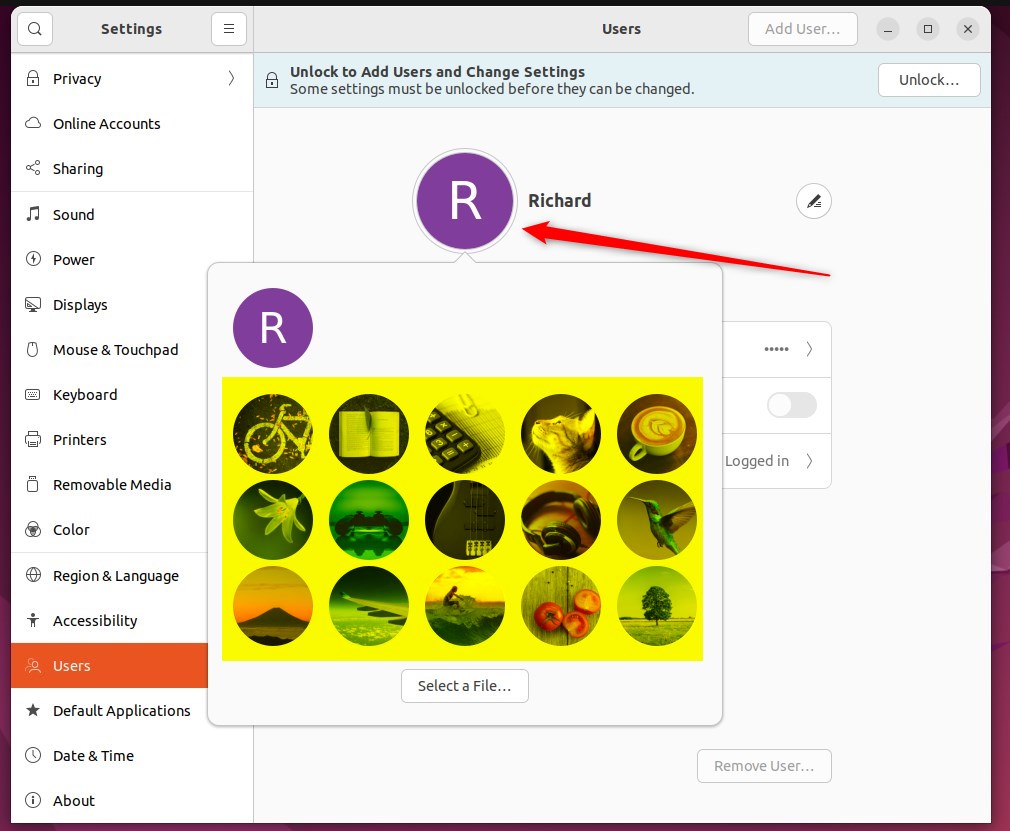
When you click this area, you’ll see a list of available images, or you can select files from your computer or camera.
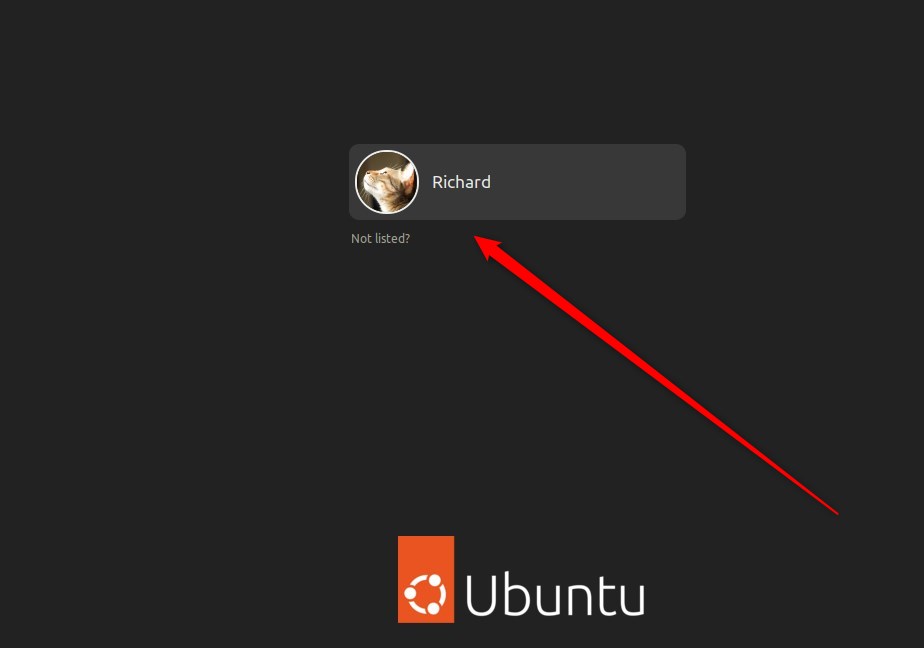
That should do it! You can now close the Settings app.
Wrapping Up:
- Adding or changing your account profile picture in Ubuntu Linux is a simple process that allows for personalization and easy identification.
- Whether using an existing image or one directly from your camera or computer, the new picture can be easily set through the System Settings panel.
- Following these steps, users can ensure their account is visually distinguished on the login screen while using Ubuntu Linux.
Was this guide helpful?

About the Author
Richard
Tech Writer, IT Professional
Richard, a writer for Geek Rewind, is a tech enthusiast who loves breaking down complex IT topics into simple, easy-to-understand ideas. With years of hands-on experience in system administration and enterprise IT operations, he’s developed a knack for offering practical tips and solutions. Richard aims to make technology more accessible and actionable. He's deeply committed to the Geek Rewind community, always ready to answer questions and engage in discussions.



No comments yet — be the first to share your thoughts!