How to Change Account Lockout Threshold in Windows 11

You change the Windows 11 account lockout threshold to set the maximum number of incorrect password attempts before your account locks out.
This threshold is a security setting that protects your local user account from brute-force attacks by preventing unlimited login attempts.
For example, setting the threshold to 3 means your account will lock after just three wrong password entries. This crucial policy monitors failed logins and enforces temporary account lockouts to enhance your PC’s security.
You change the Windows 11 account lockout threshold using the Local Group Policy Editor (secpol.msc) or Windows Terminal. Navigate to Computer Configuration\Windows Settings\Security Settings\Account Policies\Account Lockout Policy, then double-click Account lockout threshold and enter a number between 1 and 999.
Prerequisites
To change these security policy settings, you must have administrator access. If you’re using a standard user account, you won’t be able to change these system-wide security rules.
How to change the Account Lockout Threshold
You can change the Windows 11 account lockout threshold to set how many times someone can enter the wrong password before their account is locked.
- Open the Local Group Policy Editor by pressing ⊞ Win+R, typing
secpol.msc, and hitting Enter.
- Navigate to: Computer Configuration\ Windows Settings\Security Settings\Account Policies\Account Lockout Policy.
- Double-click on Account lockout threshold.
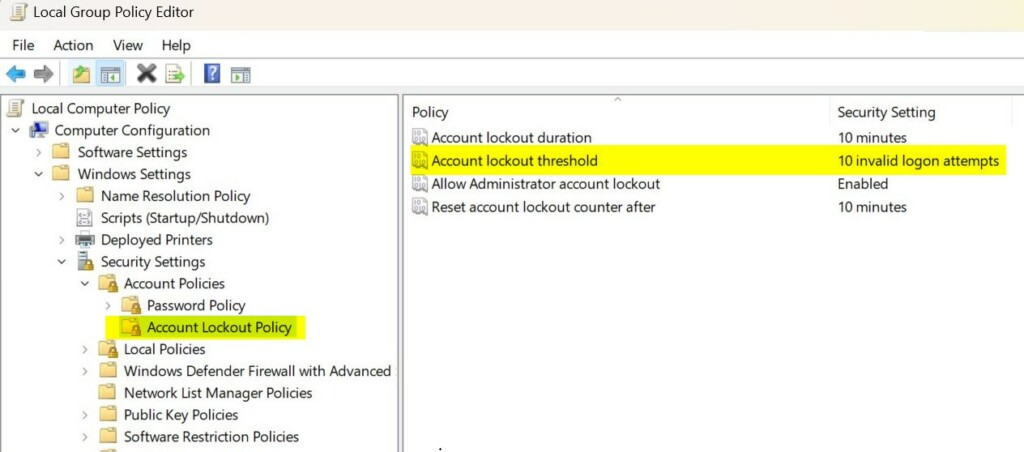
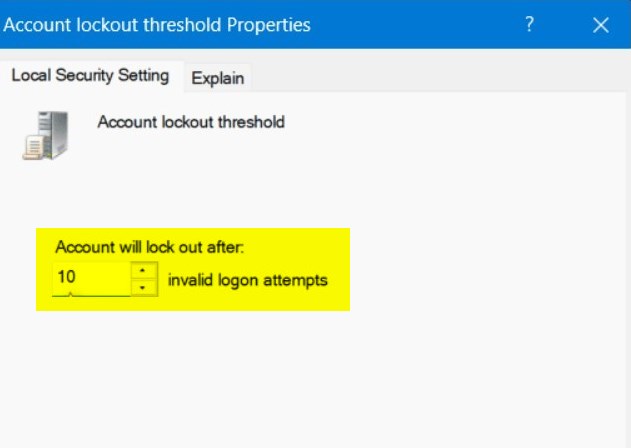
- Enter a number between 1 and 999. Setting this to 0 disables the lockout feature entirely.
- Click OK to save.
Change the threshold using Windows Terminal
You can also use the command line for faster results. This requires admin privileges.
- Open Windows Terminal as an administrator.
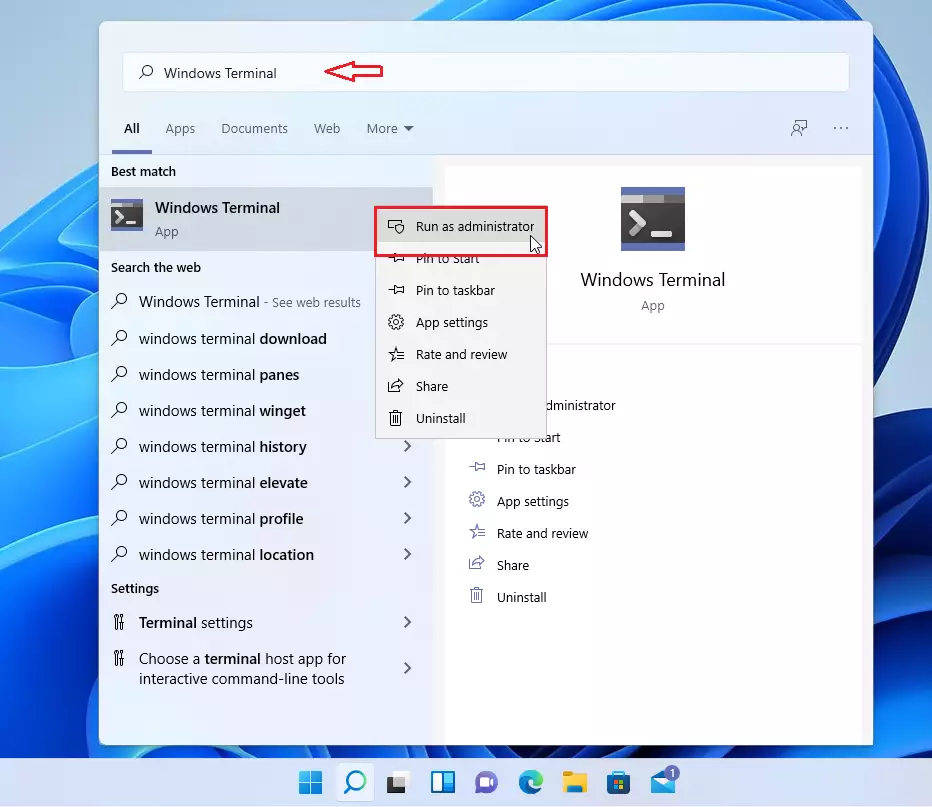
- Type the following command and press Enter:
net accounts /lockoutthreshold:<number>Troubleshooting Locked Accounts
If you find yourself locked out, you’ll need to wait for the Account lockout duration to expire. If you are an administrator, you can use the Computer Management console to unlock a user account. Right-click the user, select Properties, and uncheck ‘Account is locked out’.
Security Best Practices
For maximum security, combine a lockout threshold of 5-10 attempts with a strong, unique password. Always enable multi-factor authentication where possible. Setting the threshold to 0 is not recommended as it leaves your system vulnerable to persistent brute-force attacks.
Summary
The Windows 11 account lockout setting helps keep your computer safe from unwanted guests trying to guess your password.
For more advanced configurations, refer to the official Microsoft documentation.
What is the recommended account lockout threshold?
Most security experts recommend a threshold between 5 and 10 failed attempts. This range is strict enough to block automated brute-force attacks while being lenient enough to prevent accidental lockouts caused by simple typos or forgotten passwords during daily computer use.
Does setting the threshold to 0 disable account lockout?
Yes, setting the account lockout threshold to 0 effectively disables the lockout policy. This means Windows will not track failed login attempts, allowing an unlimited number of password guesses. This is generally considered a security risk and is not recommended for any computer connected to a network.
Was this guide helpful?

About the Author
Richard
Tech Writer, IT Professional
Richard, a writer for Geek Rewind, is a tech enthusiast who loves breaking down complex IT topics into simple, easy-to-understand ideas. With years of hands-on experience in system administration and enterprise IT operations, he’s developed a knack for offering practical tips and solutions. Richard aims to make technology more accessible and actionable. He's deeply committed to the Geek Rewind community, always ready to answer questions and engage in discussions.




For all 3 parameters via command line:
net accounts /lockoutthreshold:15 /lockoutduration:15 /lockoutwindow:10
[…] you subject the built-in admin user to the account lockout policy, it will apply the Account lockout threshold policy setting, which determines the number of failed sign-in attempts that will cause a user […]
[…] account lockout threshold is now set to 10 failed sign-in attempts by […]
[…] account lockout threshold is now set to 10 failed sign-in attempts by […]