How to Backup and Restore Files in Windows 11

This guide shows students and new users how to back up and restore important files and folders in Windows 11.

Why Back Up Your Files?

Backing up your files means making copies and storing them in a safe place. If you lose the original files on your computer, you can restore the missing files from the backed-up copy.

Learning to back up and restore important files and folders in Windows 11 is crucial for protecting your data. Unexpected events happen. Hardware can fail. Malware can attack. Files can get deleted by accident. By backing up your files, you create copies and store them somewhere safe. You can restore them if the original files are lost or damaged.

This saves you time and effort in recovering or recreating lost data from scratch. Having backups of your important files is always a good practice to prevent data loss.

What Happens When You Back Up Your Files?

Windows 11 has a built-in backup tool that protects your important files. You can use this tool to automatically back up your files. Or you can manually copy files to a backup location instead of using an application. However, letting Windows back up your important files automatically is usually your best option.

How to Back Up Your Files in Windows 11

What Files Should You Back Up?

Your priority should be to back up important files. Back up files that would be difficult to replace. Files like emails, financial documents, and family photos are irreplaceable.

Other less important data includes your profile, installed software, and system settings. You can replace these later. But you will have to spend time restoring things to their original state.

Back Up Files to OneDrive Online

One of the easiest ways to back up Windows 11 is to use OneDrive online storage. OneDrive lets you save and access your files and photos from any device, anywhere.

You will need a Microsoft Account to set up OneDrive on your machine. Go to the link below to create a Microsoft Account.

Microsoft account Sign in – Microsoft OneDrive (live.com)

You can sign up for free. You get 5GB of free storage space. You can always upgrade to larger sizes when you need more storage space.

Once you’re signed up and ready, continue below to set up Windows backup.

Step 1: Open Windows Settings

Windows 11 has a centralized location for most of its settings. Everything can be done from system configurations to creating new users and updating Windows from its Settings pane.

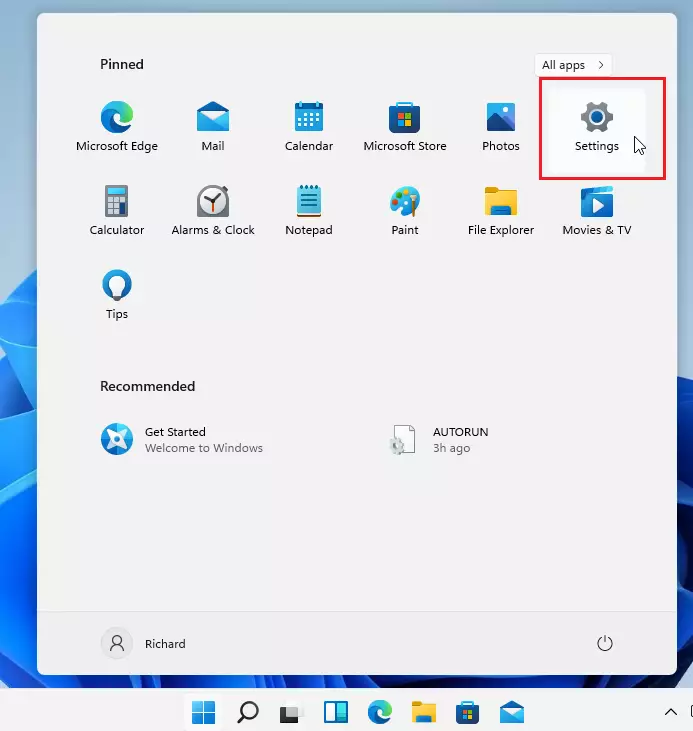
To get to System Settings, use the Windows key + I shortcut. Or click on StartSettings, as shown in the image below:

Alternatively, you can use the search box on the taskbar to search for Settings. Then select to open it.

Step 2: Go to Storage Settings

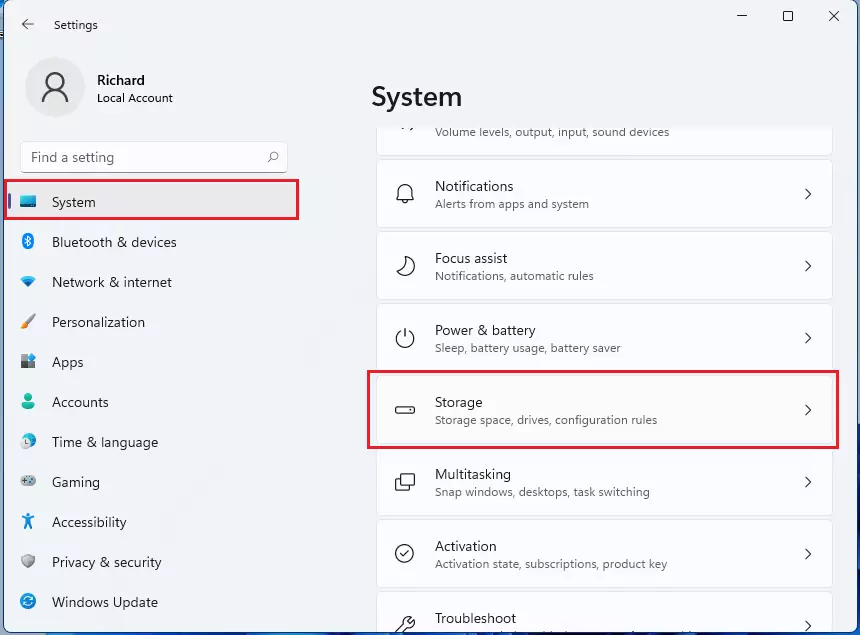
Windows Settings pane should look similar to the image below. In Windows Settings, click System. Then select Storage on the right pane of your screen, as shown in the image below.
Step 3: Select Advanced Storage Settings

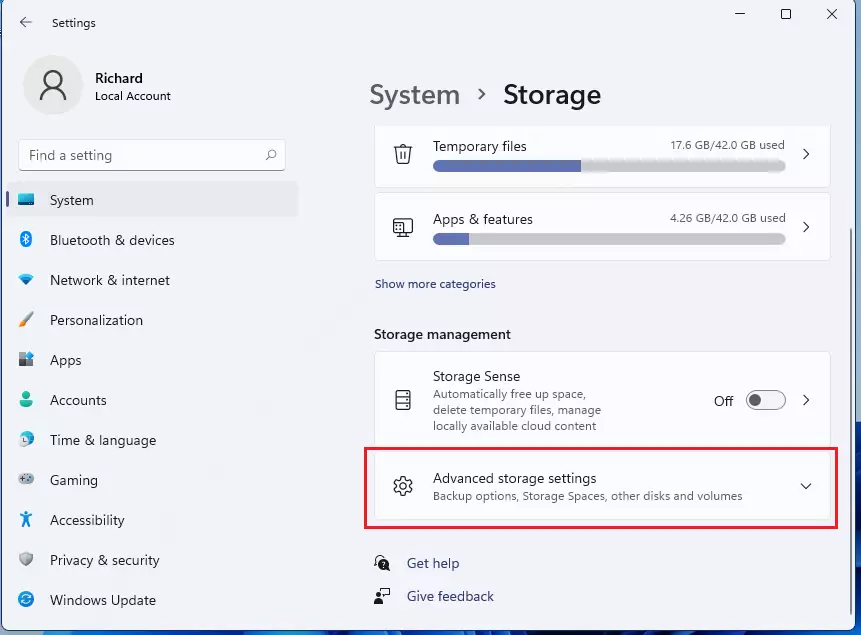
On the System storage settings page, click on Advanced storage settings.
Step 4: Choose Backup Options

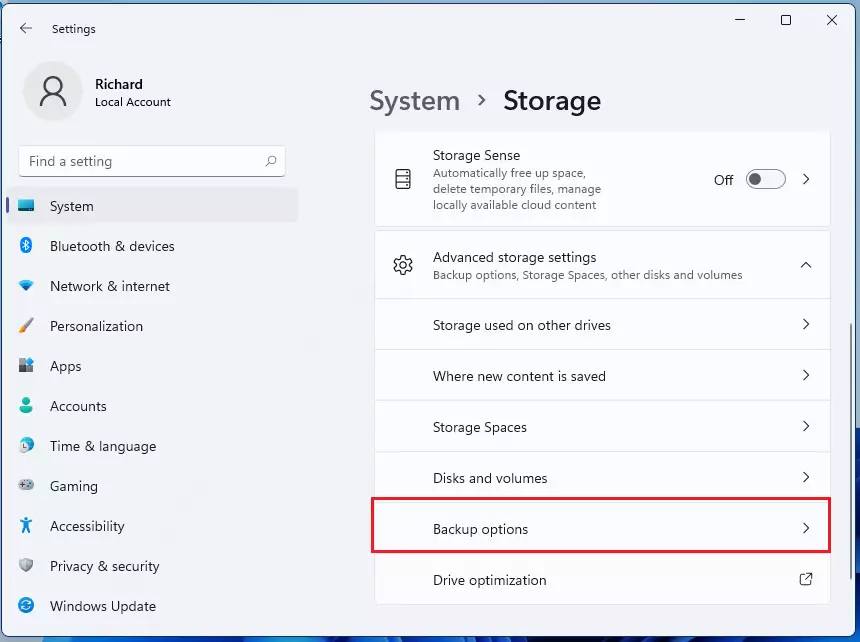
Under Advanced storage settings, select Backup options.
Step 5: Sign In to OneDrive

On the Backup options settings page, choose to back up files to OneDrive. Then click on the link that reads “Sign in to OneDrive.”
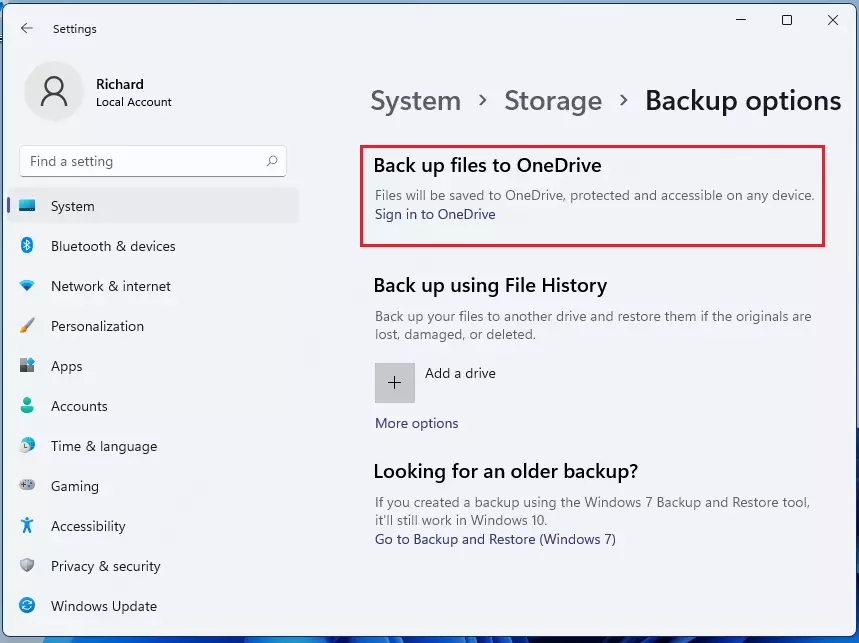
You will be prompted to enter your OneDrive account email address and password to sign in.
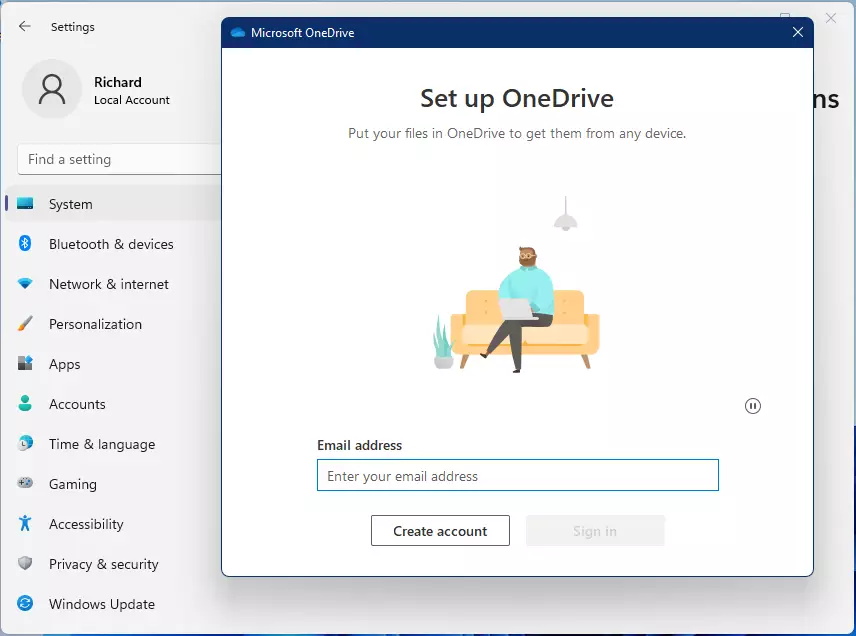
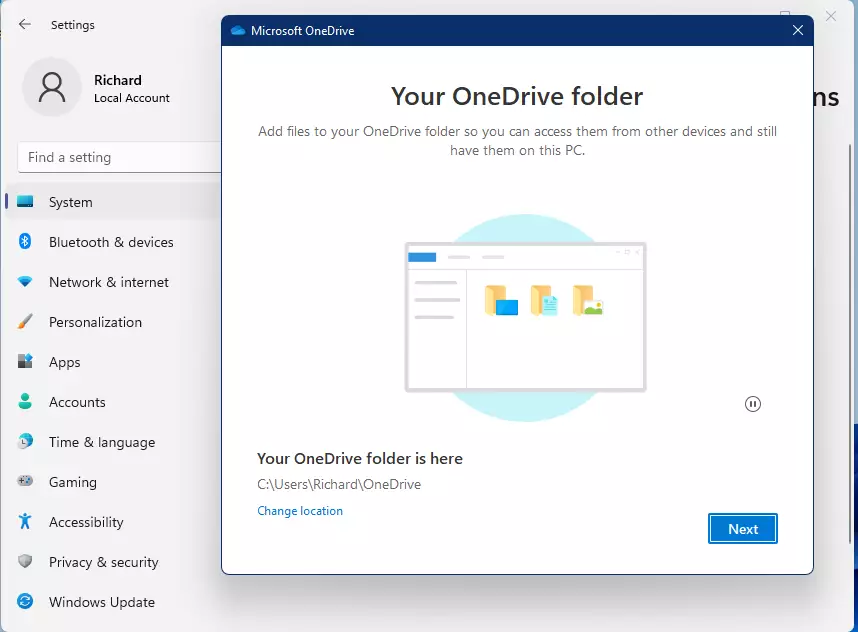
Continue with the setup wizard after logging into your OneDrive account correctly.
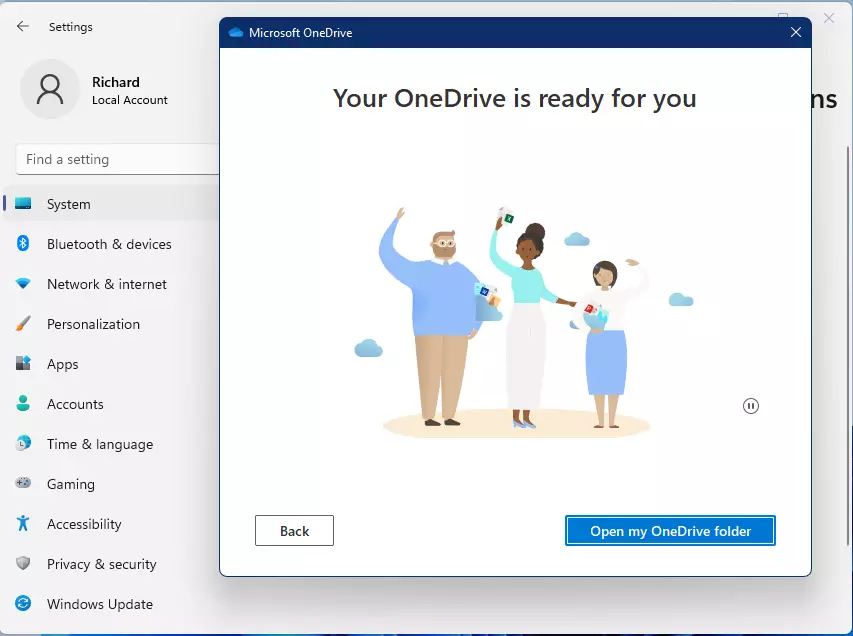
When you finish the setup wizard, you should see a screen telling you that OneDrive is ready to use and the setup is complete.
Back Up Windows 11 to External Drives

You can back up Windows to external drives and restore them if the original is lost, damaged, or deleted. Insert or connect the external drive to your computer.

In Windows Settings → System → Storage → Advanced Backup options, select Back up using File History. This is instead of going to OneDrive, as mentioned above.
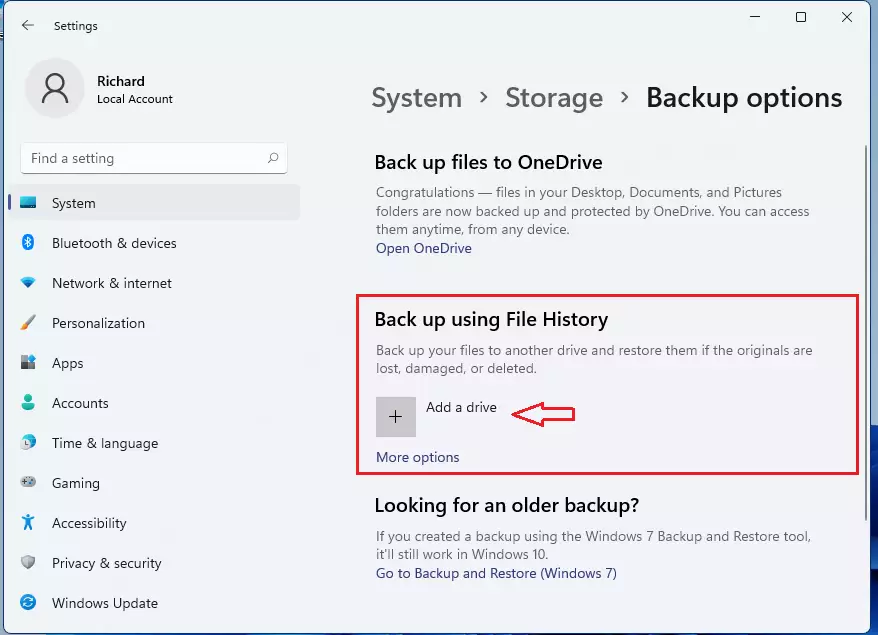
Once you click the Add a Drive button, you will be prompted to select the external drive to back up to. Choose the drive you have connected to Windows.

When you select a drive, you’re set. Every hour, Windows backs up everything in your user folder (C:\Users\username).

Step 6: Change Backup Settings (Optional)

To change which files get backed up or how often backups happen, go to More Options.
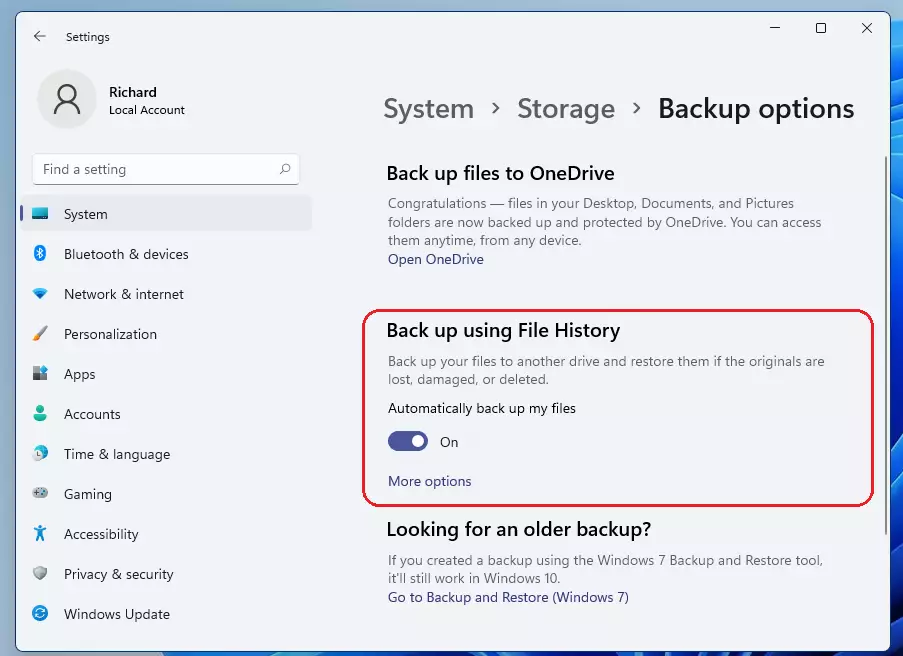
⚠️ Admin privileges may be required: More options let you set up how and when files are backed up.
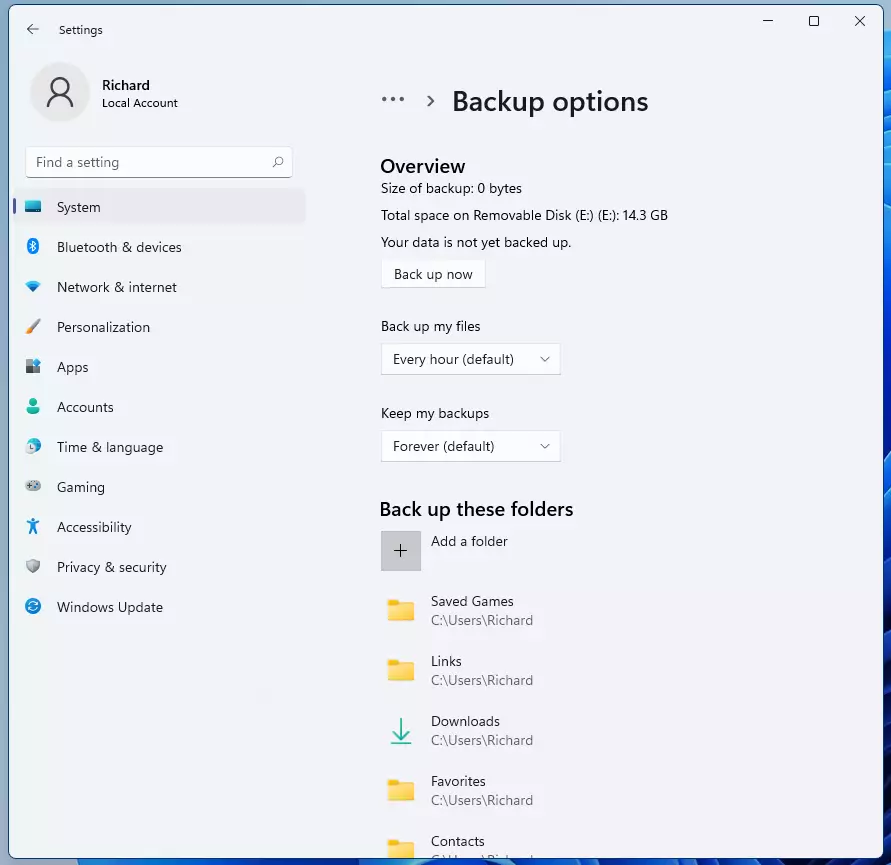
When you’re done, save and exit.

Summary

  • Backing up your files in Windows 11 is crucial for data protection.
  • Use built-in tools like OneDrive and File History for automated backup processes.
  • Prioritize important files such as documents, photos, and critical data for backup.
  • Regular backups can save time and effort in recovering lost files.
  • Always ensure you have a reliable method for restoring your backups when needed.
  • Stay proactive about data safety to prevent potential data loss in the future.

Frequently Asked Questions

How do I back up my files in Windows 11?

To back up your files in Windows 11, you can use the built-in Backup and Restore tool or manually copy your files to a safe location. It's recommended to prioritize important files like emails and family photos for backup.

What is the best way to back up files in Windows 11?

The easiest way to back up files in Windows 11 is by using OneDrive, which allows you to save and access your files from any device. You can set it up for free with a Microsoft account, which provides 5GB of storage.

Can I restore files after backing them up in Windows 11?

Yes, after backing up your files, you can restore them from the backup location if the original files are lost or damaged. This process helps you recover important data without starting from scratch.

What types of files should I prioritize for backup in Windows 11?

You should prioritize backing up irreplaceable files such as financial documents, family photos, and important emails. Less critical data like installed software and system settings can be restored more easily.

How do I access the Backup and Restore tool in Windows 11?

You can access the Backup and Restore tool in Windows 11 through the System Settings. Use the Windows key + I shortcut or search for 'Settings' in the taskbar to find it.

Categories:

Tags:

24 responses to “How to Backup and Restore Files in Windows 11”

  1. Anonymous Avatar
    Anonymous

    The Backup from file history option doesn’t show in windows 11 build 22000.71
    You need to make some suggestions to do so.
    Good article

    1. LTC8K6 Avatar
      LTC8K6

      I typed “File History” in the search window, and it was there.

      1. kevo riel tarray Avatar
        kevo riel tarray

        thank you!

  2. Aditi Avatar
    Aditi

    Hi Richard,
    Nice Article!
    Which OS build are you using? In my case that Looking for older backup and windows 7 link is missing.

    1. Richard Zayzay Avatar

      I’m using Windows 11 Insider Preview.

  3. Heinz Avatar
    Heinz

    I also miss these options, I cannot access anymopre my backup settings, but the backup is obviously running

    Edition Windows 11 Home
    Version 21H2
    Installed on ‎30.‎7.‎21
    OS build 22000.100
    Serial number PF1XY79J
    Experience Windows Feature Experience Pack 421.18901.0.3

    1. LTC8K6 Avatar
      LTC8K6

      Try searching fore File History.

      1. Davide Avatar
        Davide

        I can find File History, but I can not see the option where I can set up a new external device to save all my files.

  4. Ralph A Gardner Avatar
    Ralph A Gardner

    I don’t see File History in Windows 11 Insider Preview Home. I guess I will have to find some other software to make a backup.
    Experience: Windows 11 Home
    Version: 21H2
    OS Build: 22000.120
    Experience: Windows Feature Experience Pack 1000.22000.120.0

  5. Wilfried Wedemeyer Avatar
    Wilfried Wedemeyer

    The options shown to backup with file history to a drive of your choice are not shown in my preview version of Windows 11. Current version is 22000.132. Will these options be available in further updates?

  6. Roy A Ackerman Avatar
    Roy A Ackerman

    There is NO Back Up Using File History Option!

  7. FluxMode Avatar
    FluxMode

    The title is a bit misleading. It’s not really the backup type most ppl will be looking for.

    Based on the given “solution” you can simply copy the files to USB or External Drive or upload to cloud, the feature shown is pretty much useless unless you paid for OneDrive and you have a ton of space in there.

    What I did to backup:
    Search -> Control Panel -> “Backup and Restore (Windows 7)” under System and Security, idk why it says Win7 though, but it basically backed up my whole OS I suppose.

    Haven’t tried to Recover yet but I hope it will restore the Win 11 properly. Will reply to my own comment if it worked.

    Another option is to create .ISO of current OS build w/ all software, saved passwords and such but that could take 100GB+ USB Drive/Phone Memory ( if using phone as USB drive w/ DriveDroid app )

    The last and best solution is to Mirror the drive to another drive using Linux.

    1. SuzyQ Avatar
      SuzyQ

      That is what I did after the File History option went on and on to back up. When I had my W10 reinstalled I used the W7 back up app to reload my files and it went very well.

  8. rino Avatar
    rino

    for those who do not find the option, look in the search box – file history – a window opens with the files, on the right there is the icon for setting the option. It’s hidden but it’s still there.

  9. Mary Avatar
    Mary

    Great article, Richard. But, you need to proofread. Thanks!

  10. phil Avatar
    phil

    You say, “In Windows Settings –> System –> Storage –> Advanced Backup options, select Back up using File History instead of going to OneDrive as mentioned above.” But there is no “Advanced Backup” under Storage. None of this section is valid.

  11. […] using Windows 11. Microsoft OneDrive is a feature 11 that keeps your photos and files backed up to the cloud, synced, and accessible on all devices connected to your OneDrive […]

  12. […] 11. Microsoft OneDrive is a feature in Windows 11 that keeps your photos and files backed up to the cloud, synced, and accessible on all your other devices connected to your OneDrive […]

  13. […] written multiple detailed steps here that can help you, from ransomware protection to backing up your computer and protecting your data […]

  14. […] How to Backup and Restore in Windows 11 – Website for Students […]

  15. […] How to Backup and Restore in Windows 11 […]

  16. […] How to Backup and Restore in Windows 11 […]

  17. […] Read our previous post on how to Backup Windows 11. […]

  18. […] shown you how to install and use OneDrive to back up your files and protect your information. If your files are missing or corrupted, you can restore […]

Leave a Reply to Mary Cancel reply

Your email address will not be published. Required fields are marked *

Exit mobile version