How to Enable or Disable Using Bluetooth in Windows 11

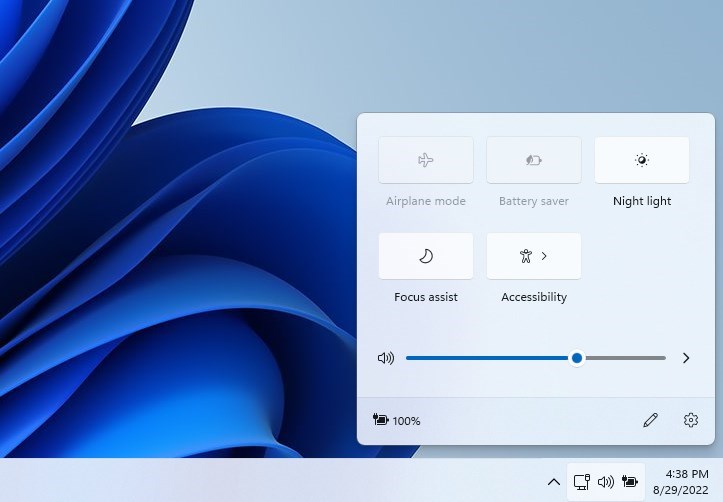
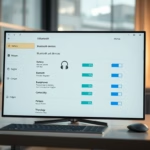
You can enable or disable Bluetooth in Windows 11 directly through the Settings app or via the Quick Settings panel.
Bluetooth is a wireless technology standard used for exchanging data between fixed and mobile devices over short distances. In Windows 11, managing this feature is simple and accessible.
You can toggle Bluetooth on or off from the Settings app under the “Bluetooth & devices” section, or by clicking the network icon in your taskbar and selecting the Bluetooth tile in Quick Settings.
Disabling Bluetooth can improve your PC’s security by preventing unauthorized connections and can also extend your laptop’s battery life by reducing power consumption.
You can toggle Bluetooth on or off in Windows 11 via the Settings app under “Bluetooth & devices.” Alternatively, open Quick Settings from the taskbar and click the Bluetooth tile. This controls wireless connections to devices and impacts battery life.
Check if your PC has Bluetooth
Your PC needs Bluetooth hardware to connect wireless devices like headphones or mice.
Comparison: Bluetooth On vs. Bluetooth Off
| State | Battery Impact | Functionality |
|---|---|---|
| Bluetooth On | Higher usage | Connects to wireless devices |
| Bluetooth Off | Lower usage | Saves power, no wireless connections |
How to Restrict Bluetooth Access (Admin Only)
Administrators can stop others from using Bluetooth on a Windows 11 PC by changing a setting in the Registry Editor.
1. Click the Start Menu and type Registry Editor. Select the app to open it.
2. In the left pane, navigate to this path:HKEY_LOCAL_MACHINE\SOFTWARE\Microsoft\PolicyManager\default\Connectivity\AllowBluetooth
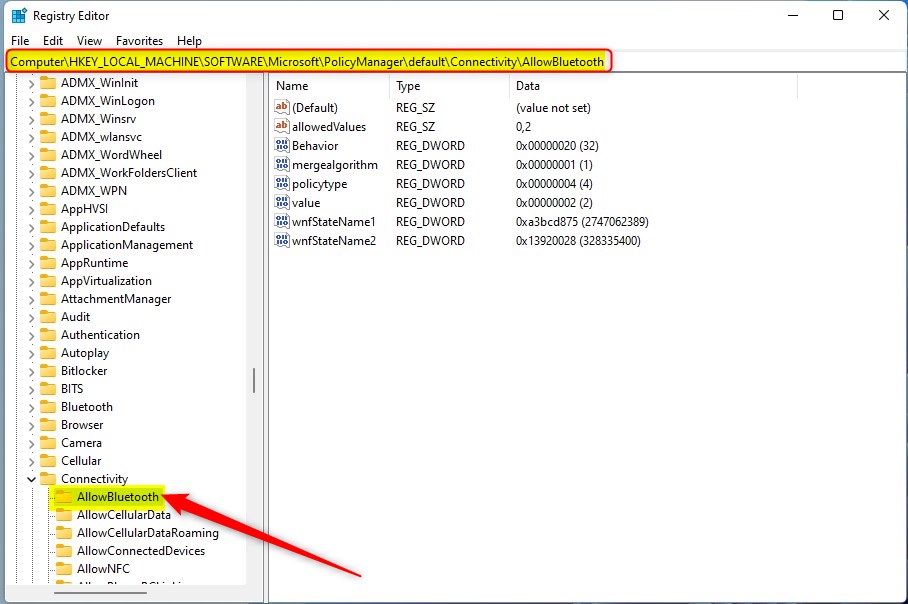
3. On the right side, find the value named ‘Start’. Double-click it.
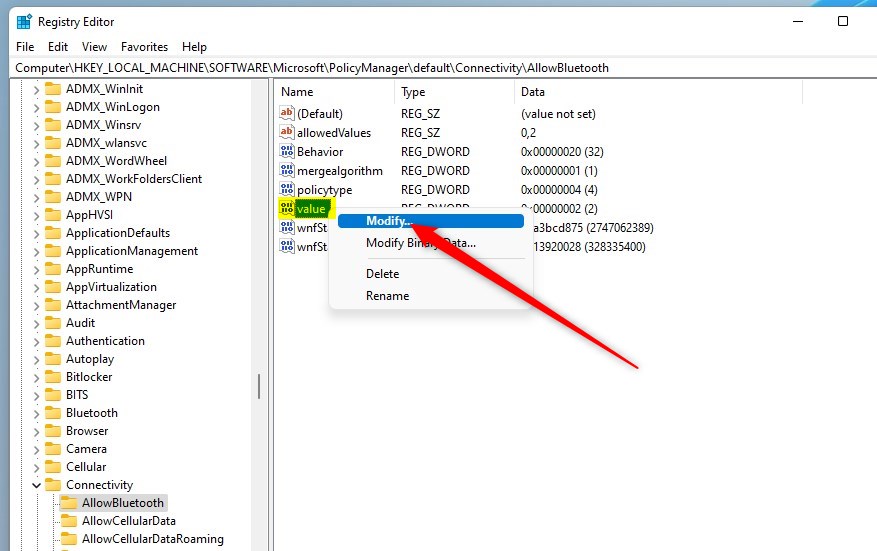
4. Change the ‘Value data’ to one of these numbers:
- 0: Disallow Bluetooth (Grayed out).
- 1: Reserved.
- 2: Allow Bluetooth (Default).
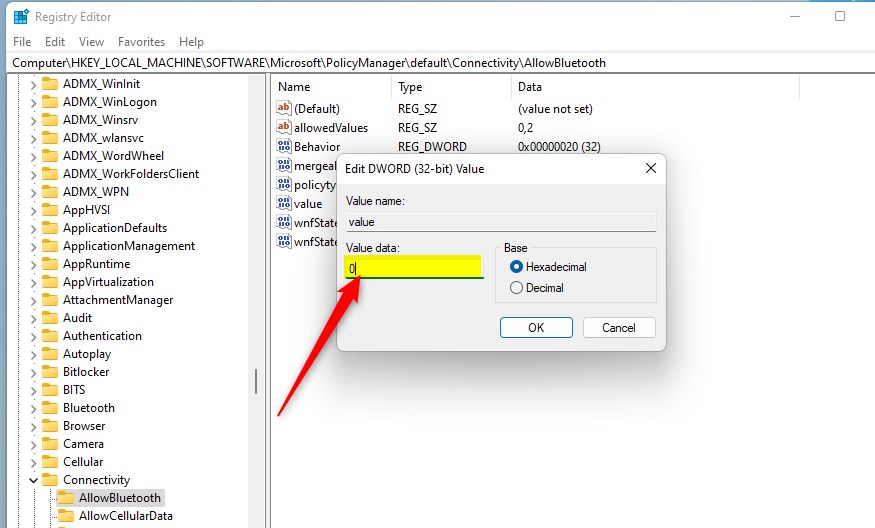
5. Click OK and close the editor.
Troubleshooting Bluetooth Issues
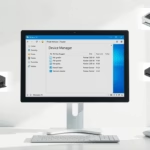
If your Bluetooth toggle is missing, your driver might be having issues. Open Device Manager, find your Bluetooth adapter, right-click it, and select Update driver. If that doesn’t help, try the Bluetooth Troubleshooter. You can find it by going to Settings > System > Troubleshoot > Other troubleshooters.
Summary
Managing Bluetooth access is a great way to secure your Windows 11 PC. By using the Registry Editor, you can control wireless features. Always remember to check your drivers if you encounter connection problems. Keeping your system updated ensures that your Bluetooth adapter works smoothly with all your devices.
Why is my Bluetooth toggle missing in 🪟 Windows 11?
A missing Bluetooth toggle usually means your Bluetooth adapter is disabled, the driver is corrupted, or your hardware is not detected. Check the Device Manager to see if the Bluetooth adapter is listed. If it has a yellow warning icon, you need to update or reinstall the driver software.
How do I fix Bluetooth not connecting in 🪟 Windows 11?
To fix connection issues, turn Bluetooth off and back on in Settings. Ensure your device is in discovery mode. You can also run the built-in Bluetooth troubleshooter in the Settings app. If problems persist, remove the device from your list and try pairing it again as a new device.
Was this guide helpful?

About the Author
Richard
Tech Writer, IT Professional
Richard, a writer for Geek Rewind, is a tech enthusiast who loves breaking down complex IT topics into simple, easy-to-understand ideas. With years of hands-on experience in system administration and enterprise IT operations, he’s developed a knack for offering practical tips and solutions. Richard aims to make technology more accessible and actionable. He's deeply committed to the Geek Rewind community, always ready to answer questions and engage in discussions.


[…] A pen device (Surface pen) also uses Bluetooth to connect to Windows 11. To pair your pen with Windows 11, your PC needs to have Bluetooth turned on and enabled. […]
[…] A pen device (Surface pen) also uses Bluetooth to connect to Windows 11. To pair your pen with Windows 11, your PC needs to have Bluetooth turned on and enabled. […]