How to Change Touchpad Sensitivity in Windows 11

This article explains how to adjust touchpad sensitivity in Windows 11 to improve your workflow and stop accidental clicks.
Why Adjust Your Touchpad Sensitivity?
Your touchpad’s sensitivity controls how much pressure or movement it needs to register an action. If your cursor jumps while typing or you have to tap too hard, adjusting these settings makes your computer easier to use.
What happens when you adjust sensitivity:
- A more sensitive touchpad responds to lighter touches.
- A less sensitive touchpad requires firmer pressure to prevent accidental clicks.
- The pointer moves with more precision, reducing “ghost clicks.”
- Palm rejection settings help stop your cursor from jumping while you type.
How to Change Touchpad Sensitivity in 🪟 Windows 11
Step 1Open System Settings
Windows 11 keeps all its main settings in one place. You can open it two ways:
- Press
Windows key + Ion your keyboard. - Click
Startand then clickSettings.
Step 2Go to Touchpad Settings
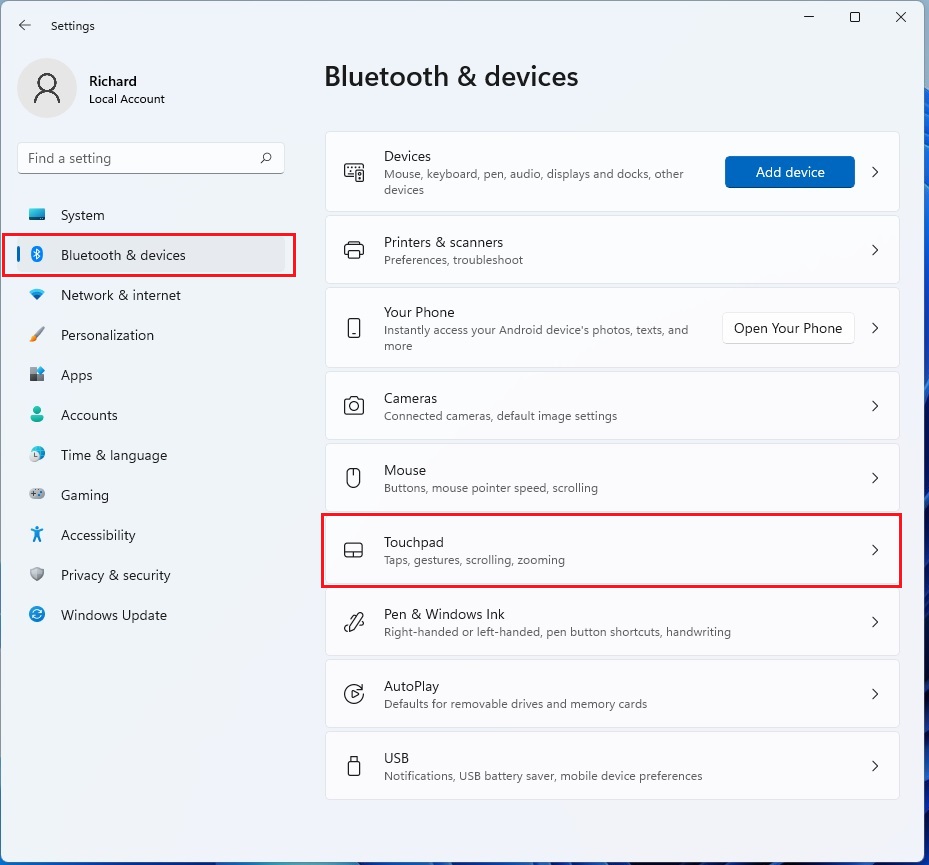
In System Settings, look for Bluetooth & devices on the left side. Click it, then select Touchpad on the right.
Step 3Adjust Tap Sensitivity
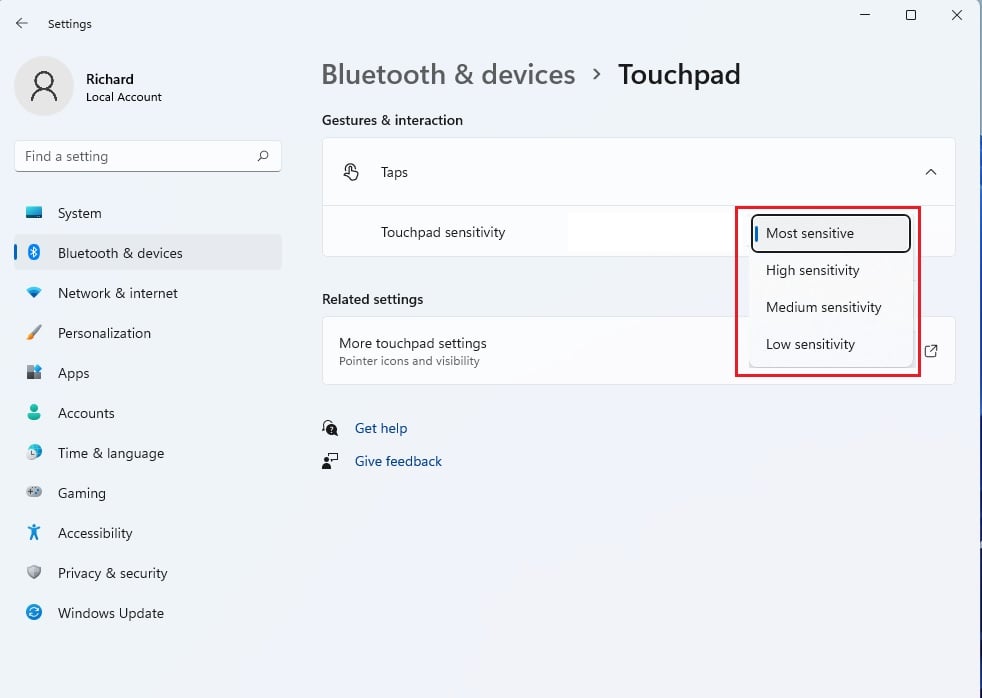
Under Gestures & interaction, click Taps. You can choose between Most, High, Medium, or Low sensitivity. Start with Medium to see how it feels.
Troubleshooting and Advanced Settings
If the sensitivity option is missing, your device might be using legacy drivers instead of a Precision Touchpad driver. You can check this in Device Manager by right-clicking your touchpad under Mice and other pointing devices and selecting Update driver.
Registry Tweak for Advanced Control (Admin Required)
Note: This step requires admin privileges. You can modify registry values to change cursor behavior. Open regedit and navigate to HKEY_CURRENT_USER\Control Panel\Desktop. Look for MouseSensitivity to manually adjust values if the UI options are insufficient.
Summary
Adjusting your touchpad sensitivity in Windows 11 helps prevent accidental clicks and improves accuracy. By navigating to Bluetooth & devices > Touchpad, you can customize your experience. If you face issues, check for driver updates in Device Manager or adjust your palm rejection settings to keep your cursor steady while typing.
Why does my cursor jump when I type?
This is usually caused by your palms brushing the touchpad while typing. Enable “Palm Rejection” in your touchpad settings or set the sensitivity to “Low” to ensure the computer ignores accidental touches while your hands are on the keyboard.
How do I disable the touchpad when an external mouse is connected?
Go to Settings > Bluetooth & devices > Touchpad. Click the arrow next to the Touchpad toggle and uncheck the box that says “Leave touchpad on when a mouse is connected.” This automatically disables the pad when you plug in a mouse.
What is the difference between tap sensitivity and cursor speed?
Tap sensitivity controls how hard you must press to register a click. Cursor speed controls how fast the pointer moves across the screen when you slide your finger. Both are found in the Touchpad settings menu.
Was this guide helpful?

About the Author
Richard
Tech Writer, IT Professional
Richard, a writer for Geek Rewind, is a tech enthusiast who loves breaking down complex IT topics into simple, easy-to-understand ideas. With years of hands-on experience in system administration and enterprise IT operations, he’s developed a knack for offering practical tips and solutions. Richard aims to make technology more accessible and actionable. He's deeply committed to the Geek Rewind community, always ready to answer questions and engage in discussions.


No comments yet — be the first to share your thoughts!