How to Add or Remove Lock in Power Menu on Start Menu in Windows 11

Want to customize the power menu on your Windows 11 Start menu? This tutorial shows you how to add or remove the Lock option.
To add or remove the Lock option from the Start menu’s power menu, open Control Panel, go to Power Options, and then select “Choose what the power buttons do.” Change the link “Change settings that are currently unavailable” to check or uncheck the Lock option, then save changes.
The Lock option now appears in the power menu on the Start menu. You can remove it if you wish.
Locking your computer keeps it safe from unauthorized use when you step away. You won’t need to sign out or shut down, which closes all your programs.
When you lock your computer, you’ll be taken to the lock screen. You can unlock it and sign back in whenever you’re ready to continue. Other users can still sign in to their accounts from the sign-in screen.
Reference:
This involves a policy setting called “Start Policy CSP” (Configuration Service Provider). Learn more about the Start Area in Policy CSP.
⚠️ Admin Required: You must be signed in as an administrator to add or remove Lock from the power menu on the Start menu. Removing Lock from the account picture menu won’t stop users from finding other ways to lock the computer.
Option One
You can add or remove the Lock option from the Start menu’s power menu using the Control Panel by adjusting power settings.
- Open Control Panel (icons view), and click/tap on the Power Options icon.
- Click/tap on the Choose what the power buttons do link in the left pane.
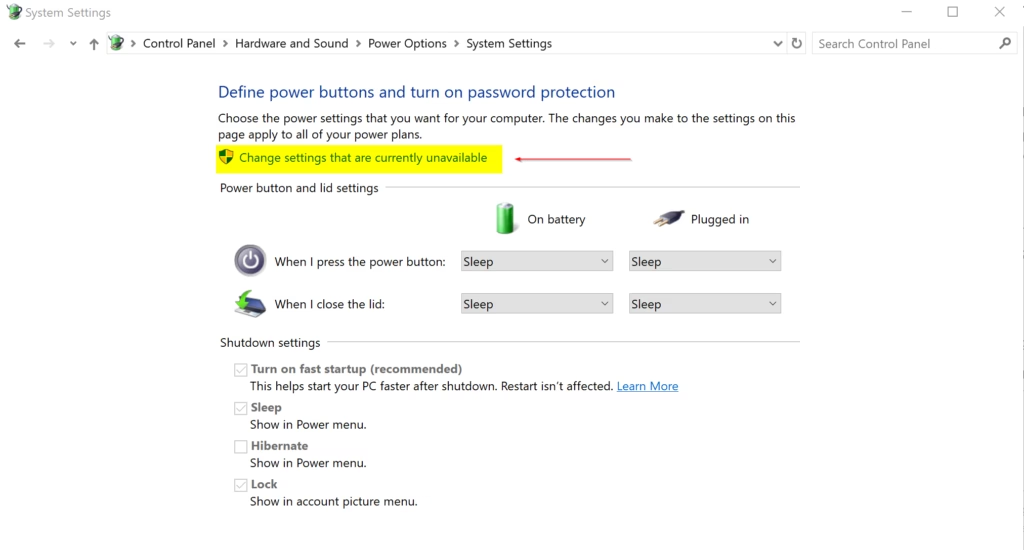
- Click/tap on the Change settings that are currently unavailable link.
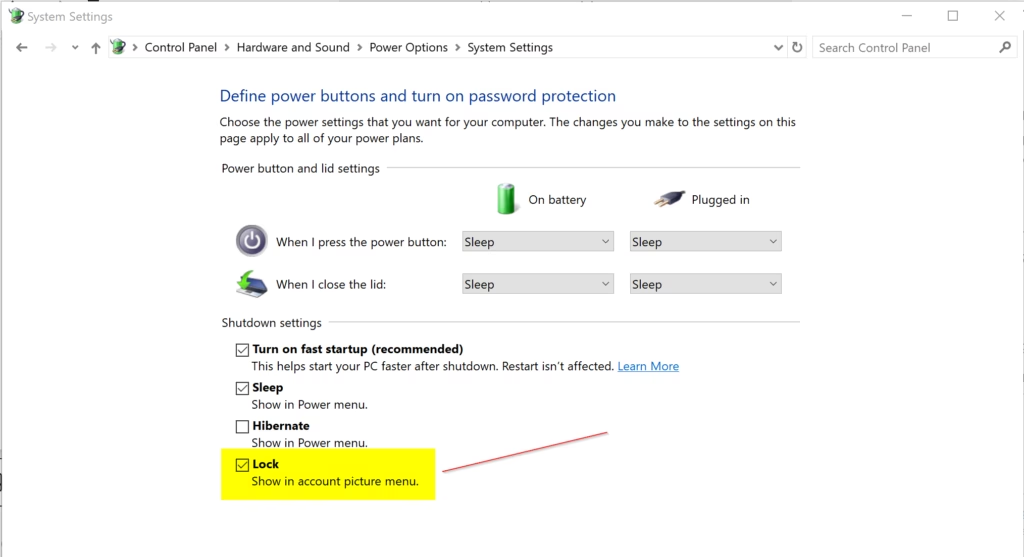
- Check (add – default) or uncheck (remove) Lock for what you want, and click/tap on Save changes.
- You can now close Control Panel if you like.
Option Two
For Windows 11 Pro, Enterprise, and Education users, you can add or remove the Lock option from the Start menu’s power menu using the Local Group Policy Editor.
Heads up: The Local Group Policy Editor is only found in Windows 11 Pro, Enterprise, and Education editions. But don’t worry, all editions can use Option Three to achieve the same result.
⚠️ Admin Required: Open the Local Group Policy Editor (gpedit.msc).
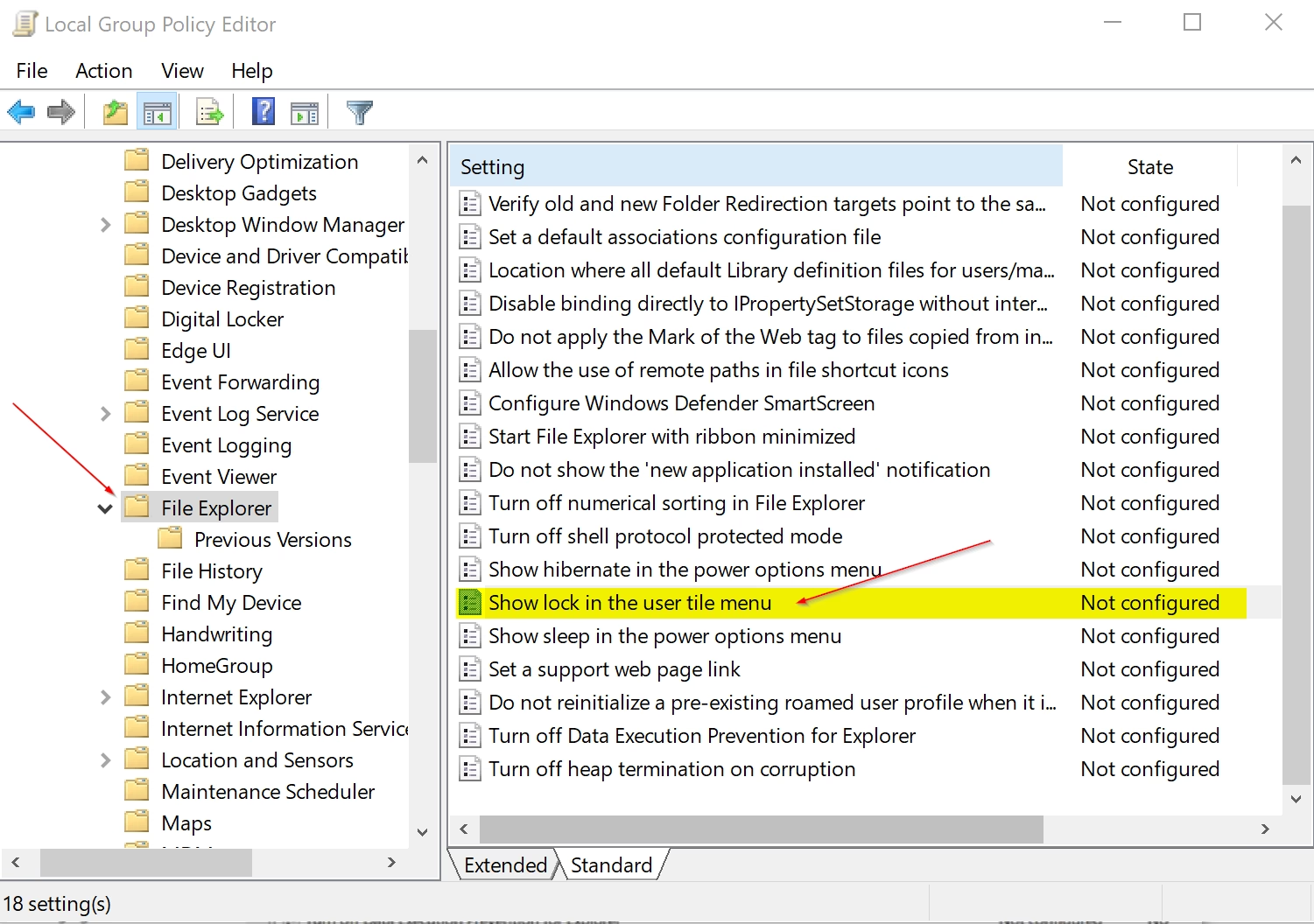
- Navigate to the policy location below in the left pane of the Local Group Policy Editor: Computer Configuration > Administrative Templates > Windows Components > File Explorer
- In the right pane of File Explorer in the Local Group Policy Editor, double click/tap on the Show lock in the user tile menu policy to edit it.
Enable Lock in Account Picture Menu
This is the default setting to allow using Option One.
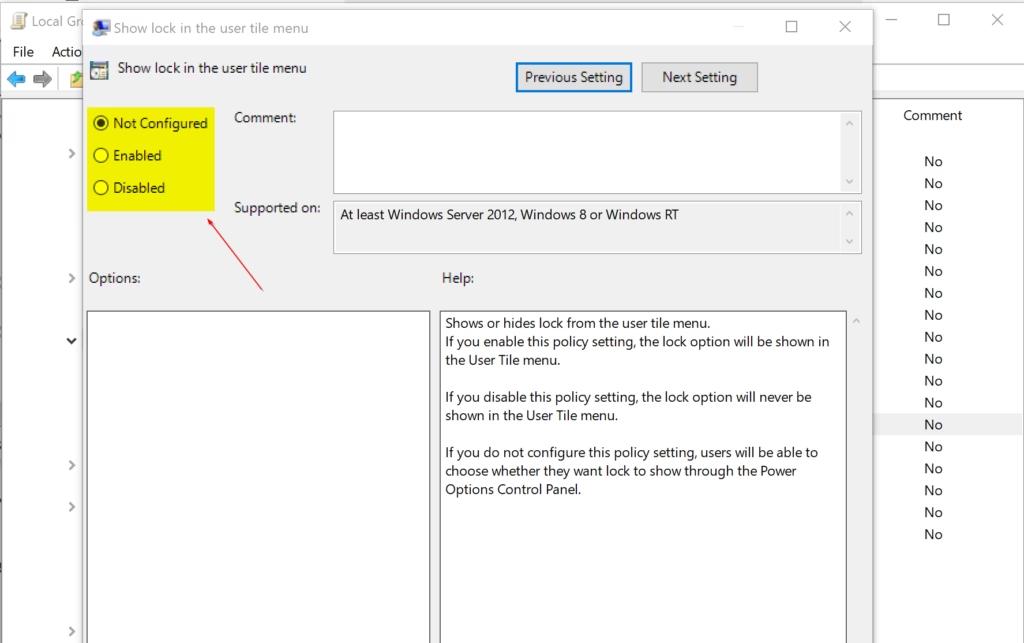
- Select (dot) Not Configured.
- Click/tap on OK, and go to step 8.
Add Lock to Power Menu on Start Menu
This will prevent using Option One.
- Select (dot) Enabled.
- Click/tap on OK, and go to step 8.
Remove Lock from Power Menu on Start Menu
- Select (dot) Disabled.
- Click/tap on OK, and go to step 8.
- Close the Local Group Policy Editor.
Option Three
If you’re using any edition of Windows 11, you can add or remove the Lock option from the Start menu’s power menu by making changes in the Registry Editor.
Add Lock to Power Menu on Start Menu
This is the default setting
reg add "HKLM\SOFTWARE\Microsoft\PolicyManager\default\Start\HideLock" /v value /t REG_DWORD /d 0 /f
reg add "HKLM\SOFTWARE\Microsoft\Windows\CurrentVersion\Explorer\FlyoutMenuSettings" /v ShowLockOption /t REG_DWORD /d 1 /f
reg delete "HKLM\SOFTWARE\Policies\Microsoft\Windows\Explorer" /v ShowLockOption /f
Remove Lock from Power Menu on Start Menu
reg add "HKLM\SOFTWARE\Microsoft\PolicyManager\default\Start\HideLock" /v value /t REG_DWORD /d 1 /f
reg add "HKLM\SOFTWARE\Microsoft\Windows\CurrentVersion\Explorer\FlyoutMenuSettings" /v ShowLockOption /t REG_DWORD /d 0 /f
reg add "HKLM\SOFTWARE\Policies\Microsoft\Windows\Explorer" /v ShowLockOption /t REG_DWORD /d 0 /f
That’s it!
Summary
You can add or remove the Lock option from the Start menu’s power menu in Windows 11 using three main methods: Control Panel, Local Group Policy Editor, or Registry Editor.
- Option One: Use Control Panel and Power Options (easiest method).
- Option Two: Use Local Group Policy Editor (available in Pro, Enterprise, and Education editions only).
- Option Three: Use Registry Editor (works on all editions).
Remember that you need admin privileges to make these changes. Locking your computer is a quick way to protect your work when you step away from your PC.
How do I turn on the lock on 🪟 Windows 11?
From the user menu: Select Start, then select the user picture or Accounts icon. Choose Lock (in earlier Windows 11 versions, Lock appears under this menu instead of the power icon).
Was this guide helpful?

About the Author
Richard
Tech Writer, IT Professional
Richard, a writer for Geek Rewind, is a tech enthusiast who loves breaking down complex IT topics into simple, easy-to-understand ideas. With years of hands-on experience in system administration and enterprise IT operations, he’s developed a knack for offering practical tips and solutions. Richard aims to make technology more accessible and actionable. He's deeply committed to the Geek Rewind community, always ready to answer questions and engage in discussions.




No comments yet — be the first to share your thoughts!