How to Add or Remove Account Picture Menu on Start Menu in Windows 11

This guide explains how to add or remove the account picture menu from your Start screen in Windows 10 and Windows 11.
Open Windows Terminal as administrator and use a reg add command. Enter “0” as the value to add the menu, or “1” to remove it.
What is the Account Picture Menu?
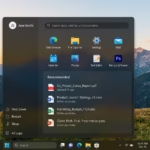
The account picture menu on your Windows 11 Start menu is that little picture at the top, letting you quickly get to account settings, lock your PC, sign out, or switch users.
If you don’t want this menu displayed, you can remove it completely from your Start menu.
New Feature in Recent 🪟 Windows 11 Updates
Starting with recent Windows 11 updates, like build 26100.7922 (which is part of the 24H2 version), a new option appeared in the account menu. This option now directs you to the benefits page (https://account.microsoft.com/). This makes it easier to explore and manage your Microsoft account benefits.
How to Add or Remove the Account Picture Menu
Why do this? You might want to remove this menu to simplify your Start menu. Or you might want to add it back if it’s missing.
What happens? Removing the account picture menu hides the user tile from your Start menu. Adding it shows the menu again.
What You Need
- Administrator access to your computer
⚠️ Admin Required: You’ll need administrator access to make these changes.
Steps
- Open the Windows Terminal app as an administrator.
- Run one of the commands below, depending on what you want to do.
Add Account Picture Menu to Start Menu
This is the default setting.
reg add "HKEY_LOCAL_MACHINE\SOFTWARE\Microsoft\PolicyManager\default\Start\HideUserTile" /v value /t REG_DWORD /d 0 /fRemove Account Picture Menu from Start Menu
reg add "HKEY_LOCAL_MACHINE\SOFTWARE\Microsoft\PolicyManager\default\Start\HideUserTile" /v value /t REG_DWORD /d 1 /fLearn More
For more information, see Start Policy CSP and learn more about the Start Area in Policy CSP on docs.microsoft.com.
Summary
The account picture menu on your Windows 11 Start menu offers quick access to your account settings and sign-out options, but you can hide it using a command in Windows Terminal if you prefer.
Where are user account pictures stored in 🪟 Windows 11?
User account pictures in Windows 11 are stored in a hidden folder at 📁C:\ProgramData\Microsoft\User Account Pictures, and your current profile image is also cached in your user profile’s AppData folder.
How can you change the profile picture of a user account in 🪟 Windows 11?
You can change your user account profile picture in Windows 11 by opening Settings, going to Accounts, then Your info, and choosing a new photo from your computer or taking one with your webcam.
How to find out where the photo was taken for Windows?
To find out where Windows Spotlight lock screen photos were taken, look in the hidden Assets folder within the ContentDeliveryManager package, then copy, rename to .jpg, and use a reverse image search.
How do I add a picture to my login screen in 🪟 Windows 11?
Adding a picture to your Windows 11 login screen is done through Settings > Accounts > Your info, where you can upload an image or take a photo to use as your account picture.
Was this guide helpful?

About the Author
Richard
Tech Writer, IT Professional
Richard, a writer for Geek Rewind, is a tech enthusiast who loves breaking down complex IT topics into simple, easy-to-understand ideas. With years of hands-on experience in system administration and enterprise IT operations, he’s developed a knack for offering practical tips and solutions. Richard aims to make technology more accessible and actionable. He's deeply committed to the Geek Rewind community, always ready to answer questions and engage in discussions.


No comments yet — be the first to share your thoughts!