
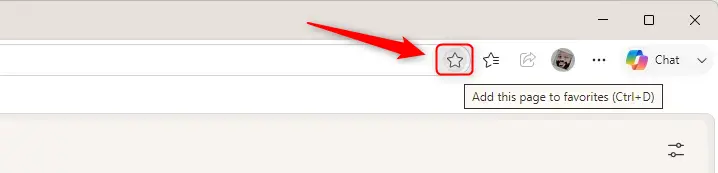
You add a website to your favorites in Microsoft Edge by clicking the star icon in the address bar, which saves the current page for quick access later.
Microsoft Edge Favorites act like digital bookmarks, allowing you to easily revisit frequently used websites without searching or retyping URLs.
For instance, if you’re using Edge version 120 or later, you’ll see a star directly next to the address bar to initiate the saving process.
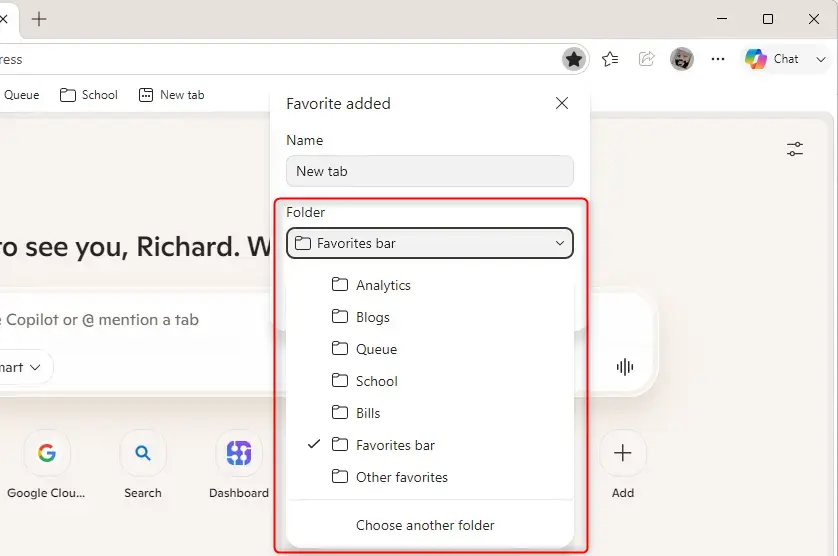
Clicking this star opens a small window where you can name the favorite and choose a folder to store it in, like your “Work” or “Shopping” collection.
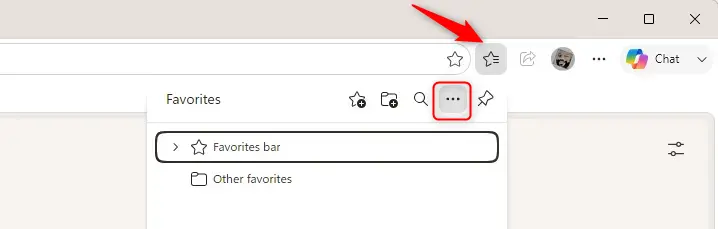
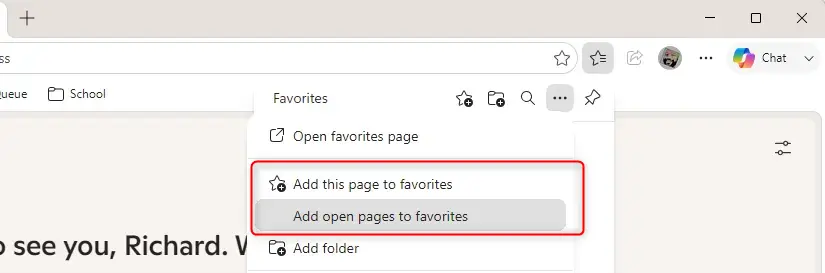
Click the star icon in the address bar to save the current page. You can rename it and choose a folder. To save all open tabs, go to Settings and more (three dots), then Favorites, and select “Add open pages to favorites.
Saving a Website You Visit Often
Saving a website you visit often to your Microsoft Edge favorites is simple; just click the star icon right in the address bar when you’re on the page.
Here is how:
- Open Microsoft Edge. Go to the webpage you want to save.
- Look at the right side of the address bar. This is the long box at the top where the website address shows up. You should see a small star icon. This is the button to “Add this page to favorites.” Click it!
- A small window will show up. Here you can change how your favorite is saved. You can give your favorite a new name. For example, instead of a long website name, you could type “My Favorite Food Place.”
- You will also see an option to pick a “Folder” to save your favorite in. Edge usually suggests a “Favorites” folder. But you can make new folders or pick ones you already have to keep things organized. We will talk more about folders soon!
- When you like the name and the folder, click the “Done” button.
Saving All Your Open Tabs at Once – For When You’re Doing Many Things
If you’re working on multiple projects, Microsoft Edge lets you save all your open tabs at once so you don’t lose your place.
Here is how to do it:
- Make sure all the webpages you want to save are open in your Edge window.
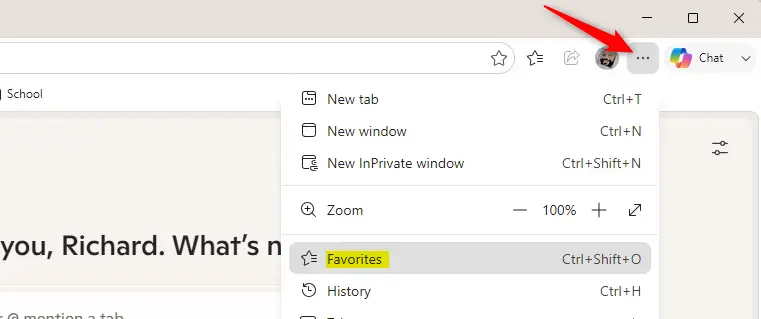
- Click the three horizontal dots in the top right corner of the Edge window. This opens the “Settings and more” menu.
- Move your mouse over “Favorites.” A new menu will appear.
- In that menu, you will see a few choices. To save all your current tabs, click on “Add open pages to favorites.”
- Like before, a window will show up. You can give this group of favorites a name. For example, “Trip Planning Research” or “Work Project Notes.”
- Choose a folder to save them in, or make a new one.
- Click “Done.”
Reference:
Summary
Saving websites to your Favorites in Microsoft Edge is easy, whether you’re adding a single page using the star icon or saving all your open tabs at once through the settings menu.
Was this guide helpful?

About the Author
Richard
Tech Writer, IT Professional
Richard, a writer for Geek Rewind, is a tech enthusiast who loves breaking down complex IT topics into simple, easy-to-understand ideas. With years of hands-on experience in system administration and enterprise IT operations, he’s developed a knack for offering practical tips and solutions. Richard aims to make technology more accessible and actionable. He's deeply committed to the Geek Rewind community, always ready to answer questions and engage in discussions.




No comments yet — be the first to share your thoughts!