

This guide shows you how to hide or unhide the shutdown button in Windows 11’s Start menu. The shutdown button lets you turn off your computer safely.
Why Hide or Show the Shutdown Button?
The Shutdown button closes all your apps and powers down your PC. You click it when you’re done working and want to turn off your computer.
Using shutdown saves energy. It turns off your PC completely instead of leaving it running.
By default, Windows 11 shows the shutdown button in the Start menu. But you might want to hide it. For example, if you share your PC with others, hiding it stops them from accidentally turning it off. Or if you’re the only user and want a simpler menu, you can remove the shutdown option.
What Happens When You Hide or Show Shutdown?
When you hide the shutdown button, it disappears from your Start menu’s power options. When you show it, it reappears and you can use it normally.
How to Hide or Show the Shutdown Button
Windows lets you control the shutdown button by changing a setting in the Registry Editor.
Important: Editing the registry can affect your computer. Follow the steps carefully. You may want to back up your registry first.
Steps to Hide or Show the Shutdown Button:
- Press
Win + Ron your keyboard to open the Run box. - Type
regeditand press Enter. ⚠️ Admin Required: If asked by User Account Control, click Yes to allow. - In the Registry Editor window, use the left sidebar to find this folder path:
HKEY_LOCAL_MACHINE\SOFTWARE\Microsoft\PolicyManager\default\Start - Look for a folder (key) named
HideShutDown. If you don’t see it:- Right-click on the
Startfolder. - Choose
New > Key. - Name the new key
HideShutDown.
- Right-click on the
- Click the
HideShutDownfolder to select it. - In the right side pane, right-click on an empty space and choose
New > String Value. - Name this new value
value. - Double-click the value you created to edit it.
- In the box labeled Value data, enter:
0to show (unhide) the shutdown button.1to hide the shutdown button.
- Click OK to save.
- Close the Registry Editor and restart your PC for the change to take effect.
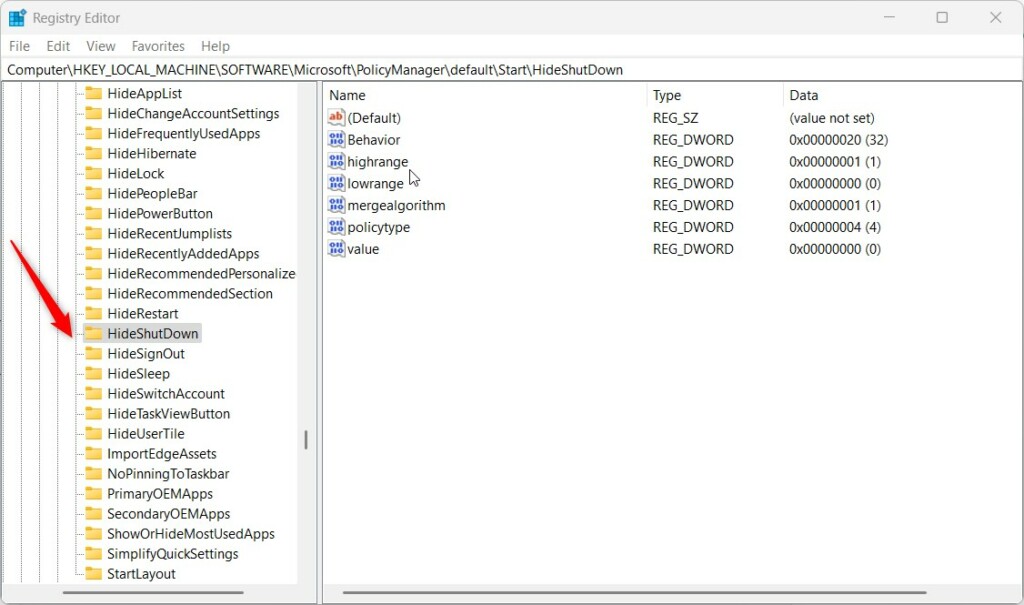
Registry Editor showing the HideShutDown key in Windows 11
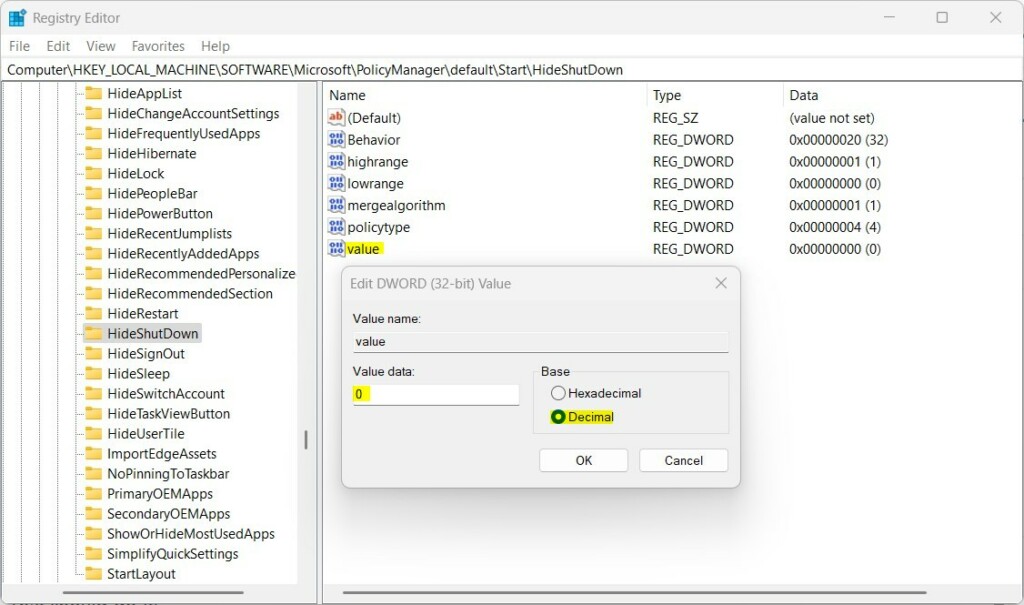
Setting the value data to hide (1) or show (0) the shutdown button
Summary
- You can hide or unhide the shutdown button on the Start menu by changing a registry setting.
- Hiding shutdown stops others from accidentally turning off your PC if you share it.
- Showing shutdown keeps the normal option to turn off your PC quickly.
- Always be careful when editing the registry. Back it up before making changes.
- For official info from Microsoft, check out their page here: Microsoft HideShutdown Policy



Leave a Reply