How to Add or Remove the Navigation Pane in Windows 11

You can add or remove the navigation pane in Windows 11 File Explorer to customize how you browse your files.
The navigation pane is that vertical bar on the left of File Explorer, showing quick links to folders like Desktop, Documents, and Downloads.
Removing it can help clear up your view, while adding it back ensures you always have fast access to your important locations. This is handy if you accidentally hide it or want to get the default layout back after a Windows update, like the recent 23H2 version.
Open File Explorer, click View on the Command Bar, then select Show and toggle Navigation pane. This action will add or remove the left-hand navigation panel.
What is the Navigation Pane?
The navigation pane in Windows File Explorer shows your folders and drives, making it quicker to find your files. While helpful, it can sometimes eat up screen space, especially on smaller displays. If you’d prefer more room to view your files, you can hide the pane. You can then show it again whenever you need it. This setting applies to all folders, so it stays hidden or visible across your entire File Explorer experience until you decide to change it.
How to Show or Hide the Navigation Pane Using File Explorer
Here’s how you do it:
- Open File Explorer. Press
Win + Eon your keyboard to open it quickly. - Look at the top menu (called the Command Bar) and click on View.
- In the dropdown, click on Show and then choose Navigation pane to show or hide it.
How to Show or Hide the Navigation Pane Using Windows Registry (Advanced)
If you’re comfortable using the command line, you can try another method with Windows Terminal. The Registry Editor is a tool that lets you change this setting. Be careful when editing the registry; mistakes can cause problems.
Here’s how:
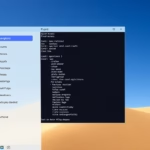
- Open the Windows Terminal app. Search for it in the Start menu.
- The setting is saved in the registry here:
HKEY_CURRENT_USER\SOFTWARE\Microsoft\Windows\CurrentVersion\Explorer\Modules\GlobalSettings\Sizer - The value to change is called
PageSpaceControlSizer. It is a binary value (REG_BINARY).
To Show the Navigation Pane
Run this command in Windows Terminal:
REG ADD HKCU\SOFTWARE\Microsoft\Windows\CurrentVersion\Explorer\Modules\GlobalSettings\Sizer /v PageSpaceControlSizer /t REG_BINARY /d a00000000100000000000000ec030000 /f
To Hide the Navigation Pane
Run this command instead:
REG ADD HKCU\SOFTWARE\Microsoft\Windows\CurrentVersion\Explorer\Modules\GlobalSettings\Sizer /v PageSpaceControlSizer /t REG_BINARY /d a00000000000000000000000ec030000 /fWhat Each Part of the Command Means
/vspecifies the name of the value to change./t REG_BINARYmeans the data type is binary./dis the data to set./fforces the change without asking for confirmation.
FLAG: You’ll need administrator rights to run this command. After running the command, restart your computer to apply the changes.
Summary
You’ve learned how to show or hide the navigation pane in Windows 11 File Explorer. Hiding the pane can give you more screen space. Showing it again makes navigating your files much easier.
- Use the File Explorer’s View menu for the easiest way.
- Use Windows Terminal and registry commands if you want more control (advanced users only).
- Remember to restart your PC if you use the registry method.
That’s it! Now you know how to customize your File Explorer to fit your needs.
How do I get the navigation pane back?
Open File Explorer. Click on the View tab. Click on Show, then click on Navigation pane. Job done! Thanks for watching this video. Hope you like this; please do subscribe to my channel and give it a like, please.
Was this guide helpful?

About the Author
Richard
Tech Writer, IT Professional
Richard, a writer for Geek Rewind, is a tech enthusiast who loves breaking down complex IT topics into simple, easy-to-understand ideas. With years of hands-on experience in system administration and enterprise IT operations, he’s developed a knack for offering practical tips and solutions. Richard aims to make technology more accessible and actionable. He's deeply committed to the Geek Rewind community, always ready to answer questions and engage in discussions.
📚 Related Tutorials



No comments yet — be the first to share your thoughts!