
Narrator featured image icon

How to Enable Narrator Function Key Announcements in Windows 11

This article explains how to toggle the option to have the Narrator announce when you type function keys in Windows 11.

Narrator is a screen-reading app built into Windows that reads the text on your screen aloud and describes events for users with low vision or blindness.

When you use the Narrator app, you can enable or disable Narrator phonetic readingpause for punctuationadjust how the Narrator reads advanced detailsadjust the way capitalized text is readadd a braille display with Narrator, change input and output language for braille with Narrator, and more.

Another Narrator feature you can change is to have the Narrator announce when you type function keys. You can turn it on or off. By default, it is turned off.

Function keys, or F keys, are at the top of a standard PC keyboard. In the Windows operating system, each of the 12 function keys (F1 through F12) has a unique function assigned to it.

Have the Narrator announce when you type function keys in Windows

As mentioned above, users can have the Narrator announce when they type function keys in Windows.

Here’s how to do it.

First, open the Windows Settings app.

You can do that by clicking on the Start menu and selecting Settings. Or press the keyboard shortcut (Windows key + I) to launch the Settings app.

When the Setting app opens, click the Accessibility button on the left and select the Narrator tile on the right to expand it.

On the Narrator settings pane, under “Verbosity,” expand the “Have Narrator announce when I type” tile to access additional settings.

You can toggle the [Function keys] option to “Hear function keys as you type.”
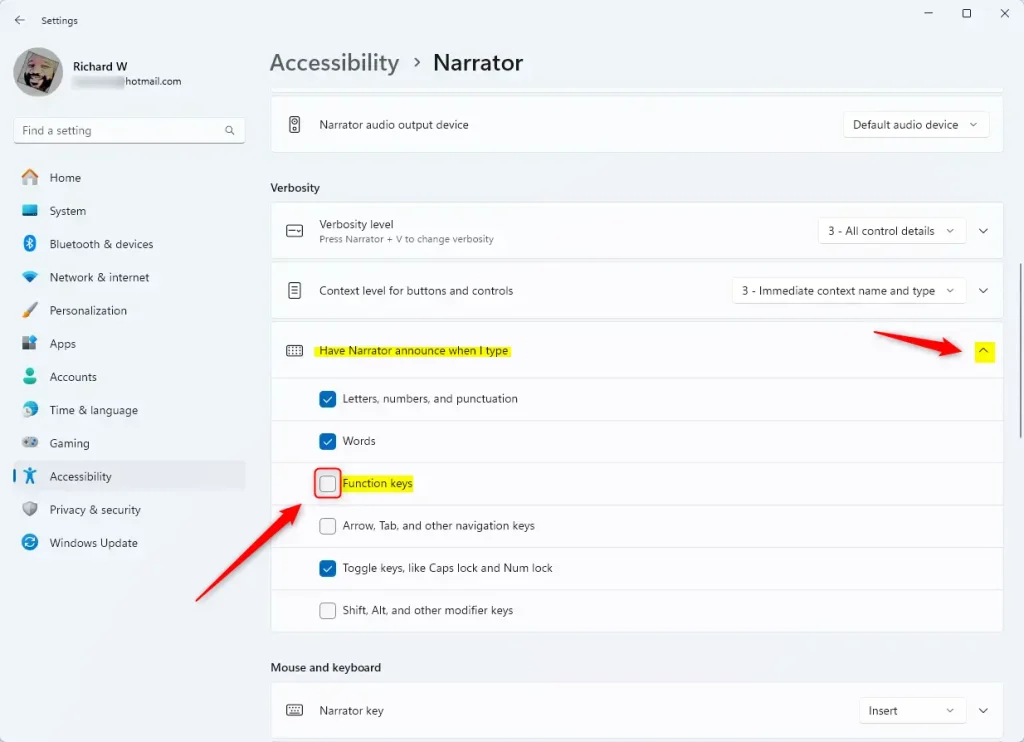
Have narrator announce when I type

That should do it!

Conclusion:

  • In this article, we discussed how to toggle the option to have the Narrator announce when you type function keys in Windows 11.
  • We explored the steps to access the Windows Settings app and navigate to the Narrator settings to enable this feature.
  • Further, we witnessed the importance of such accessibility features for users with low vision or blindness.
  • Users can customize their Narrator settings in Windows 11 by following these steps to enhance their computing experience.


Frequently Asked Questions

How do I enable Narrator function key announcements in Windows 11?

To enable Narrator function key announcements in Windows 11, open the Settings app by pressing Windows key + I. Navigate to Accessibility, select Narrator, and under 'Verbosity', expand 'Have Narrator announce when I type' to toggle the Function keys option.

What is the purpose of the Narrator in Windows 11?

The Narrator is a built-in screen-reading app in Windows 11 designed to assist users with low vision or blindness by reading text aloud and describing events on the screen. It enhances accessibility by providing auditory feedback for various actions.

Are function key announcements enabled by default in Narrator?

No, function key announcements are turned off by default in the Narrator settings. Users need to manually enable this feature to hear announcements when typing function keys.

Can I customize other Narrator settings besides function key announcements?

Yes, you can customize various Narrator settings, including phonetic reading, punctuation pauses, and how capitalized text is read. These options can be adjusted in the Narrator settings pane under Accessibility.

What are function keys and how are they used in Windows?

Function keys, labeled F1 through F12, are located at the top of a standard PC keyboard and serve specific functions within the Windows operating system. Each key can perform different tasks, such as opening help menus or refreshing pages, depending on the application in use.

Categories:

Tags:

4 responses to “How to Enable Narrator Function Key Announcements in Windows 11”

  1. […] a screen-reading app built into Windows that reads the text on your  screen aloud and describes events for users with low vision or […]

  2. […] a screen-reading app built into Windows that reads the text on your  screen aloud and describes events for users with low vision or […]

  3. […] a screen-reading app built into Windows that reads the text on your screen aloud and describes events for users with low vision or […]

  4. […] a screen-reading app built into Windows that reads the text on your screen aloud and describes events for users with low vision or […]

Leave a Reply

Your email address will not be published. Required fields are marked *

Exit mobile version
