How to Enable or Disable Copilot in Outlook

This article explains how to enable or disable Copilot in the new version of Outlook.
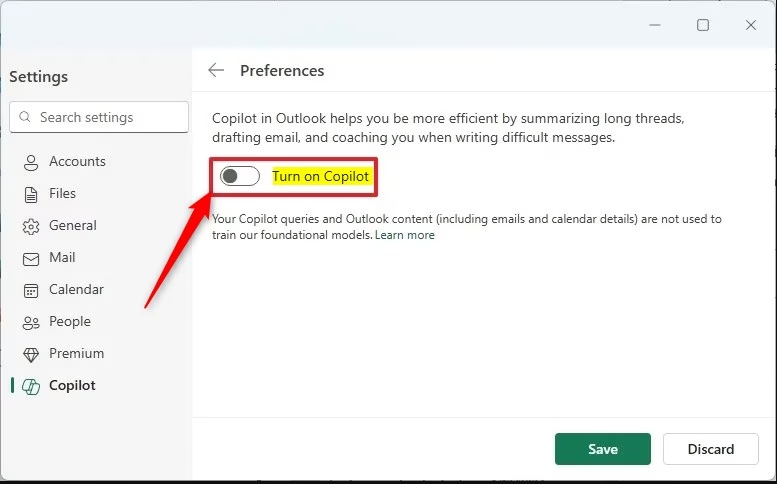
Open Outlook, click the Settings gear icon, select Copilot from the sidebar, and toggle the “Turn on Copilot” option. Click Save to confirm your changes.
What is the New Outlook App?
The new Outlook app for Windows 11 is a fresh way to handle your emails and calendar, making everyday tasks simpler. It brings together your mail, calendar, and contacts in one easy-to-use place, with features like dark mode and link previews to help you manage your communications better.
The app offers features like adding events to your Calendar directly from emails, dark mode, link previews (which show a snapshot of a website when you hover over a link), notification alerts, and more.
What is Copilot in Outlook?
Copilot is now available in the new Outlook app for Windows. What does it do? It assists you in creating summaries, drafting emails, and completing various tasks in Outlook. It can save you time and effort.
How to Enable or Disable Copilot in Outlook
Users can enable a feature in the new Outlook app that displays notifications and actions on the screen. You can turn this feature on or off whenever you want.
Step 1Open Outlook
First, open the Outlook app by clicking on its icon in the Start menu or searching for it in the taskbar search box.
Step 2 Open Settings
Once Outlook is open, click on the Settings gear icon at the top right of the menu bar.

Step 3Find Copilot Settings
In the Settings sidebar, click on Copilot in the left menu. You can then toggle the “Turn on Copilot” option to enable or disable it .
Step 4Save Your Changes
Click the Save button after making your changes and exit the Settings menu.
Summary
You can easily turn Copilot in Outlook on or off through the app’s Settings menu, which helps you manage your email tasks more efficiently.
Was this guide helpful?

About the Author
Richard
Tech Writer, IT Professional
Richard, a writer for Geek Rewind, is a tech enthusiast who loves breaking down complex IT topics into simple, easy-to-understand ideas. With years of hands-on experience in system administration and enterprise IT operations, he’s developed a knack for offering practical tips and solutions. Richard aims to make technology more accessible and actionable. He's deeply committed to the Geek Rewind community, always ready to answer questions and engage in discussions.



No comments yet — be the first to share your thoughts!