How to Enable or Disable Colorful Icons in Outlook App

Want to change the look of your Outlook app icons? This guide shows you how to enable or disable colorful icons.
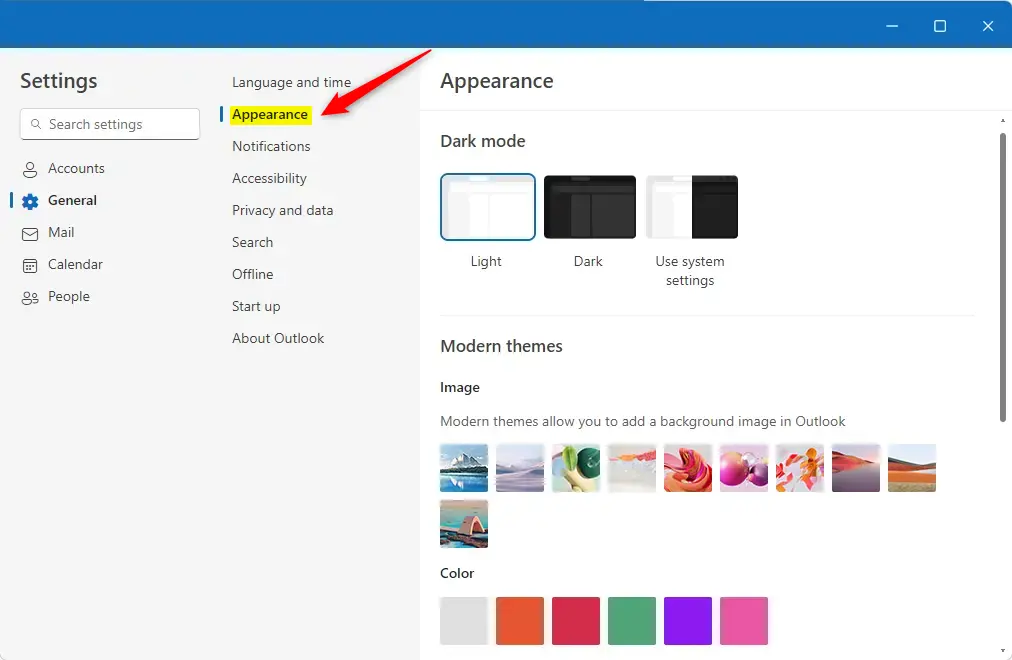
Open Outlook, click the Settings gear icon in the top right, navigate to General, then Appearance. Use the toggle in the Navigation bar section to switch colorful icons On or Off, then click Save.
What is the New Outlook App?
The new Outlook app for Windows 11 is a fresh take on the classic email and calendar tool, offering a cleaner design and helpful features to manage your messages and schedule meetings.
The app supports showing week numbers in your Outlook calendar, managing your search history, adding events from emails to your Calendar, switching to dark mode, link previews, audible alerts for notifications, controlling notifications when Outlook is closed, and many other features.
Why Change Your Icon Style?
Outlook displays colorful app icons by default, but you can switch to dark gray icons instead. This might be something you consider if you want your computer to run faster and use less power.
How to Turn Colorful Icons On or Off
You can easily turn colorful icons on or off in the new Outlook app to pick the look that suits you best, with just a few simple steps.
- Open the Outlook app. Click its icon in the Start menu or search for it in your taskbar.
- Look at the top right corner of the menu bar. Click the Settings gear icon.

- In the Settings sidebar, click General. Then select Appearance.
- Find the Navigation bar section. You’ll see a toggle button. Switch it On for colorful icons or Off for dark gray icons.
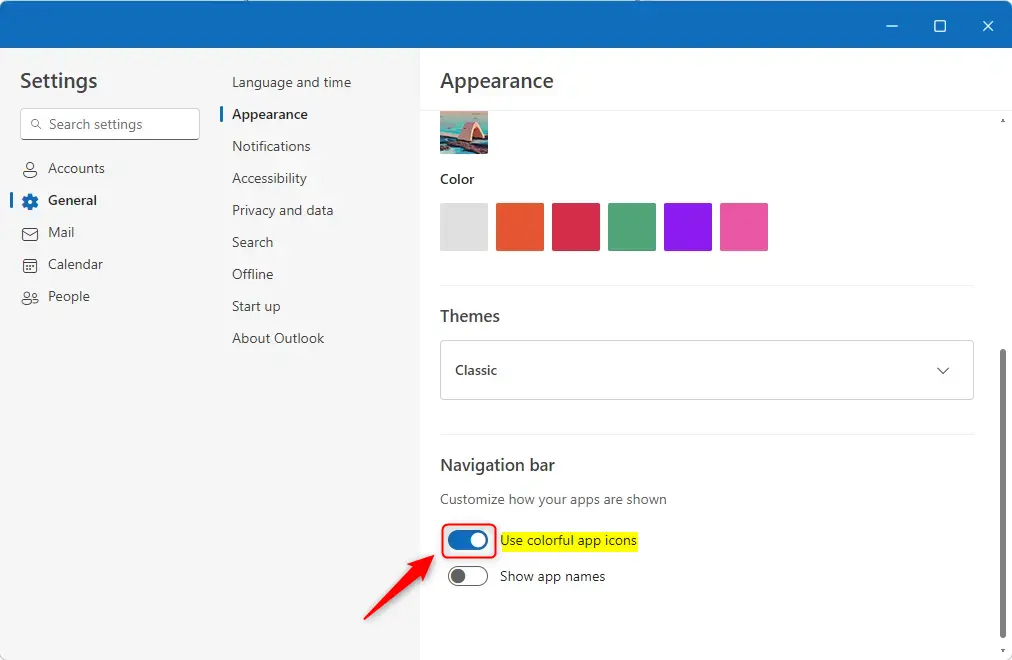
- Click Save to keep your changes.


That’s it! Your change is complete.
Summary
Changing your colorful icons in Outlook is a quick process, letting you choose between bright, colorful icons or subdued dark gray ones to match your preference.
- Modern Design: The new Outlook has a fresh, easy-to-use interface.
- Your Choice: Pick colorful icons or dark gray icons based on what you prefer.
- Easy Access: The settings are simple to find and change in just a few steps.
- Boost Performance: Dark gray icons can help your computer run faster.
- Make It Yours: Customize Outlook to match your style and work better for you.
With just a few clicks, you can personalize Outlook to work the way you want!
What do the colored symbols mean in Outlook?
The colored symbols in Outlook and Teams show your availability status, helping you quickly see if someone is available, busy, or in a meeting.
How do I change the icon colors in Outlook?
To change the color of a folder icon (1), hover over the folder name, select the three-dot menu (2), select “Change color,” and then choose a color (3). In this example, I’ve chosen Cranberry (dark red) for my Inbox. To turn off the color, follow the above steps and select “Automatic” (4).
How to make Microsoft Outlook colorful?
To change the overall Microsoft theme of Outlook, go to File > Options > General, then select your Office theme (colorful, dark gray, black, or white). You can also change the background of your email using custom color options.
Was this guide helpful?

About the Author
Richard
Tech Writer, IT Professional
Richard, a writer for Geek Rewind, is a tech enthusiast who loves breaking down complex IT topics into simple, easy-to-understand ideas. With years of hands-on experience in system administration and enterprise IT operations, he’s developed a knack for offering practical tips and solutions. Richard aims to make technology more accessible and actionable. He's deeply committed to the Geek Rewind community, always ready to answer questions and engage in discussions.




No comments yet — be the first to share your thoughts!