
This article explains how to enable or disable the Copilot “Quick View” keyboard shortcut on Windows 11.
A Windows 11 Copilot+ PC has a dedicated Copilot key on the keyboard. When you press this Copilot key, the Copilot app opens by default.
When Copilot is installed on Windows, you can enable or disable it, open Copilot when Windows starts, Pin or Unpin the Copilot side panel, Resize the Copilot side panel, delete chat history in Copilot, create a desktop shortcut, and more.
Starting with the Copilot app (version 1.24112.123.0 and higher), the earlier Copilot progressive web app (PWA) is replaced with a native version. There’s a new quick view feature for Copilot that you can access using the Alt + Space keyboard shortcut.
The steps below walk you through enabling or disabling the quick view keyboard shortcut.
Enable/Disable Quick view shortcut for Copilot
As mentioned, you can enable or disable the quick view shortcut for Copilot on Windows 11.
Here’s how to do it.
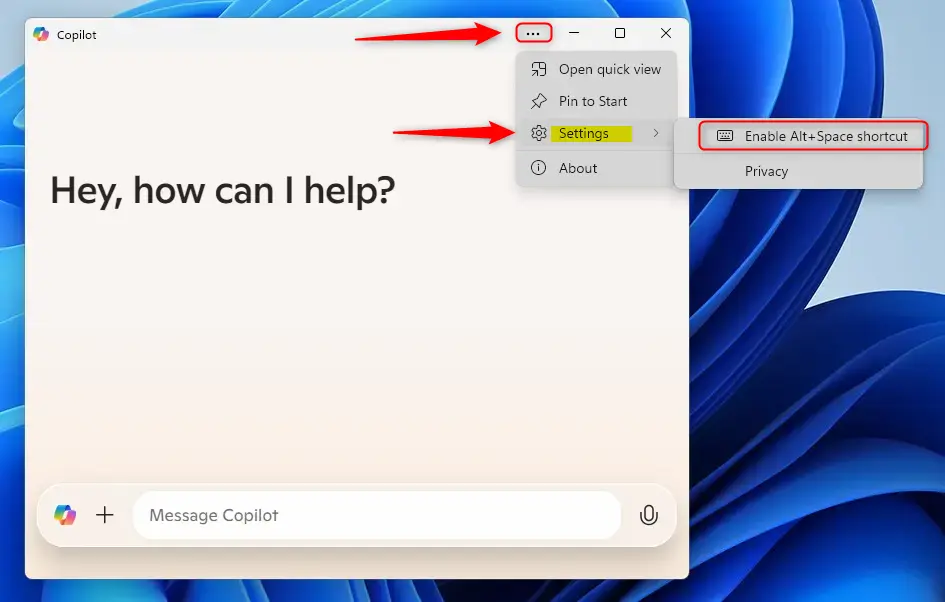
- First, open the Copilot app.
- Then, click on the Settings and more (3 dots) button.
- Select Settings.
- Click the Enable Alt+Space shortcut to enable (checked) or disable (unchecked).
That should do it!
Conclusion:
Enabling or disabling the Copilot “Quick View” keyboard shortcut on Windows 11 can enhance productivity and streamline workflow. Here are the key takeaways:
- The Copilot app is integrated into Windows 11 for easy access via a dedicated key.
- Users can customize settings for the Quick View feature through the app’s settings.
- The Alt + Space shortcut provides quick access to Copilot’s functionalities.
- Keeping the shortcut enabled can improve efficiency, especially for frequent users.
- Regular updates to the Copilot app ensure users have access to the latest features and enhancements.
Leave a Reply Cancel reply