
Does your sleep button not work the way you want? This guide shows you how to change what happens when you press it in Windows 11. It’s simple and takes just a few clicks.
What Is the Sleep Button?
The Sleep button puts your computer into a rest mode. Your PC saves everything you’re doing and uses very little power. When you wake it up, you can get back to work quickly without waiting for a full restart.
Pressing the sleep button tells your computer to pause and rest, but it doesn’t turn off completely.
How to Change What the Sleep Button Does
Windows 11 makes this easy. You can change the sleep button settings right in the Settings app. No need to dig through old menus.
Follow These Simple Steps:
- Open Settings
To change your sleep button function in Windows 11, open Settings by pressing Windows key + I, navigate to System > Power & battery, scroll to Power button and lid, and select your preferred action from the dropdown menu next to the sleep button setting.
- Find System Settings
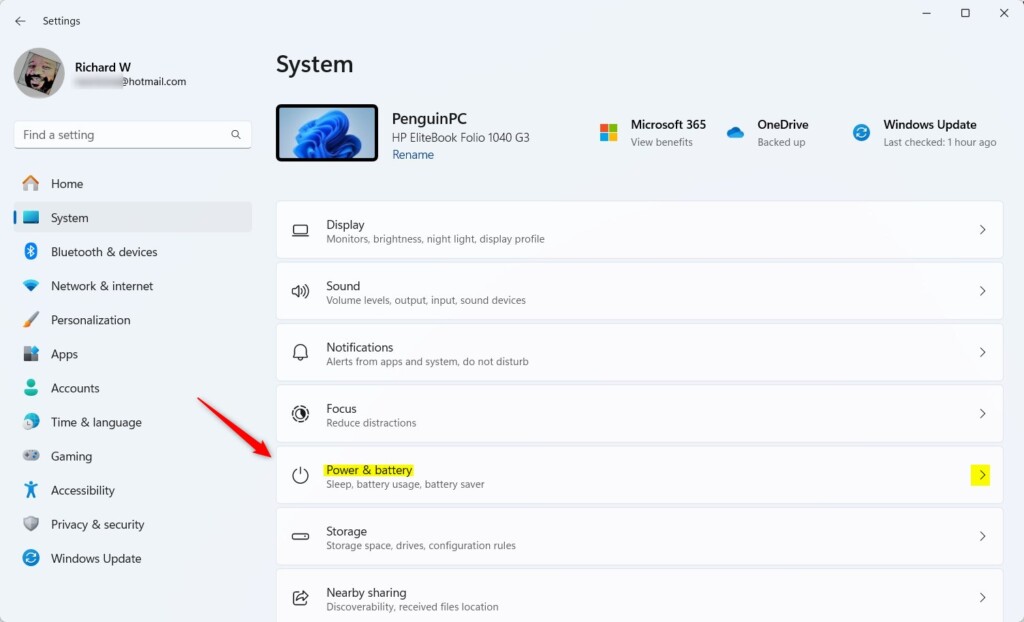
In the Settings window, click System on the left side.

- Go to Power Settings
Click on Power & battery or just Power on the right side.
- Find the Sleep Button Controls
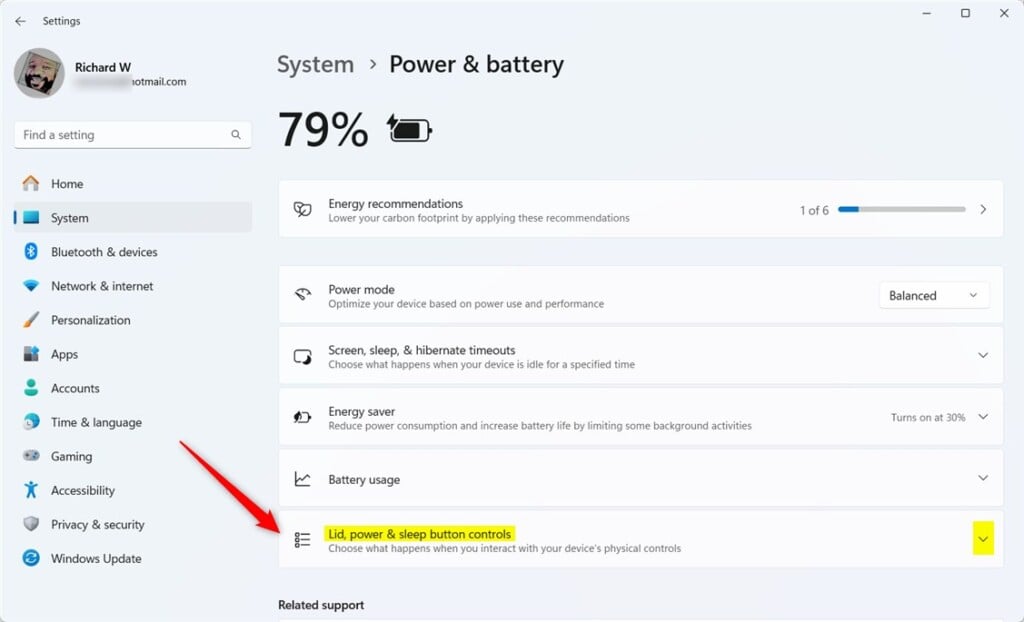
Scroll down to find the section called “Lid, power & sleep button controls”. Click it to expand the options.
- Select Your Preference
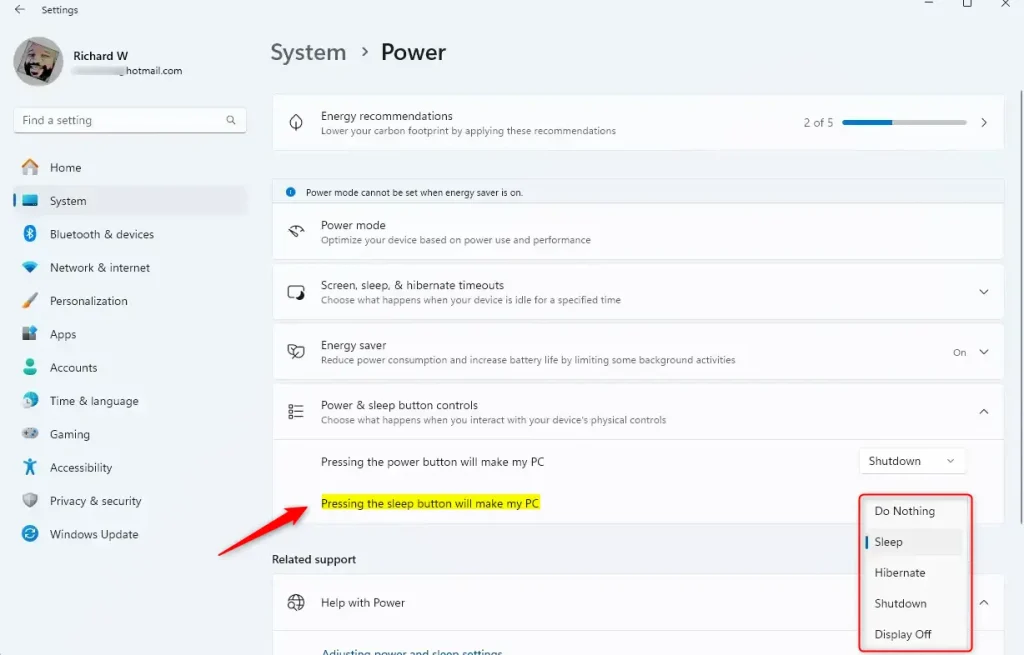
Look for the option that says “Pressing the sleep button will make my PC”. You’ll see this for both “Plugged in” and “On battery” modes. Click the dropdown to see your choices.
- Pick What You Want
Choose one of these options:
- Do Nothing — pressing the button won’t do anything
- Sleep — puts your PC to sleep (this is the default)
- Hibernate — saves your work and turns off the PC
- Shutdown — turns off your PC completely
- Display Off — turns off the screen only
- Close Settings
Close the Settings app when you’re done. Your changes save automatically.
Why Change the Sleep Button?
Why would you want to do this? Maybe you want your PC to just turn off the screen instead of going to sleep. Or perhaps sleep mode is causing problems, like your PC not waking up properly. Changing this setting helps fix those issues.
What happens when you customize it? Your sleep button now works exactly how you want. You get a computer that behaves the way you prefer.
Summary
Changing what your sleep button does in Windows 11 is quick and easy. Just open Settings, go to Power & battery, find the sleep button controls, and pick what you want it to do. You can choose from five different actions: Do Nothing, Sleep, Hibernate, Shutdown, or Display Off. Your changes save right away, so your sleep button works exactly how you like it.
Have questions or tips to share? Leave a comment below!

Leave a Reply