
In this guide, you’ll learn how to change the color of your mouse pointer in Windows 11. This makes it easier to find on your screen and can also make your computer feel more personal.
The mouse pointer (or cursor) is the small arrow or shape that moves when you move your mouse. Changing its color helps you see it better, especially if the default white pointer is hard to spot.
Why Change Your Mouse Pointer Color?
- If you have trouble seeing the white pointer, a different color can make it easier to find.
- It helps people with vision difficulties use their computer more easily.
- You can pick a color you like to make your computer look unique.
How to Change Your Mouse Pointer Color in Windows 11
- Open Windows Settings: Click the Start menu button (the Windows icon) at the bottom-left of your screen, then click Settings. Or, press Windows key + I on your keyboard to open Settings directly.
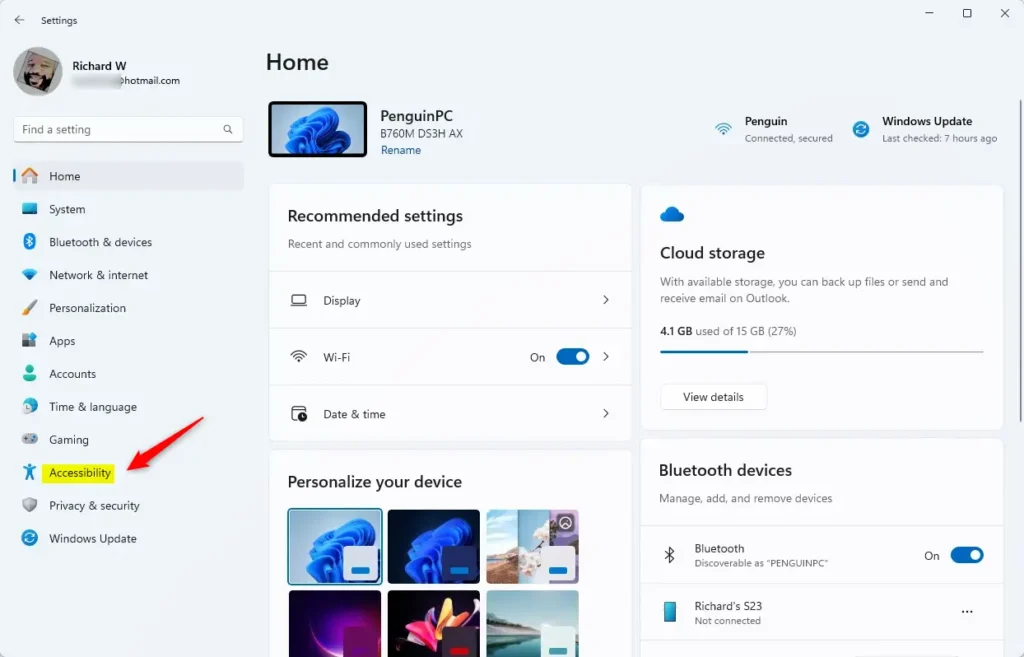
- Go to Accessibility: In the Settings window, look at the left side and click Accessibility.
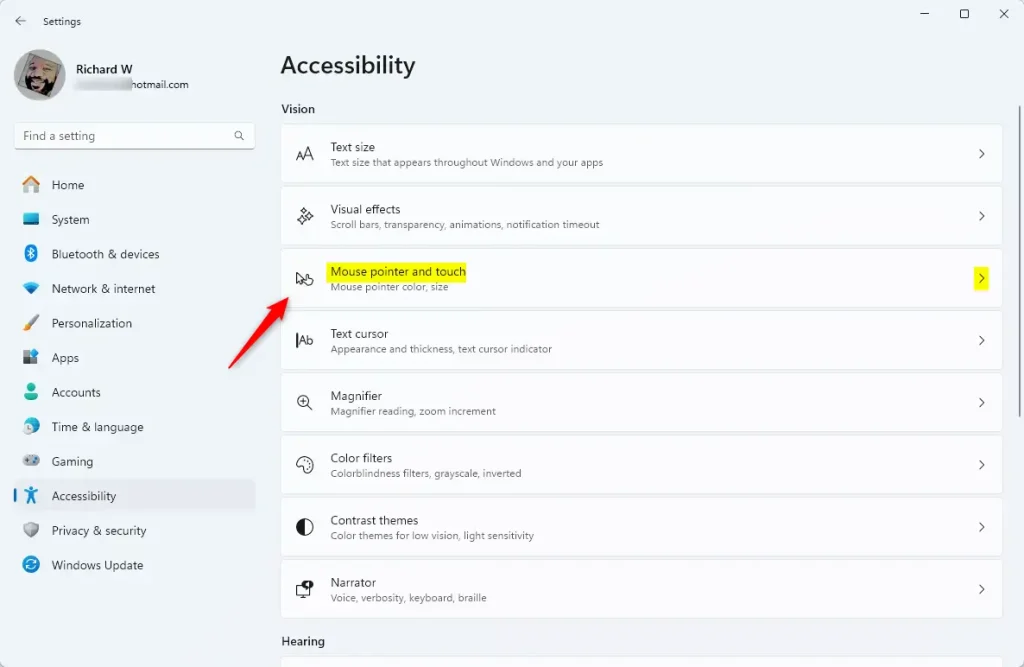
- Find Mouse Pointer Settings: On the right side, scroll down and click on the tile called Mouse pointer and touch.
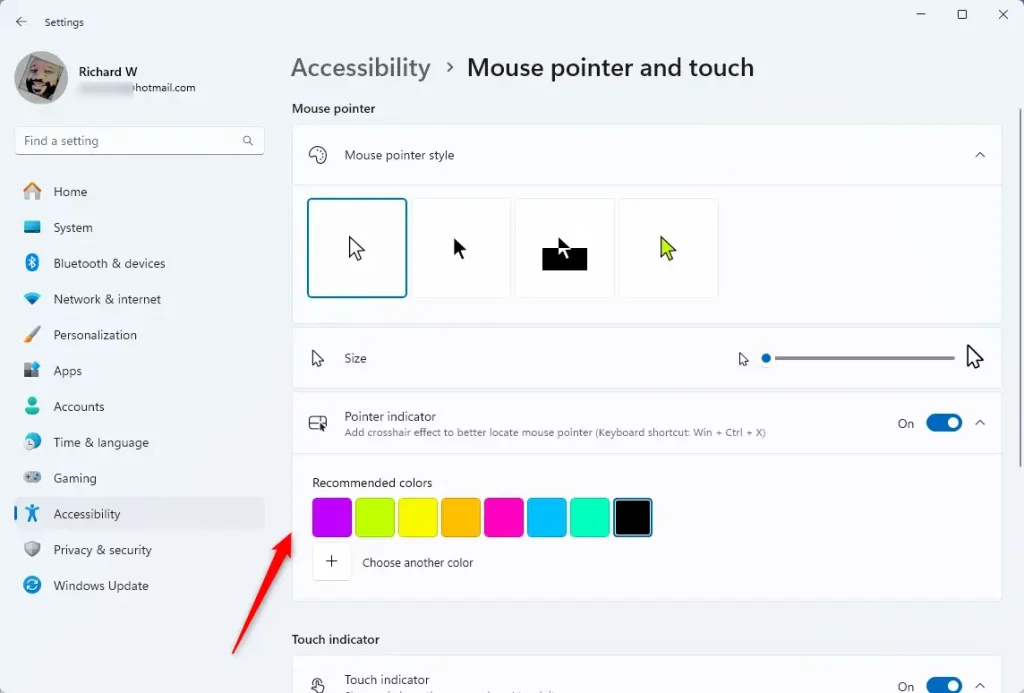
- Turn On Pointer Indicator: Make sure the Pointer indicator option is switched on (you should see a toggle or checkbox).
- Pick a Color: Under Recommended colors, click on a color you like. Your mouse pointer color will change right away.
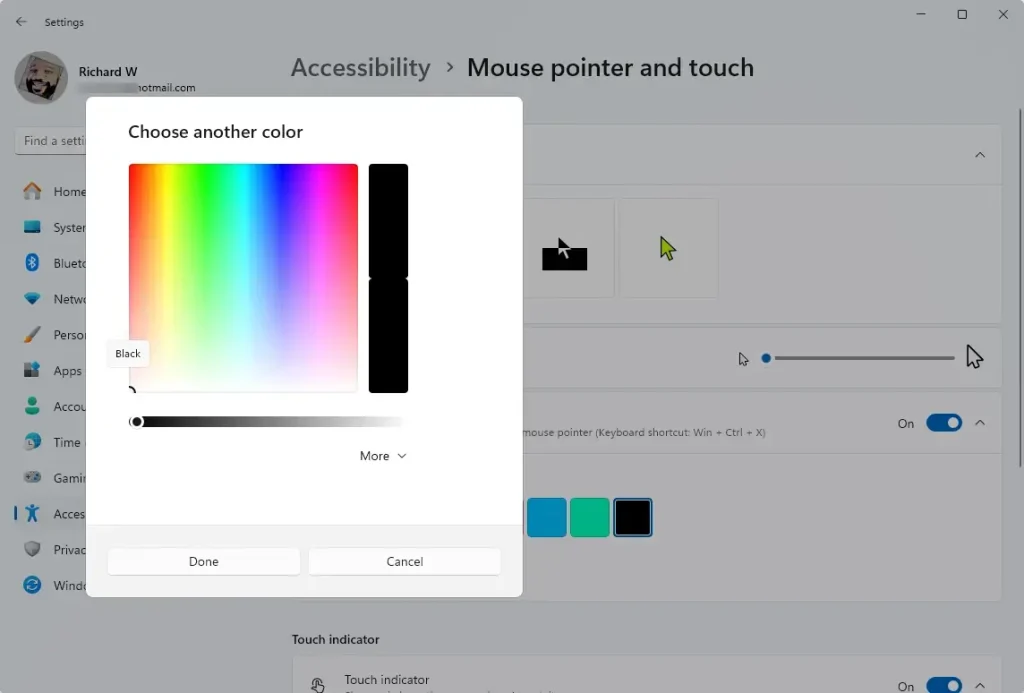
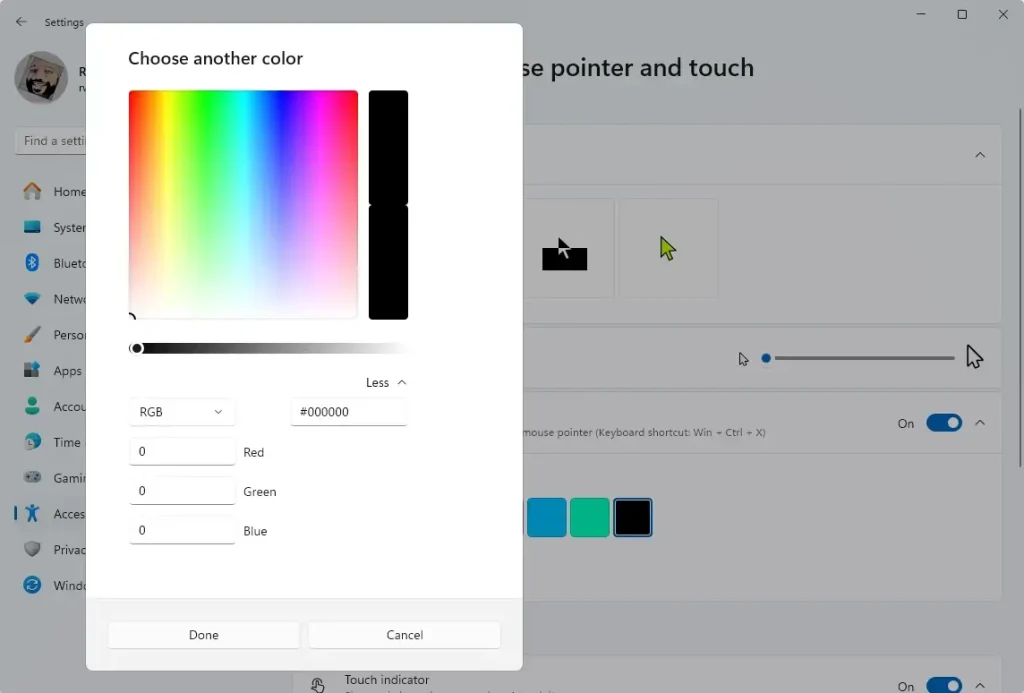
- Choose a Custom Color: If you don’t like the recommended colors, click the + button to pick another color. Use the color picker or sliders to find the perfect shade, then click Done.
- Close Settings: When you’re happy with your pointer color, just close the Settings window.
Summary
- Changing your mouse pointer color helps you see it better, especially if you have trouble with the default color.
- You can pick from preset colors or create your own custom color.
- This feature makes your computer easier to use and lets you personalize how it looks.
Need more help? Visit the official Microsoft guide here: Change mouse pointer settings in Windows 11.



Leave a Reply