How to Change Snipping Tool Screenshot Folder in Windows 11

Change Snipping Tool Screenshot Folder in Windows 11
Want to save your screenshots to a different folder? This guide will show you an easy way to change where the Snipping Tool saves your screenshots on Windows 11.
The Snipping Tool is a handy program built into Windows. You can use it to take pictures of your whole screen, just one window, or any part of your screen you choose.
You can also do things like hide sensitive text, and control settings for recording your screen, sound, and microphone. For more info, check out these guides:
- Turn screen capture and video recording on or off
- Include or exclude system sound when recording
- Use the microphone while recording
- Turn automatic screenshot saving on or off
Since version 11.2408.13.0, the Snipping Tool lets you pick a different folder to save your screenshots instead of the default Pictures folder.
By default, your screenshots go to:
C:\Users\\Pictures\Screenshots
But you can easily change this! Here’s how:
How to Change the Snipping Tool Screenshot Folder
- Open the Snipping Tool on your Windows 11 PC. You can find it by typing Snipping Tool into the Start menu search.
- Click the three dots (called “See more”) button in the top-right corner of the app.
- Select Settings from the menu.
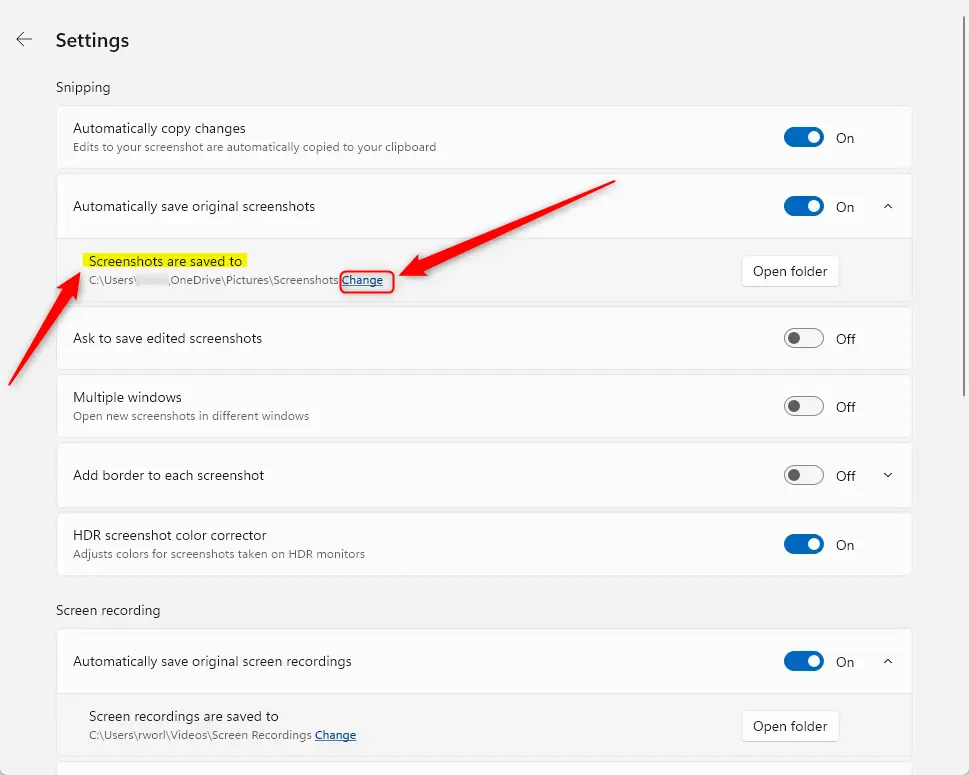
- In the Settings window, find the box that says “Screenshots are saved to”. Click the Change link next to it.
- A File Explorer window will open. Browse to the folder where you want your screenshots to be saved.
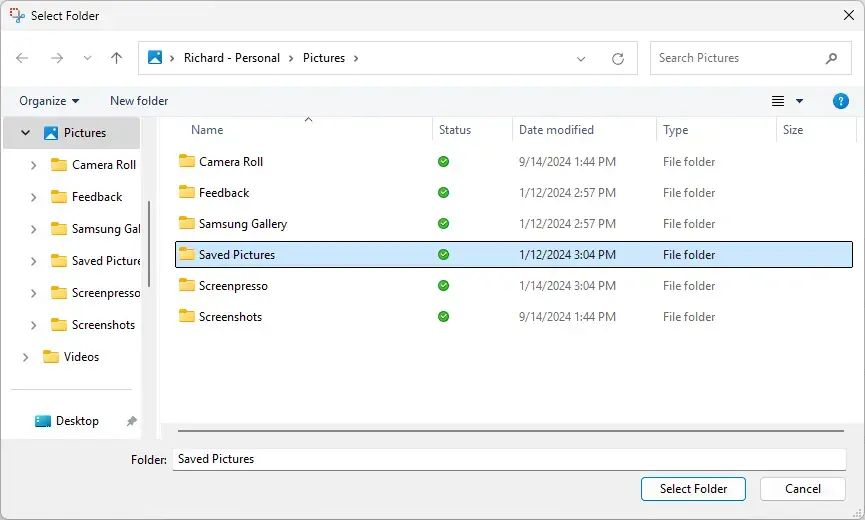
- Select the folder and confirm your choice. Close the Snipping Tool when you’re done.
That’s it! From now on, your screenshots will be saved in the new folder you picked.
Why Change the Screenshot Folder?
- Easy to find your screenshots: Pick a folder you use often or sync with cloud storage.
- Better organization: Keep different types of screenshots separate.
- Quick access: Save time by choosing a folder you check regularly.
- Simple steps: Changing the folder only takes a few clicks.
Make sure your Snipping Tool is updated to get this feature.
By following these steps, you can keep your screenshots organized and easy to find. Happy snapping!
Summary
This guide explained how to change the folder where the Snipping Tool saves your screenshots in Windows 11. With just a few simple steps, you can select a folder that makes it easier to find and organize your images.
Was this guide helpful?

About the Author
Richard
Tech Writer, IT Professional
Richard, a writer for Geek Rewind, is a tech enthusiast who loves breaking down complex IT topics into simple, easy-to-understand ideas. With years of hands-on experience in system administration and enterprise IT operations, he’s developed a knack for offering practical tips and solutions. Richard aims to make technology more accessible and actionable. He's deeply committed to the Geek Rewind community, always ready to answer questions and engage in discussions.



No comments yet — be the first to share your thoughts!