Skip to content
🪟

Windows

Windows 2 min read
How to Use Generative Erase in Windows 11 Photos App

Windows 11’s Photos app introduces Generative Erase, a feature that enables users to efficiently remove unwanted objects from photos. This tool offers adjustable brush sizes for precision and allows turning off Auto Apply for multiple edits. It enhances photo editing by creating cleaner, more professional images.

February 3, 2026 Read more →
Windows 2 min read
How to Open the Settings App in Windows 11

The Windows 11 Settings app allows users to customize their computer's screen, sound, network, privacy, and updates easily. It can be accessed through the Start Menu, Power User Menu, Quick Settings, or the Run box using the command ms-settings:. These methods facilitate quick access for personalized adjustments.

Windows 2 min read
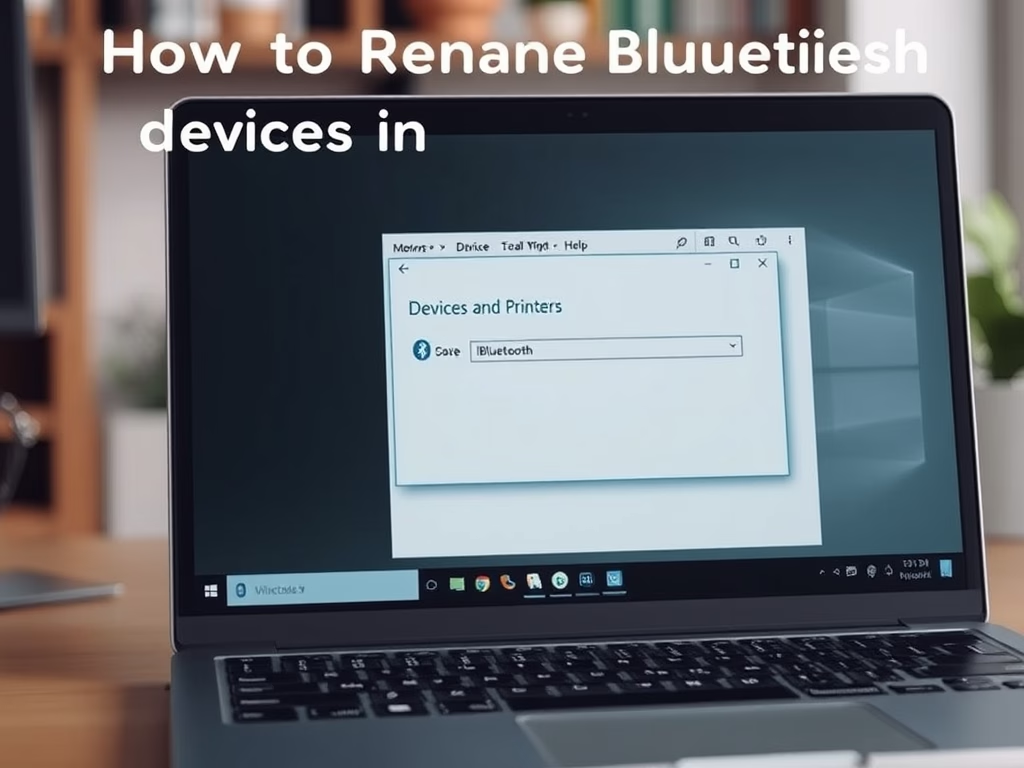
How to Rename Bluetooth Devices in Windows 11

Bluetooth enables wireless connections between devices like headphones and PCs. Renaming Bluetooth devices in Windows 11 enhances organization and helps differentiate similar devices. The process involves accessing Devices and Printers, locating the device, changing its name in Properties, and saving the changes. Restarting the device can ensure the new name appears.

Windows 3 min read
How to Enable or Disable Dev Drive in Windows 11

This guide explains how to enable or disable the Dev Drive feature in Windows 11, which creates a separate space for developers on the hard drive. Users can manage this feature through Windows Terminal, Group Policy Editor, or Registry Editor. Disabling it enhances security by preventing unnecessary drives.

Windows 3 min read
How to Add or Remove Recycle Bin to Windows 11 File Explorer

This guide demonstrates how to add the Recycle Bin to the Windows 11 File Explorer side menu, enhancing access to deleted files while keeping the desktop tidy. It involves editing the Windows Registry, ensuring functionality through proper steps, and restarting the PC. Once added, the Recycle Bin is readily available for use.

Windows 2 min read
How to Reset Windows Search in Windows 11

Windows Search allows for quick file and app retrieval but may experience issues like slow performance or no results. To resolve this, a reset using a provided script can be performed without losing personal files. Post-reset, search indexing may take time to restore normal functionality. For more guidance, visit Microsoft Support.

Windows 3 min read
How to Show or Hide Empty Drives in Windows 11

Windows 11 hides empty drives, such as unused USB sticks or SD cards, by default to streamline File Explorer. Users can easily choose to show or hide these drives through Settings or File Explorer Options, allowing for a more organized interface or quicker access to empty storage for file management purposes.

Windows 2 min read
How to Enable or Disable Device Discovery in Windows 11

This guide explains how to enable or disable Device Discovery in Windows 11, which allows your PC to be found by other devices on the same network and activates SSH services for secure connections. Users can use the Settings app for an easy method or the Registry Editor for advanced changes, ensuring safety on trusted networks.

Windows 3 min read
How to Secure Your Windows 11 Device Portal

Windows 11's Device Portal allows users to manage and troubleshoot their device via a web browser. To enhance security, users can restrict access to only their own computer by enabling loopback connections. This prevents remote access, offering protection against unauthorized users while maintaining the ability to control the device locally.

Windows 1 min read
How to Use Storage Sense in Windows 11

Storage Sense in Windows 11 automatically cleans up your computer by deleting unnecessary files, such as temporary items and old downloads. You can schedule it to run regularly or execute it manually. Regular use can enhance your PC's performance by ensuring sufficient free space. For more tips, visit Geek Rewind.

Windows 3 min read
How to Enable Retail Demo Mode in Windows 11

This guide explains how to enable or disable Retail Demo Mode in Windows 11, designed for displaying PCs in stores. It allows customers to experience Windows features easily. For personal use, it's recommended to keep this mode turned off. Clear steps are provided for both enabling and removing the mode.

Exit mobile version