How to Reset Windows Search in Windows 11

Experiencing missing search results or slow performance in Windows 11? Resetting Windows Search can help.
Resetting Windows Search rebuilds the search index, ensuring it functions correctly without deleting any personal files or data on your computer.
This process is crucial when everyday fixes don’t work, like when Windows Search can’t find documents you’ve just saved or applications you’ve installed.
For example, if your Windows 11 search bar isn’t returning relevant results even after a system restart, a search index reset is often the most effective solution.
Reset Windows Search by downloading Microsoft’s reset script. Open Windows Terminal as administrator, then run the script using the command: PowerShell -ExecutionPolicy Unrestricted -File “”. Confirm by typing R and pressing Enter to rebuild the search index.
Steps to Reset Windows Search
Step 1 Download the Reset Script
Microsoft provides a small program, known as a script, to reset Windows Search. Click the link below to download it:
Download ResetWindowsSearchBox.ps1
Select your language and save the file to your Desktop or Downloads folder.
Step 2Open Windows Terminal as Administrator
To reset Windows Search, you’ll need to open Windows Terminal with administrator rights, which gives it the special permissions needed to make changes.
You need to run the script with special permissions (admin rights). To do this:
- Click the Start button or press the Windows key.
- Type Windows Terminal.
- Right-click on Windows Terminal and choose Run as administrator.
- If you want, you can also open Windows Terminal with admin rights by following this guide.
Step 3Run the Reset Script
Now that Windows Terminal is open as an administrator, you can run the reset script by typing the specific command and the file’s location.
PowerShell -ExecutionPolicy Unrestricted -File "<Full path of ResetWindowsSearchBox.ps1 file>"For example, if your file is in Downloads and your username is User01, type:
PowerShell -ExecutionPolicy Unrestricted -File "C:\Users\User01\Downloads\ResetWindowsSearchBox.ps1"Step 4Confirm Running the Script
When you see a prompt, type R and press Enter to start the reset.
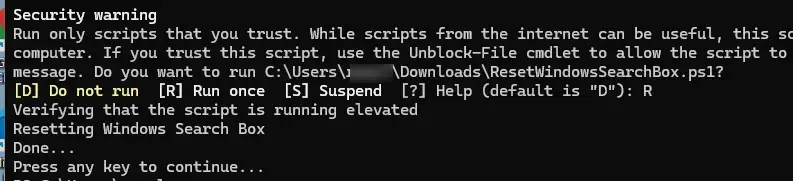
Once the script is done, Windows Search will be reset. You might notice it takes a little time to start working normally again as it rebuilds the search index.
Why Reset Windows Search?
- Fixes problems like no search results showing up.
- Improves slow or laggy search performance.
- Corrects wrong or missing suggestions.
Important Notes
- You must run the script as an administrator to reset Windows Search.
- Resetting will not delete your personal files.
- The search might feel a bit slow right after resetting because Windows is rebuilding the search database.
Where to Learn More
For official details and troubleshooting tips, visit Microsoft Support – Fix Windows Search Problems.
Need Help?
If you get stuck or have questions, please leave a comment below or ask someone you trust for help.
Summary
Resetting Windows Search is a helpful way to fix problems like slow performance or search not working, and it’s safe for your files.
How to clear Windows Search?
So what you can do is disable this particular feature. That way, your history is not stored locally on this device. Then you have this button of clear device search history.
Was this guide helpful?

About the Author
Richard
Tech Writer, IT Professional
Richard, a writer for Geek Rewind, is a tech enthusiast who loves breaking down complex IT topics into simple, easy-to-understand ideas. With years of hands-on experience in system administration and enterprise IT operations, he’s developed a knack for offering practical tips and solutions. Richard aims to make technology more accessible and actionable. He's deeply committed to the Geek Rewind community, always ready to answer questions and engage in discussions.



No comments yet — be the first to share your thoughts!