How to Enable or Disable Dev Drive in Windows 11

This guide will help everyday Windows 11 users understand how to enable or disable the Dev Drive feature on their computer.
You can enable or disable Dev Drive in Windows 11 using Windows Terminal, Local Group Policy Editor, or Registry Editor. Open the desired tool as administrator and use the specific commands or settings to turn the feature on or off. Changes may require a restart.
What is Dev Drive?
Dev Drive is a special space in Windows 11 for your development work, keeping your coding tools and files separate from your main computer files.
Why use Dev Drive? It keeps your development work separate from your everyday files. What happens when you use it? Your coding projects stay organized and protected in their own dedicated area.
If you’re not a developer or want to prevent others from creating this special drive on your computer, you can turn this feature off. This can also help keep your computer more secure.
How to Turn Dev Drive On or Off
There are three ways to enable or disable the Dev Drive feature on your Windows 11 PC:
1Using Windows Terminal
You can turn Dev Drive on or off using the Windows Terminal by running it as an administrator and typing a simple command.
To turn on Dev Drive, type this command and press Enter:
fsutil devdrv enableTo turn off Dev Drive, type this command and press Enter:
fsutil devdrv disable2Using Local Group Policy Editor
The Local Group Policy Editor lets you control Dev Drive settings, allowing you to turn it on or off by changing a specific option in the system settings.
In the editor, navigate to:
Computer Configuration > Administrative Templates > System > FilesystemFind ‘Enable dev drive’ on the right side and double-click it.
You’ll see a few options:
- Not Configured – This is the default setting.
- Enabled – Allows Dev Drive and lets antivirus work on it.
- Disabled – Stops users from creating new Dev Drives.
Click OK to confirm your selection.
Tip: You might need to restart your computer for the change to take effect.
3Using Windows Registry Editor
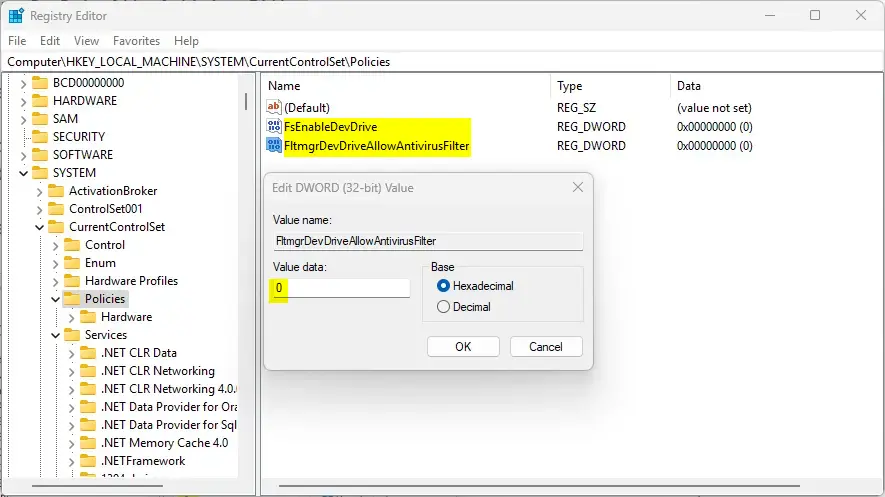
You can manage Dev Drive settings directly in the Windows Registry Editor by finding and changing specific values related to its function.
Navigate to this folder:
HKEY_LOCAL_MACHINE\SYSTEM\CurrentControlSet\PoliciesLook for these two values in the right pane:
- FsEnableDevDrive
- FltmgrDevDriveAllowAntivirusFilter
If they don’t exist, right-click an empty space, select “New” > “DWORD (32-bit) Value,” and create both names exactly as shown.
Double-click each one and set the value to:
- 0 to disable Dev Drive.
- 1 to enable Dev Drive.
Close Registry Editor and restart your PC to apply changes.
Summary
You can easily turn Dev Drive on or off using Windows Terminal, Group Policy Editor, or the Registry Editor, depending on which method you find easiest.
Turning off Dev Drive can help keep your computer safer by preventing unwanted special drives from being created. This is useful if you share your computer with others or don’t need the feature.
Admins or everyday users can follow these steps, choosing the method that feels most comfortable. Windows Terminal is the quickest option if you’re familiar with the command line. Group Policy Editor and Registry Editor are good choices if you prefer a visual interface.
If you have any questions or want to share your experience, feel free to leave a comment below!
How to use dev drive on 🪟 Windows 11?
You can use an existing piece of disk space like an empty partition for your drive. Or you can take space left over by resizing an existing partition.
How do I enable Dev drive policy?
Navigate to Computer Configuration > Administrative Templates > System > Filesystem and enable the ‘Enable dev drive’ policy. Note that the optional antivirus filter setting ensures that antivirus protection remains active on Dev Drives, even if local administrators attempt to detach it.
Should I use Dev drive?
This helps you more easily identify what applies to you and assists in making those changes. For more information, go to our learn documentation and check out Dev Home.
Was this guide helpful?

About the Author
Richard
Tech Writer, IT Professional
Richard, a writer for Geek Rewind, is a tech enthusiast who loves breaking down complex IT topics into simple, easy-to-understand ideas. With years of hands-on experience in system administration and enterprise IT operations, he’s developed a knack for offering practical tips and solutions. Richard aims to make technology more accessible and actionable. He's deeply committed to the Geek Rewind community, always ready to answer questions and engage in discussions.



No comments yet — be the first to share your thoughts!