How to Add Repository Folders in Windows 11

You add repository folders in Windows 11 to view version control details directly within File Explorer.
Repository folders are specific directories on your computer that house project files managed by version control systems like Git. This integration allows you to see crucial information, such as branch names and last commit dates, without leaving your file browsing environment.
This capability, integrated into Windows 11 builds 22621 and later, streamlines your development workflow by placing essential project status indicators right where you need them.
Open Settings, navigate to System > Advanced > File Explorer, and click ‘Choose folder’ in the File Explorer + version control section. Select your Git project directories to add them.
How to Add or Remove Repository Folders in File Explorer
You can add repository folders to Windows 11 File Explorer by opening Settings, going to System > Advanced > File Explorer, and then clicking ‘Choose folder’ to pick your project directories.
- Open the Settings app:
- Click the Start menu and choose Settings, or
- Press Windows key + I on your keyboard to open Settings quickly.
- In Settings, click System on the left side.
- On the right, scroll down and click the Advanced tile to open it.
Windows 11 system advanced tile in Settings - Now, click on the File Explorer tile under Advanced settings.
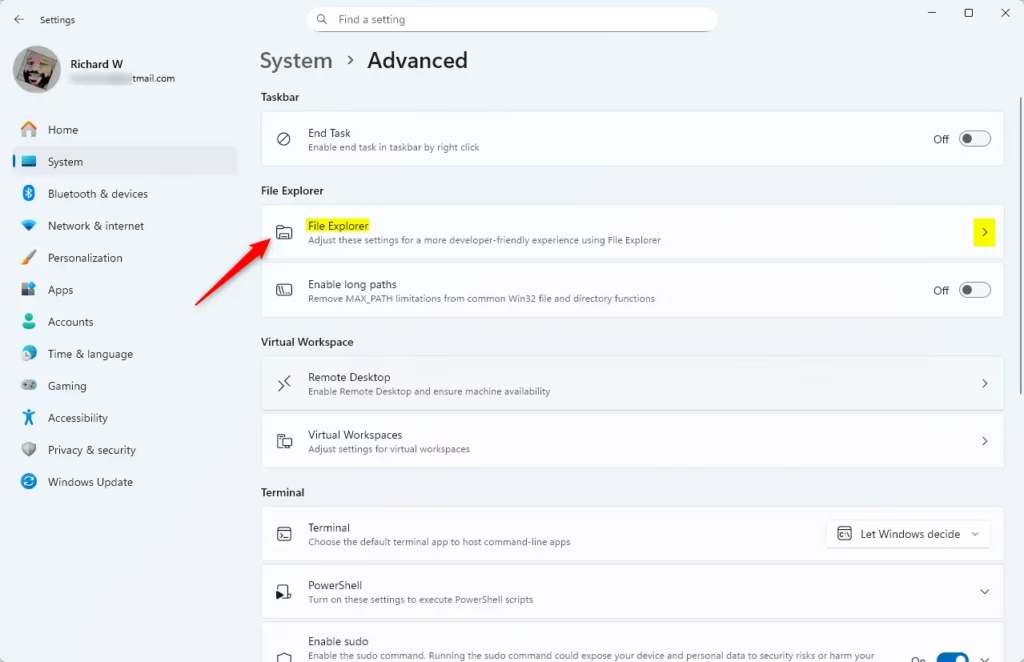
File Explorer tile in Advanced settings - Look for the section called File Explorer + version control. Click the Choose folder button.
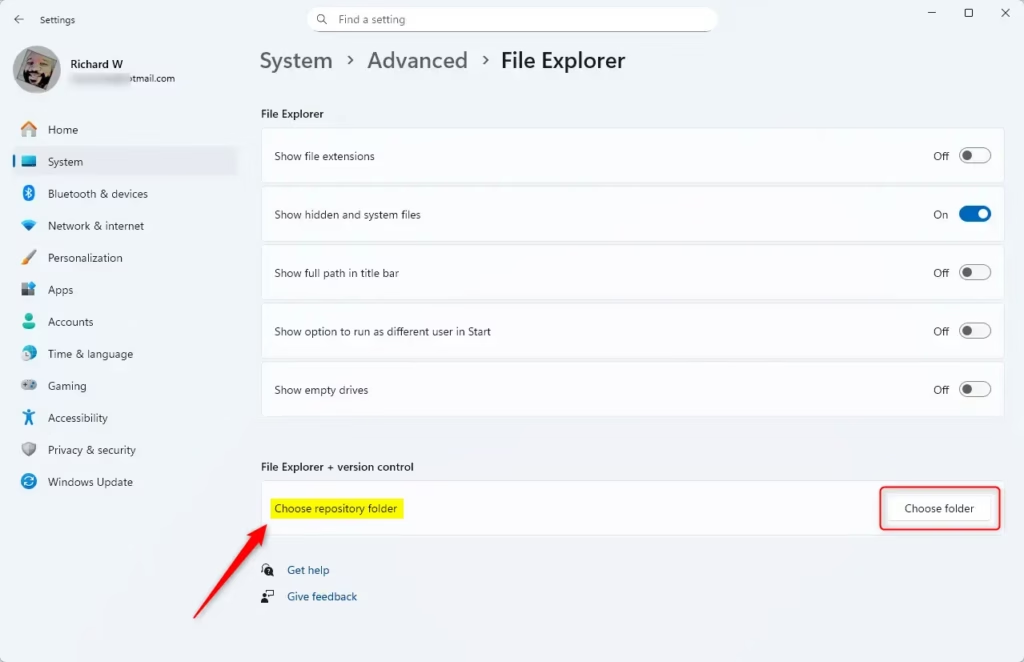
File Explorer choose folder - In the window that opens, find and select the folder where your project (repository) is stored, then click Select Folder.
- Your chosen folders will show up in this list. To remove a folder, click the three dots More options next to the folder name, then click Remove.
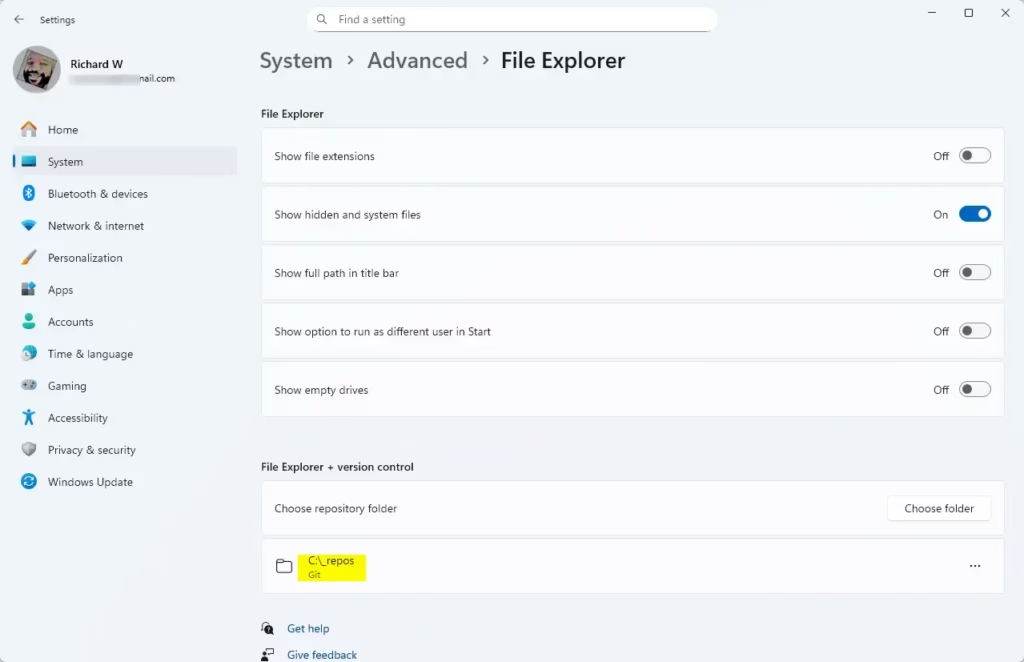
File Explorer folder selected - When done, just close the Settings app.
That’s it! Now, your repository folders will show version control info directly in File Explorer, making it easier to work on your projects.
Why Use This Feature?
- See Git info right inside File Explorer: No need to open separate apps to check branches or last changes.
- Easy folder access: Your project folders are easy to find and manage alongside other files.
- Customize your list: Add or remove folders anytime to keep things organized.
- Simple interface: It’s all done in the familiar File Explorer and Settings app.
- Better teamwork: Quickly check commit messages and author info, helping you collaborate smoothly.
Adding repository folders to File Explorer in Windows 11 lets you see Git information like branches and recent changes right where you manage your files, without needing to open other programs.
Managing your projects and version control has never been easier with Windows 11!
Summary
Adding repository folders to Windows 11 File Explorer helps you see version control details directly in File Explorer, avoiding the need to open extra apps for your project information.
What is the difference between a folder and a repository?
For example, you can think of a repository as a project folder in the cloud. Like a folder on your computer, it holds all your files in one place.
Where is the file repository folder?
Windows keeps a copy of every driver you install in a place called the Driver Store. It is located in “📁C:\Windows\System32\DriverStore\FileRepository”. Note: It is not suggested to delete drivers from the folder as deleting an incorrect driver might lead to instability and issues within PC.
Was this guide helpful?

About the Author
Richard
Tech Writer, IT Professional
Richard, a writer for Geek Rewind, is a tech enthusiast who loves breaking down complex IT topics into simple, easy-to-understand ideas. With years of hands-on experience in system administration and enterprise IT operations, he’s developed a knack for offering practical tips and solutions. Richard aims to make technology more accessible and actionable. He's deeply committed to the Geek Rewind community, always ready to answer questions and engage in discussions.




No comments yet — be the first to share your thoughts!