How to Enable or Disable Content Adaptive Brightness in Windows 11

This guide shows you how to turn the Content Adaptive Brightness feature on or off in Windows 11.
What Is Content Adaptive Brightness?
Content Adaptive Brightness, often called CABC (Content Adaptive Brightness Control), is a feature on many laptops and tablets. It analyzes the images or videos on your screen and changes the brightness and contrast to save power.
Why? It helps your battery last longer by dimming the screen during dark scenes.
What happens when done? Your screen will maintain a steady brightness level, preventing annoying flickering or shifting when you switch between light and dark windows.
How to Disable Content Adaptive Brightness in 🪟 Windows 11
Follow these steps to turn off this feature. Note: You must have administrative rights to change system-wide display settings.
Step 1: Open Windows Settings
Press Windows key + I on your keyboard. This opens the Settings app. Alternatively, click the Start button and select the gear icon.

Step 2: Navigate to Display Settings
Click System in the left menu, then select Display.

Step 3: Adjust Brightness Settings
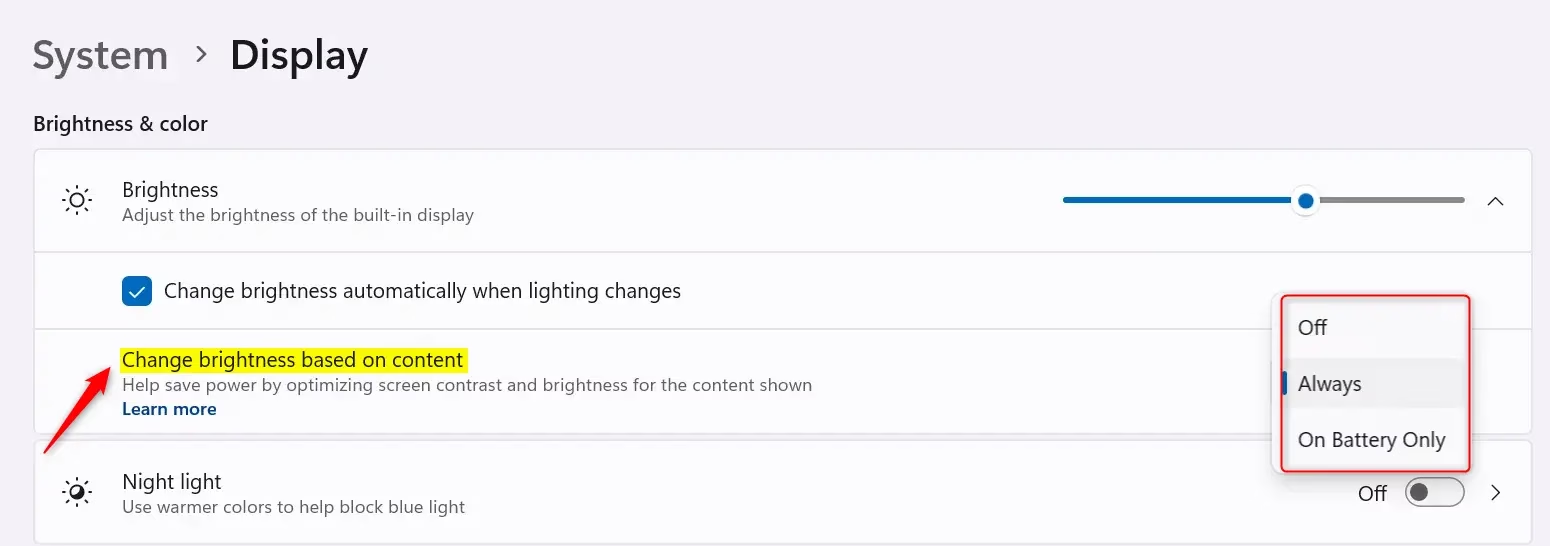
Look for Brightness & color. Find the option labeled Automatically adjust contrast based on the display content to help improve battery. Click the dropdown or checkbox to set it to Off.
Troubleshooting: When the Toggle Is Missing
If you do not see this option, your hardware might not support it, or your display drivers are outdated. First, visit your manufacturer’s website to download the latest display drivers. If the issue persists, you may need to use the Registry Editor.
Registry Fix (Admin Privileges Required)
Warning: Editing the registry can cause system issues if done incorrectly. Proceed with caution.
- Press
Windows key + R, typeregedit, and hit Enter. - Navigate to:
HKEY_LOCAL_MACHINE\SYSTEM\CurrentControlSet\Control\Class\{4d36e968-e325-11ce-bfc1-08002be10318}\0000 - Look for a key named
FeatureTestControl. - Double-click it and change the value to
f008orf000to disable power-saving features.
Graphics Control Panel Overrides
Sometimes, Intel or AMD software overrides Windows settings. Open the Intel Graphics Command Center or AMD Radeon Software. Look for Display Power Saving Technology or Vari-Bright and disable them to stop screen dimming.
🪟 Windows 10 vs 🪟 Windows 11
Windows 11 has a dedicated toggle in Settings. Windows 10 users often have to rely on the Power Options menu in the Control Panel or the specific graphics driver software mentioned above.
Summary
Content Adaptive Brightness is designed to save battery by adjusting your screen based on what you are viewing. While helpful, it can cause distracting brightness shifts. You can disable it via Settings > System > Display. If the option is missing, check your graphics software or registry settings. Turning it off provides a consistent viewing experience at the cost of slight battery efficiency.” }
Is Content Adaptive Brightness the same as Auto Brightness?
No. Auto brightness uses a light sensor to adjust screen brightness based on your room’s lighting. Content Adaptive Brightness analyzes the actual images on your screen to adjust contrast and brightness, regardless of the light in your room.
Does disabling adaptive brightness affect battery life?
Yes, disabling it may slightly reduce your battery life. Because the screen will no longer dim during dark content, it will consume more power. However, the impact is usually minimal for most users compared to the benefit of a consistent display.
Was this guide helpful?
hey i did that but it still dims and brightens sporadically, any ideas? Have no 3rd party tools papplied
Also did this and it still increases brightnes on it’s own after lifting laptop lid and at lockscreen. Very annoying
No fixes that I found anywhere stopped the dimming.
Boot your pc in BIOS and go to the video section
Look for something similar to ‘adaptive brightness’
On my Dell there was an eco setting for the battery which was on
I turned it off, rebooted and no more annoying dimming screen!
There is no check box: “Automatically adjust contrast based on the display content to help improve battery” in the brightnes only slider!
[…] even more advanced PCs, there might also be an option for Windows to adjust the screen brightness and contrast based on the content displayed on your built-in […]